3DEXPERIENCE Platform Security: 6 Essential Pillars

BLOG

3DEXPERIENCE Platform Security: 6 Essential Pillars

[techtips_featured_image_shortcode]

When engineering teams move product data and collaboration workflows to the cloud, one question inevitably comes up:

How secure is our data?

For organizations managing intellectual property, engineering designs and other sensitive information, cloud security is about much more than preventing unauthorized access. It also involves privacy, regulatory requirements, service availability, software quality and the responsible use of artificial intelligence.

Dassault Systèmes addresses these concerns through six areas highlighted in its Trust Center: Security, Regulatory Compliance, Quality, Privacy, Availability and Trusted AI.

These six pillars work together to create a broader framework for customer trust. At the same time, security in the cloud follows a shared responsibility model: Dassault Systèmes protects the platform and its underlying infrastructure, while customers remain responsible for how they configure and use the environment.

This article summarizes the key concepts discussed during our webinar on artificial intelligence, cloud computing and security on the 3DEXPERIENCE platform.

At a Glance: How Does 3DEXPERIENCE Approach Security?

The 3DEXPERIENCE platform’s cloud security approach combines security-by-design practices, vulnerability testing, incident response, privacy controls, quality management, resilient infrastructure and Trusted AI principles.

However, moving to the cloud doesn’t mean an organization can stop thinking about security.

Customers still need to manage their users, permissions, devices and data appropriately. Understanding where the provider’s responsibilities end, and where the customer’s responsibilities begin, is one of the most important parts of evaluating any cloud platform.

The Shared Responsibility Model

Before looking at the six pillars, it’s important to understand one fundamental concept: cloud security is a shared responsibility.

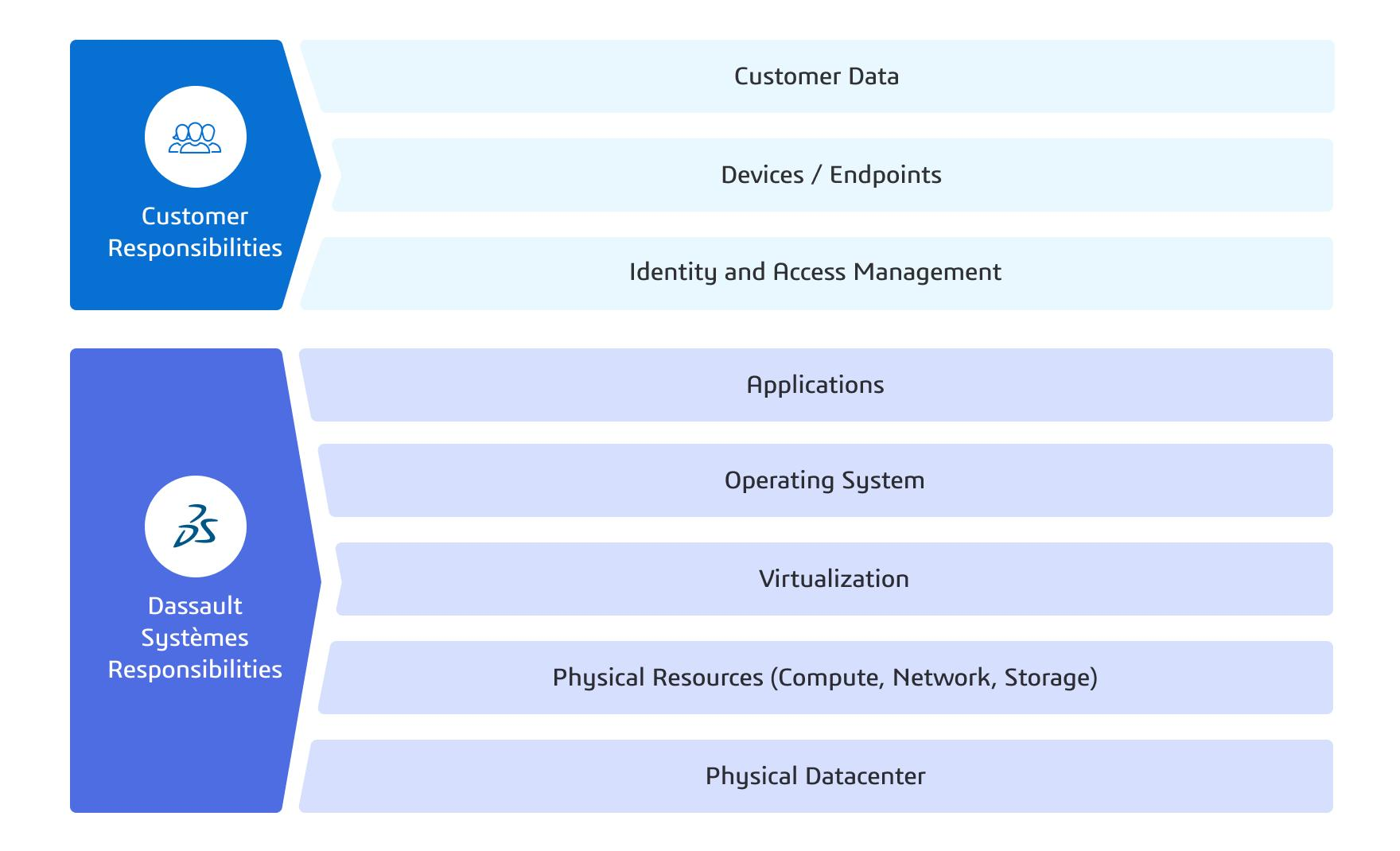
Dassault Systèmes’ Shared Responsibility Model defines the respective responsibilities of Dassault Systèmes and its customers for operational security and compliance.

Customer responsibilities include:

  • Customer data

  • Devices and endpoints

  • Identity and access management

Dassault Systèmes responsibilities include:

  • Applications

  • Operating systems

  • Virtualization

  • Physical resources such as compute, network and storage

  • Physical datacenters

The shared responsibility model

In practical terms, Dassault Systèmes is responsible for protecting the cloud service and the infrastructure that supports it. The customer remains responsible for deciding who should have access to its data, assigning appropriate permissions and securing the devices used to connect to the platform.

This distinction is critical.

A highly secure cloud platform cannot prevent an organization from giving a user more access than they need or failing to remove a former employee’s access.

The 6 Pillars of 3DEXPERIENCE Trust

1. Security

Security is the first layer that most organizations think about when evaluating a cloud platform—and for good reason.

Dassault Systèmes describes its approach as security by design, meaning security requirements are integrated into the software development and operational lifecycle rather than being added after the fact.

The security program includes measures such as:

  • Secure software development practices

  • Continuous threat monitoring

  • Vulnerability management

  • Static and dynamic application security testing (SAST and DAST)

  • Software composition analysis

  • Penetration testing

  • A private bug bounty program

  • Incident response through the Dassault Systèmes Computer Security Incident Response Team (CSIRT)

The 3DEXPERIENCE platform on the cloud also has security certifications and assessments, including ISO/IEC 27001:2022 and ISO/IEC 27017:2015 certifications.

The goal isn’t to rely on a single security mechanism, but to use multiple layers of protection throughout the platform lifecycle.

2. Regulatory Compliance

Security and compliance are closely related, but they aren’t the same thing.

Organizations operating in industries such as aerospace, automotive, life sciences, medical devices or other regulated environments may have specific requirements for how information is stored, processed and managed.

The Dassault Systèmes Trust Center provides information about applicable certifications, regulatory requirements and compliance programs. Current resources include information related to regulations such as the EU Data Act, NIS2, the Cyber Resilience Act and DORA.

However, there’s an important distinction:

A vendor’s certification does not automatically make a customer compliant.

Organizations still need to determine which requirements apply to their own industry, jurisdiction and processes, and then configure and use the platform accordingly.

The Trust Center is therefore an important resource for IT, security, legal, quality and compliance teams evaluating 3DEXPERIENCE.

3. Quality

Security isn’t the only factor that determines whether a cloud platform can be trusted.

Software quality, development practices and continuous improvement also play an important role.

Dassault Systèmes maintains a Quality Management System (QMS) designed to embed quality throughout the software development lifecycle. The QMS governing the 3DEXPERIENCE platform is certified to ISO 9001:2015 for activities including design, development, deployment, cloud operations and support.

For organizations operating in regulated environments, quality management can also support requirements around validation, traceability and controlled processes.

In other words, trust isn’t simply about keeping unauthorized users out. It’s also about having structured processes designed to deliver reliable software and continuously improve it.

4. Privacy

Security protects information from unauthorized access, while privacy focuses on how personal information is collected, processed and managed.

Dassault Systèmes maintains a Data Privacy Program that includes dedicated governance, employee training and technical and organizational measures. The 3DEXPERIENCE platform on the cloud is also certified to ISO/IEC 27701:2019 for privacy information management and ISO/IEC 27018:2019 for controls related to personally identifiable information in public cloud services.

Privacy requirements can vary depending on the type of information involved and the jurisdictions in which an organization operates.

For that reason, companies should consider questions such as:

  • What personal information is being processed?

  • Why is it being collected?

  • Who has access to it?

  • Where is it processed?

  • Which privacy regulations apply?

Understanding these questions is particularly important when engineering organizations collaborate with customers, suppliers or other external stakeholders.

5. Availability

Security is only useful if your team can access the platform when it needs to.

3DEXPERIENCE cloud availability relies on cloud operations, monitoring, resilient infrastructure and redundancy mechanisms designed to support service continuity. Dassault Systèmes also provides customers with access to cloud status and maintenance information through the Health Console.

The platform’s infrastructure is distributed across multiple geographic regions, with 3DEXPERIENCE data centers listed across the Americas, Europe and Asia-Pacific.

Availability is also another example of shared responsibility.

A cloud provider can maintain resilient infrastructure, but customers still need to consider their own internet connectivity, endpoint devices, authentication processes and internal business continuity procedures.
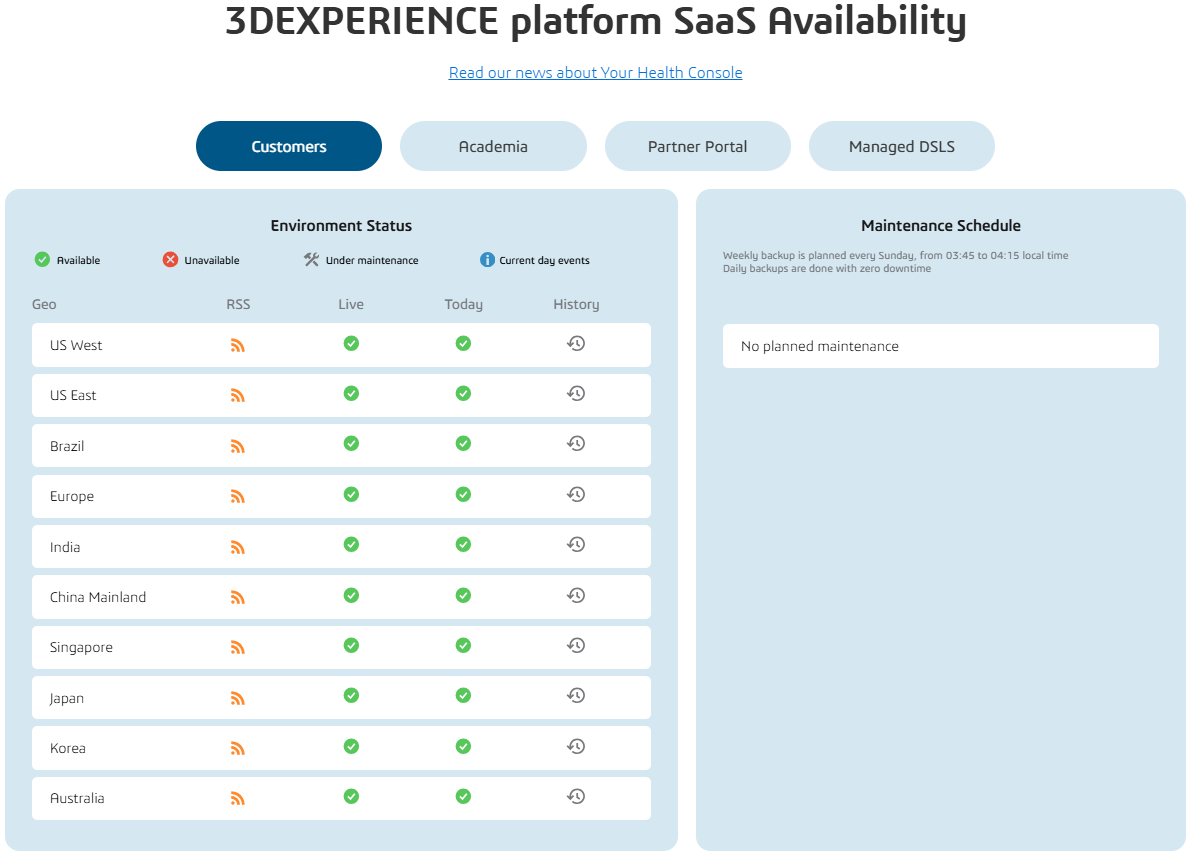
3DEXPERIENCE cloud availability

6. Trusted AI

Artificial intelligence introduces another dimension to the question of trust.

As AI becomes increasingly integrated into engineering and collaboration workflows, organizations need to understand not only what AI can do, but also how it is governed.

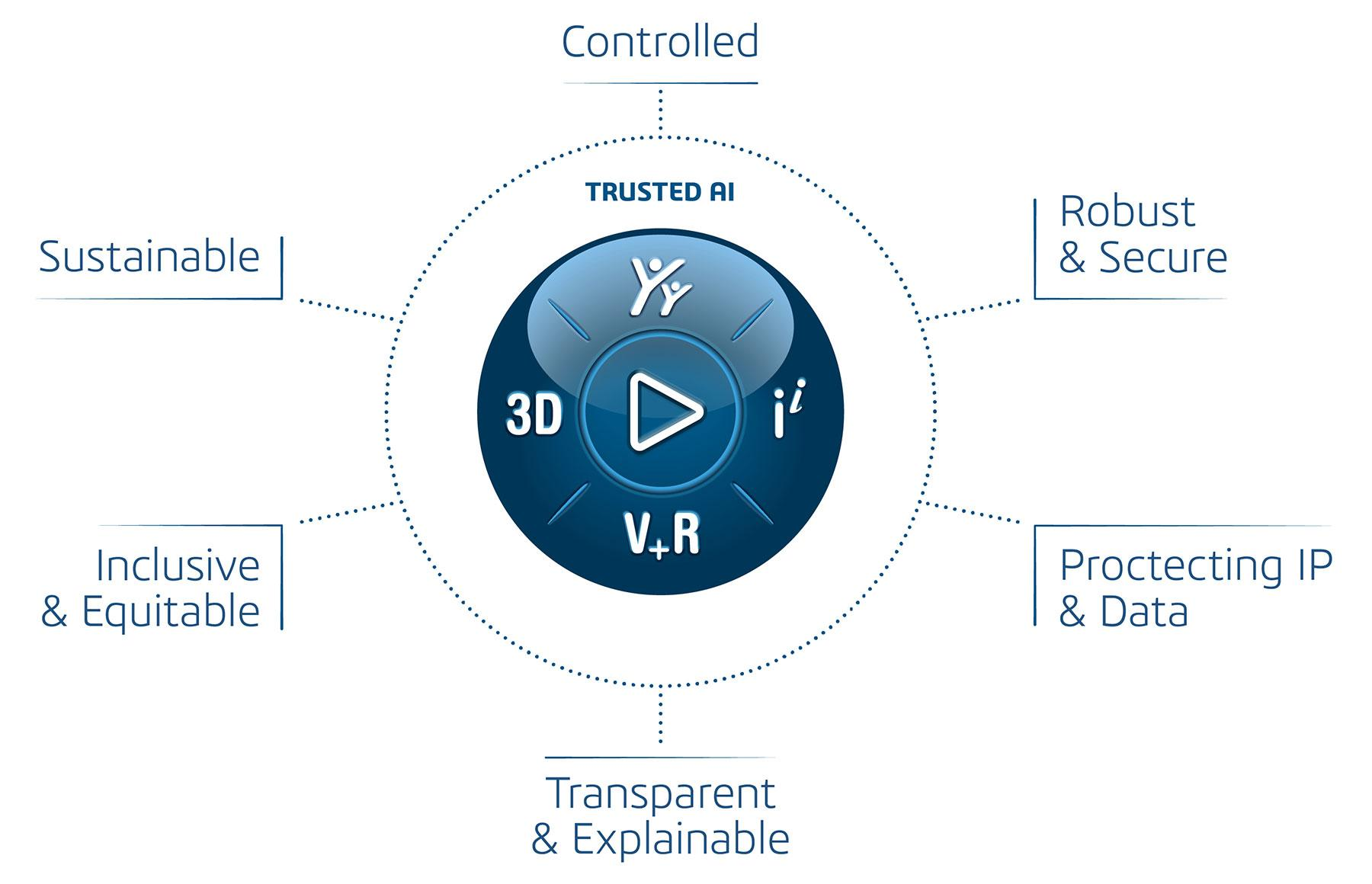
Dassault Systèmes’ Trusted AI approach is based on six principles:

  • Human supervision and control

  • Robustness, security and privacy

  • Intellectual property and data protection

  • Transparency and explainability

  • Inclusivity and equity

  • Sustainability

Dassault Systèmes' Trusted AI approach is based on six principles:

The emphasis on human supervision is particularly relevant for engineering.

AI can assist with tasks such as finding information, summarizing content, automating selected activities and supporting decision-making. However, users remain responsible for reviewing and validating the results appropriate to their use case.

Dassault Systèmes also publishes documentation describing the intended purpose of individual AI-based functionalities, providing greater transparency about how AI is incorporated into its solutions.

What about customer data and AI?

This is one of the most important questions organizations should ask when evaluating AI features.

Rather than making a blanket assumption about how customer information is handled, organizations should review the specific AI functionality, applicable contractual terms, data governance documentation and hosting environment involved.

Dassault Systèmes states that its AI capabilities are governed through privacy-by-design and security-by-design principles, with controls intended to protect confidentiality, integrity and intellectual property.

Because AI functionality and terms can evolve, reviewing the current documentation for the specific capability being deployed is the best way to evaluate how your organization’s data will be handled.

Why Does This Matter to Small and Mid-Sized Businesses?

Security can be particularly challenging for small and mid-sized organizations.

Maintaining an on-premises infrastructure requires resources for servers, operating system updates, security patches, backups, monitoring, access management and incident response.

Moving to a cloud platform doesn’t eliminate those responsibilities entirely, but it changes where they sit.

A cloud provider can take responsibility for a significant portion of the underlying infrastructure and operational security. The customer can then focus its resources on the areas it directly controls, such as:

  • User identities and permissions

  • Data governance

  • Endpoint security

  • Employee awareness

  • Internal procedures

  • Business continuity

This division of responsibility can be an important consideration when comparing cloud and on-premises environments.

10 Questions to Ask Before Adopting 3DEXPERIENCE Cloud

Before moving engineering data to the cloud, organizations should consider:

  • What types of data will be stored on the platform?

  • Who should be able to view, modify or share that data?

  • How will user roles and permissions be managed?

  • How will access be reviewed and removed when employees leave?

  • Are appropriate security measures enabled on user devices?

  • Which regulatory or certification requirements apply to our organization?

  • Where will our data be hosted and processed?

  • Which AI capabilities do we plan to use?

  • What contractual and data governance terms apply to those AI capabilities?

  • Have our IT, security, legal and quality teams reviewed the relevant Trust Center documentation?

These questions can help turn a general discussion about “cloud security” into a practical evaluation of your organization’s actual requirements.

Building Trust in Cloud-Based Engineering

3DEXPERIENCE security isn’t based on a single feature or certification.

It is the result of multiple technical, organizational and governance practices working together, from secure software development and vulnerability testing to privacy, quality management, resilient infrastructure and responsible AI.

Just as importantly, security is a shared responsibility.

The better question isn’t simply:

“Is the cloud secure?”

Instead, organizations should ask:

“What protections does the provider implement, what responsibilities remain with us, and how will we manage our data and users every day?”

Understanding those responsibilities is the first step toward making an informed decision about cloud-based engineering.

Want to evaluate how 3DEXPERIENCE could fit into your organization’s security, collaboration and data management requirements? Contact the Solidxperts team to discuss your environment and requirements.

FAQ

Is the 3DEXPERIENCE platform secure?

The platform uses multiple security measures, including security-by-design practices, vulnerability testing, threat monitoring, incident response and resilient cloud infrastructure. However, overall security also depends on how customers manage their users, data, devices and access rights.

Who is responsible for security in 3DEXPERIENCE Cloud?

Security follows a shared responsibility model. Dassault Systèmes is responsible for the applications and underlying cloud infrastructure, while customers remain responsible for their data, devices/endpoints and identity and access management.

Does Dassault Systèmes perform vulnerability testing?

Yes. Its security program includes SAST, DAST, software composition analysis, penetration testing and a private bug bounty program.

Can 3DEXPERIENCE support regulated organizations?

The platform and Dassault Systèmes’ broader Trust Center include certifications, assessments and compliance resources that can support organizations with regulatory requirements. However, organizations must determine which requirements apply to their specific industry, region and use case.

Does AI replace the engineer?

No. Dassault Systèmes’ Trusted AI principles emphasize human supervision and control. AI is intended to support people and their decision-making, while appropriate human oversight remains important.

Where can I find more information about 3DEXPERIENCE security?

The Dassault Systèmes Trust Center provides current information about security, privacy, quality, regulatory compliance, availability and Trusted AI, including certifications, assessments and other resources.



Michael Habrich

3DEXPERIENCE Specialist

X_green_halo

Any questions? Need help? Ask one of our experts.

Whether you’re ready to get started or just have a few more questions, you can contact us toll-free:
    AI in SOLIDWORKS: What’s New in FD03

    BLOG

    AI in SOLIDWORKS: What’s New in FD03

    [techtips_featured_image_shortcode]

    SOLIDWORKS AI in FD03: Meet LEO, Your New Engineering Assistant

    Artificial Intelligence in SOLIDWORKS continues to evolve at an impressive pace. While FD02 introduced several AI-powered tools, FD03 changes the experience entirely by making AI conversational.

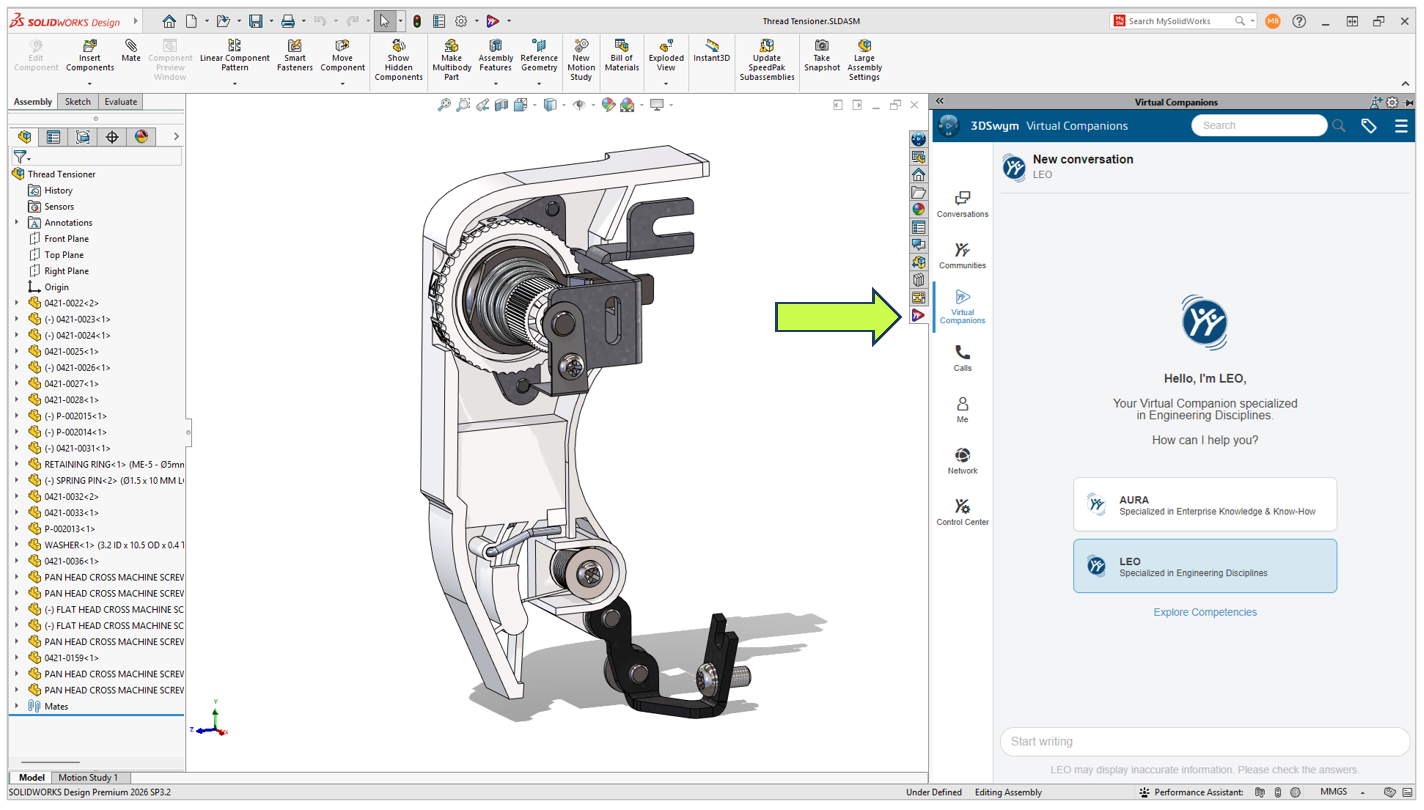
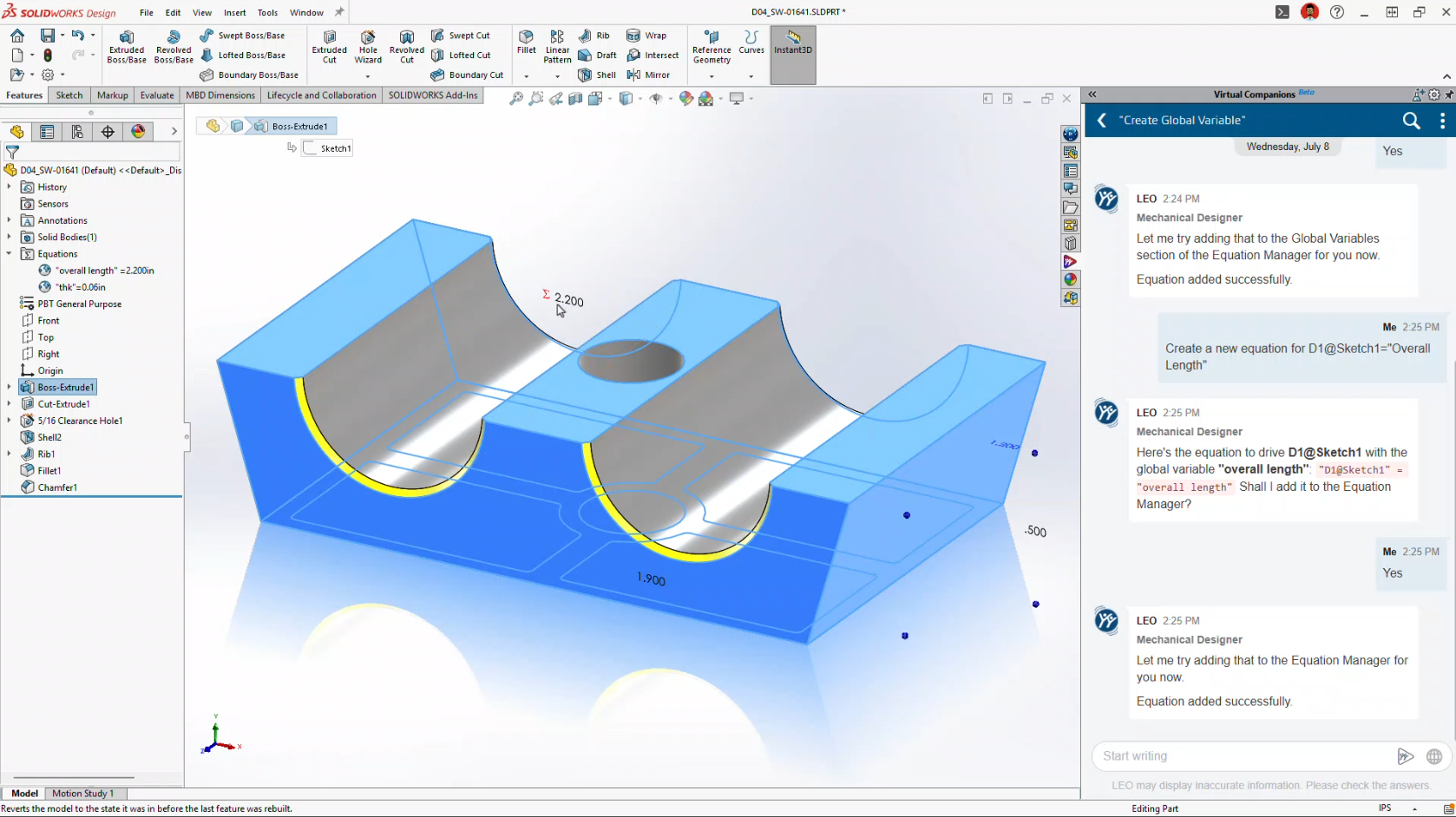
    Instead of opening separate commands or navigating multiple PropertyManagers, many of SOLIDWORKS’ newest AI capabilities are now accessed through LEO, the new SOLIDWORKS AI Virtual Companion.

    Meet LEO

    Think of LEO as an engineering assistant built directly into SOLIDWORKS. Rather than replacing engineers or making design decisions for you, it helps automate repetitive tasks, answer technical questions, and simplify complex workflows using natural language.

    Let’s take a look at everything that’s new in SOLIDWORKS FD03.

    LEO Is Becoming the New Way to Work in SOLIDWORKS

    One trend immediately stands out in FD03.

    Rather than adding another collection of disconnected AI tools, Dassault Systèmes is building a single conversational interface that ties everything together.

    Need to generate a macro?

    Ask LEO.

    Need to simplify an assembly?

    Ask LEO.

    Need to create a drawing?

    Ask LEO.

    Ask LEO.

    Instead of memorizing commands or digging through menus, you’re increasingly able to describe what you want using plain language.

    This isn’t about replacing engineering expertise. It’s about reducing the number of clicks between an idea and the result.

    Smarter CAD Editing with Intent to CAD

    One of the biggest improvements in FD03 is the continued evolution of Intent to CAD.

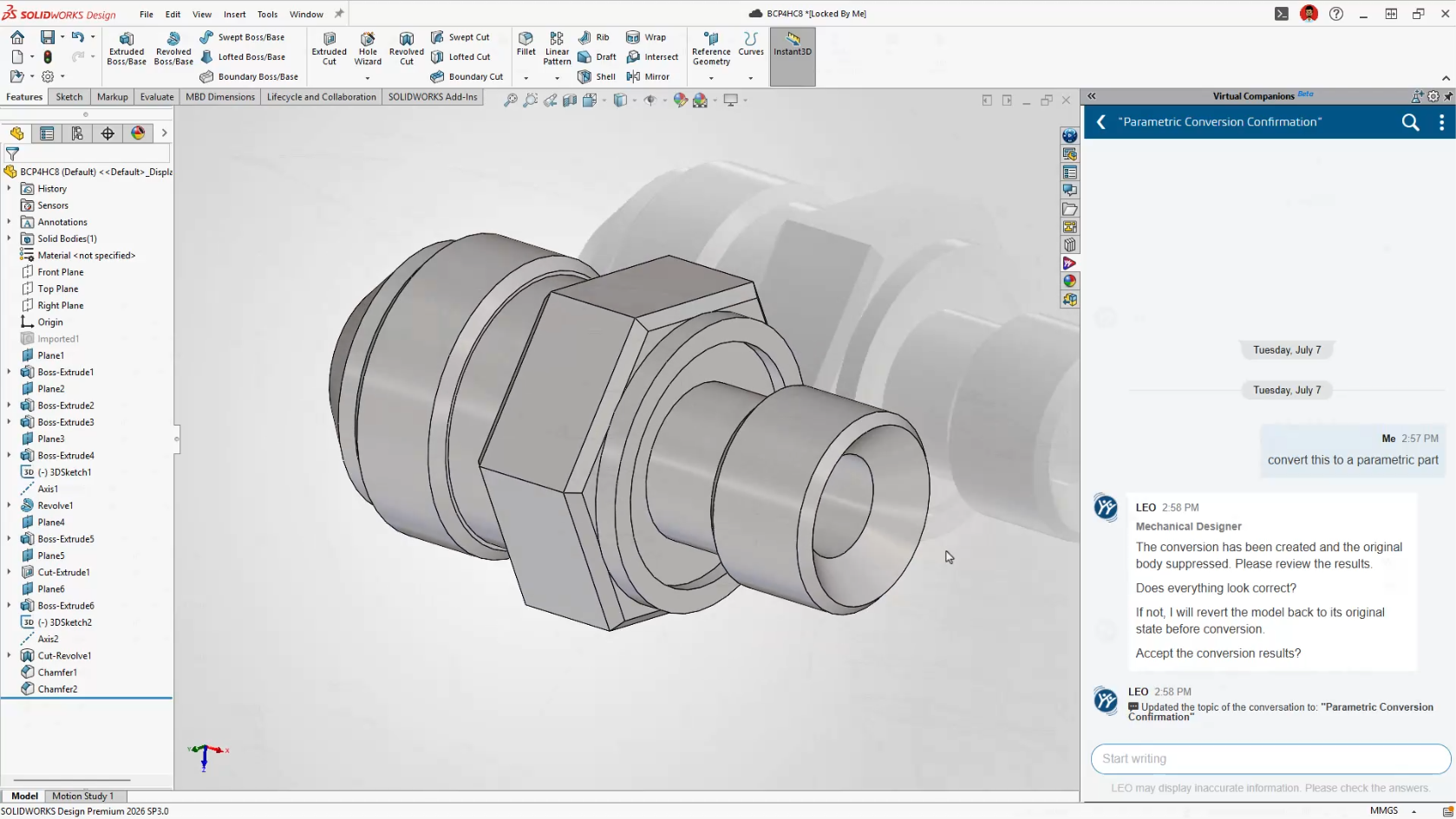
    The BREP to Parametric CAD capability introduced in FD02 is now integrated directly into LEO.

    Imported STEP and IGES files are often nothing more than non-parametric geometry, making them difficult to modify without manually rebuilding features.

    Now, simply ask LEO to convert imported geometry into an editable feature-based SOLIDWORKS model.

    This is particularly useful for:

    • Reverse engineering projects

    • Supplier CAD

    • Customer-supplied models

    • Legacy CAD data

    Instead of rebuilding models from scratch, engineers can begin making design changes almost immediately.

    Smarter CAD Editing with Intent to CAD

    Engineering Guidance Gets Much Smarter

    FD03 dramatically expands the number of engineering tasks LEO can assist with.

    Rather than acting like a search tool, LEO now becomes an active design assistant throughout the modeling process.

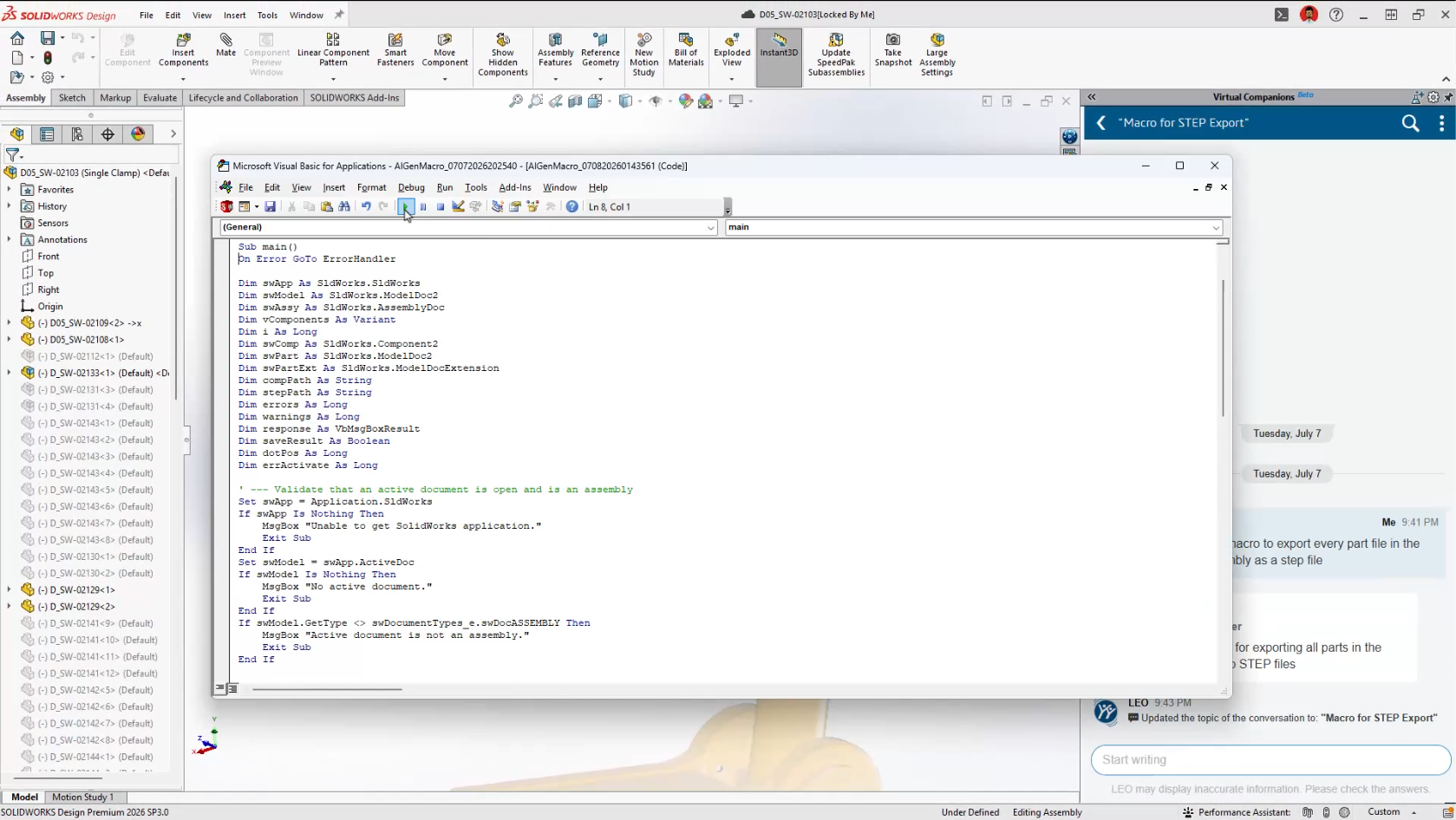
    Generate SOLIDWORKS Macros

    Automation has traditionally required knowledge of VBA programming.

    Now you simply describe the task you’d like to automate.

    Examples include:

    • Rename every configuration

    • Export every drawing sheet as a PDF

    • Rename selected files

    • Batch update custom properties

    LEO generates the VBA macro automatically and opens it directly in the editor, where you remain in complete control before running it.

    For many users, this will be their first practical introduction to SOLIDWORKS automation.

    Generate SOLIDWORKS Macros

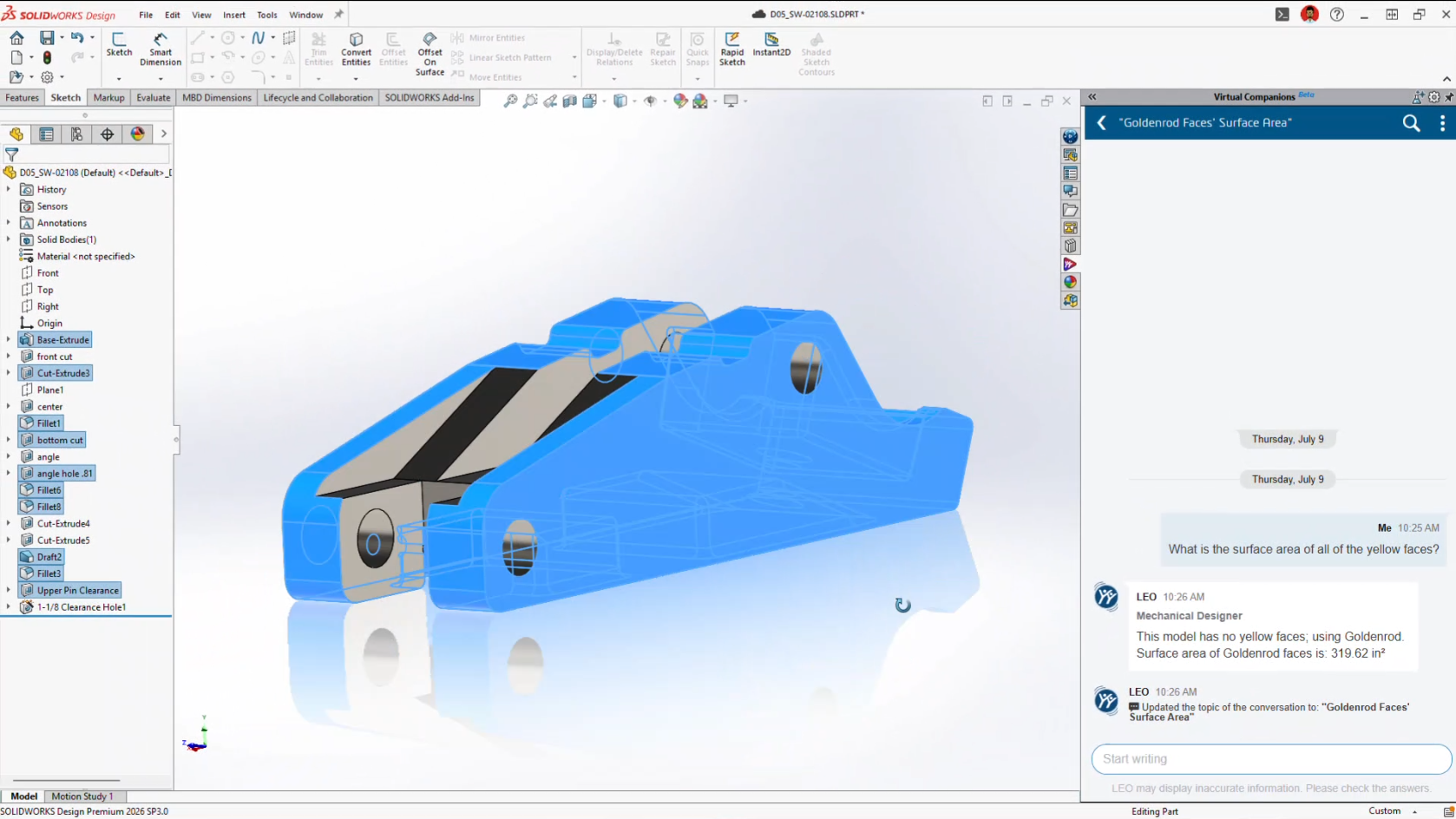
    Surface Area Reports

    Need to know how much paint or coating a model requires?

    Rather than manually measuring geometry, LEO can calculate:

    • Entire part surface area

    • Selected bodies

    • Individual faces

    • Face groups by colour

    It’s a small feature that could save a surprising amount of time in manufacturing workflows.

    Surface Area Reports

    Scale Assist

    Scaling parts has always been possible.

    Scaling them while keeping dimensions meaningful has been another story.

    Scale Assist regenerates dimensions after resizing so drawings continue reflecting the actual model dimensions instead of scaled values.

    It’s particularly useful when adapting existing designs into different product sizes.

    Natural Language Selection

    Anyone who’s spent time selecting dozens, or hundreds, of faces knows how tedious it can become.

    Now you can simply tell LEO what you need.

    Examples include:

    Select every red face.

    Select all visible sheet metal bodies.

    Select all cylindrical faces.

    Less clicking.

    Fewer mistakes.

    Faster workflows.

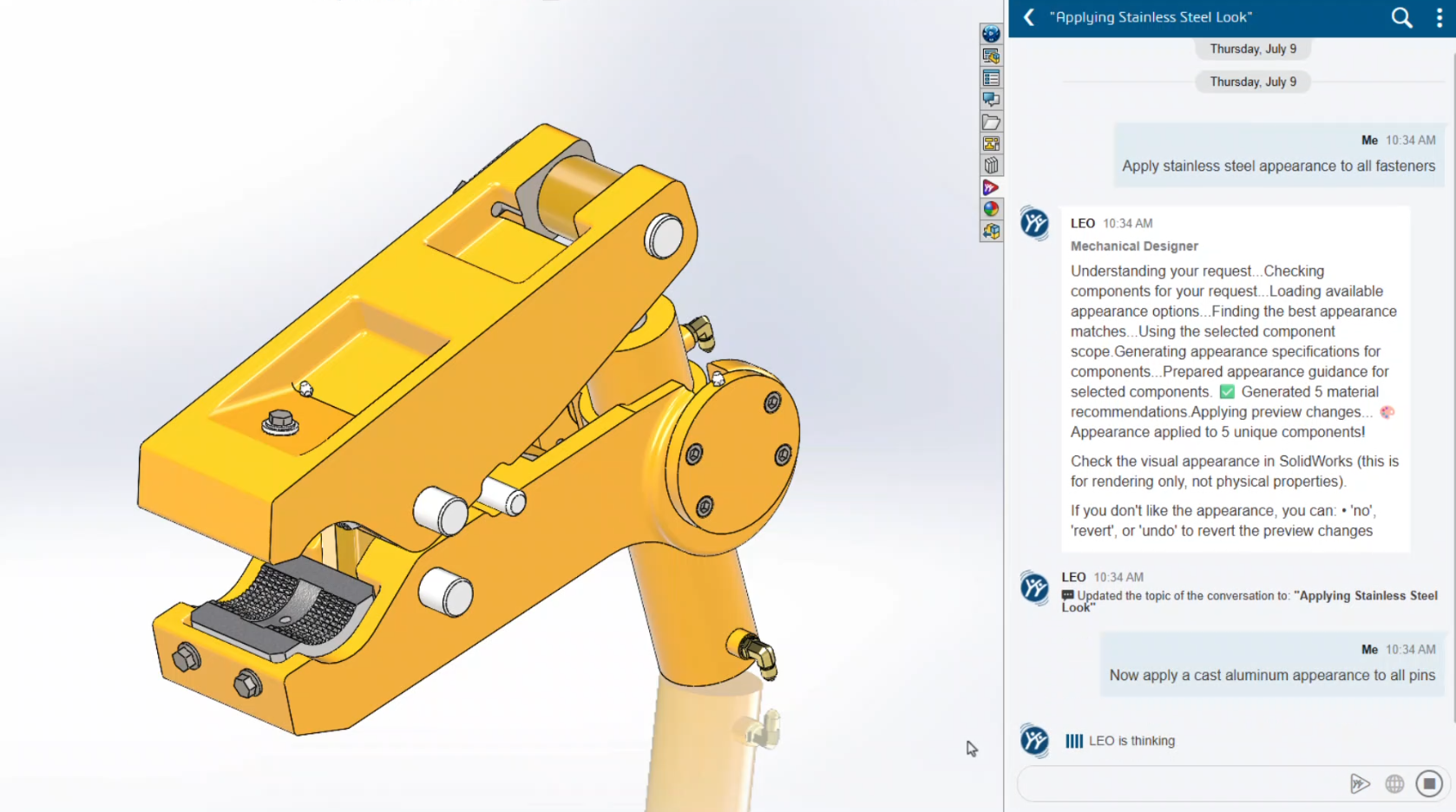
    Material Appearance Manager

    Introduced in FD02 and expanded in FD03, Material Appearance Manager now works through conversational prompts.

    Instead of manually editing appearances one feature at a time, LEO can identify, highlight and update materials throughout assemblies while maintaining visual consistency.

    Material Appearance Manager

    Equation Assistant

    Writing equations inside SOLIDWORKS has never been difficult, but remembering the correct syntax certainly can be.

    Equation Assistant allows engineers to describe the relationship they want.

    LEO creates the equation, validates the syntax and even helps troubleshoot errors before they’re applied.

    Equation Assistant

    Expert SOLIDWORKS Guidance

    Perhaps one of the most underrated additions is Expert Guidance.

    Instead of searching the Help documentation or the internet, LEO provides modelling recommendations based on SOLIDWORKS best practices directly inside your workflow.

    For newer users, it’s almost like having a CSWA-level mentor available whenever you need one.

    Expert SOLIDWORKS Guidance

    AI Makes Drawing Creation Even Easier

    Drawing automation continues to improve significantly.

    FD02 introduced Auto-Generate Drawings.

    FD03 transforms it into a conversational workflow.

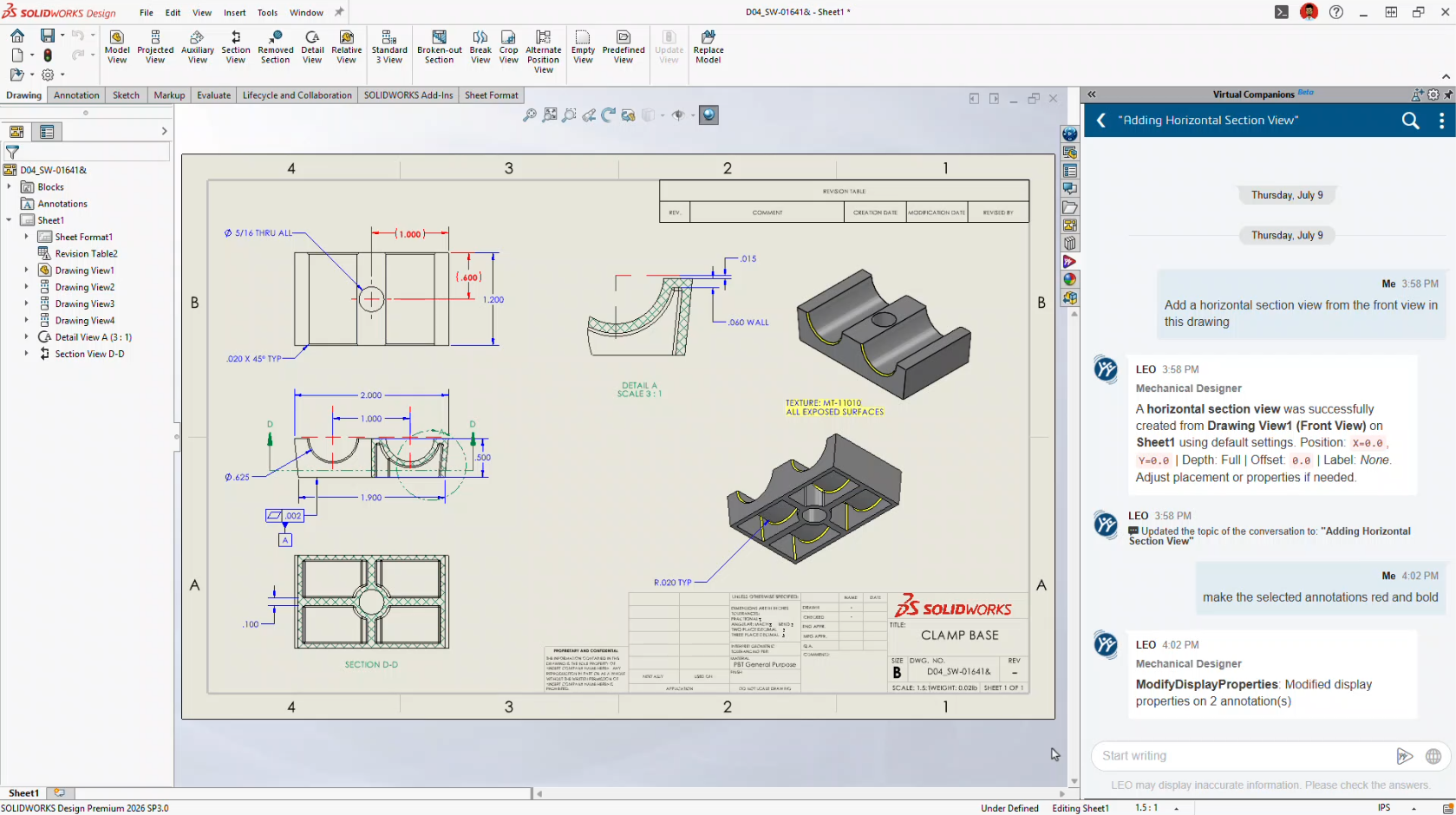
    Instead of navigating dozens of PropertyManagers, you simply tell LEO what you want.

    LEO can now:

    • Create drawing views

    • Change view scales

    • Position views

    • Rotate views

    • Adjust line weights

    • Insert annotations

    • Generate flat patterns

    • Create bend tables

    • Export DXF

    • Export PDF

    The goal isn’t to replace engineering review.

    It’s to eliminate the repetitive setup work that consumes so much time.

    AI Makes Drawing Creation Even Easier

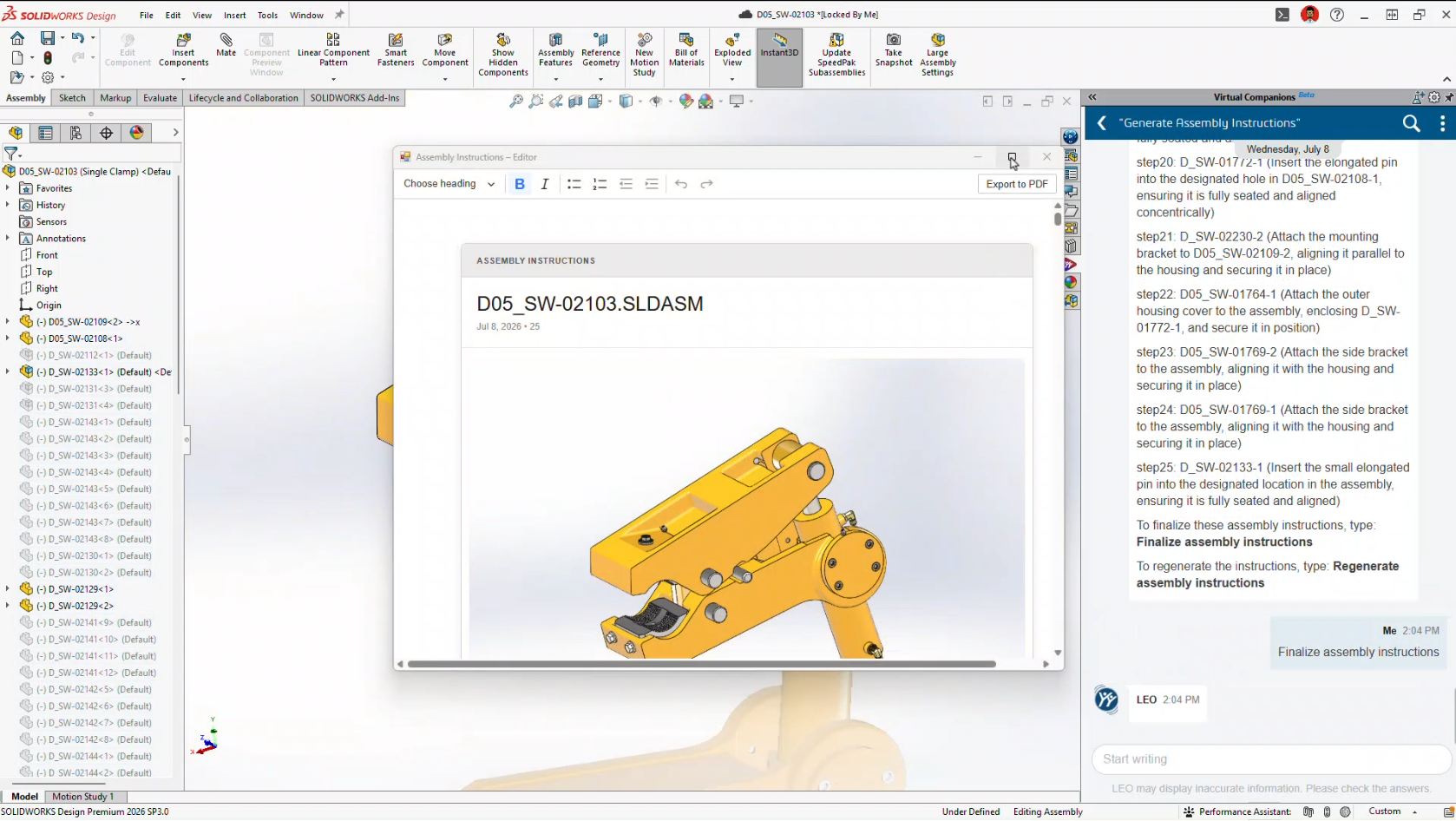
    Automatic Assembly Instructions

    Another brand-new capability is Assembly Instruction Generation.

    Using your existing CAD data, LEO can automatically generate step-by-step assembly instructions complete with visual snapshots.

    Potential applications include:

    • Manufacturing work instructions

    • Service documentation

    • Training manuals

    • Assembly guides

    Documentation has traditionally been one of the least enjoyable parts of engineering.

    This feature could dramatically reduce that workload.

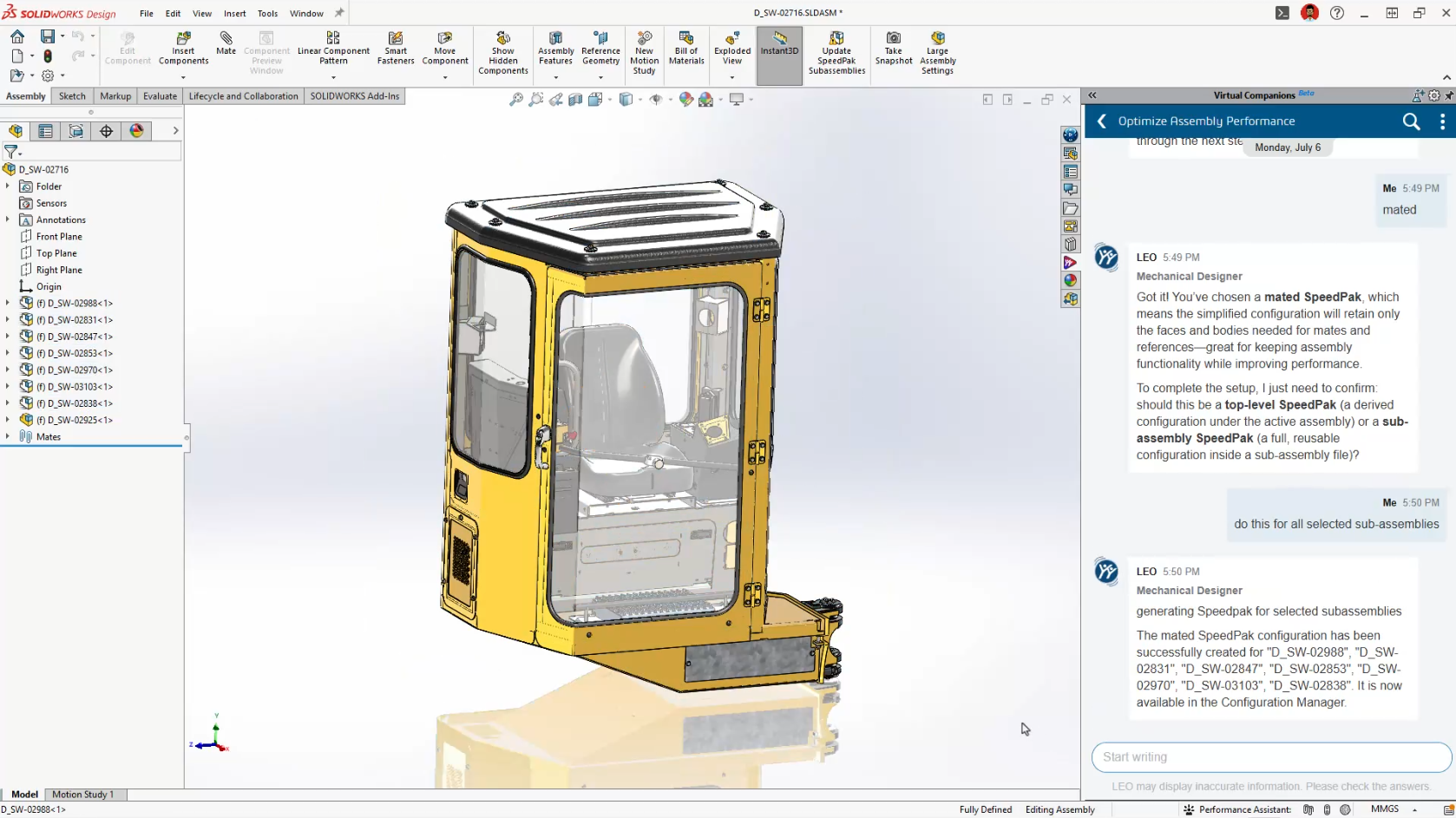
    Automatic Assembly Instructions

    Smarter Large Assembly Management

    FD03 also builds on the Assembly Performance improvements introduced in FD02.

    Instead of simply identifying performance issues, LEO can now actively recommend solutions.

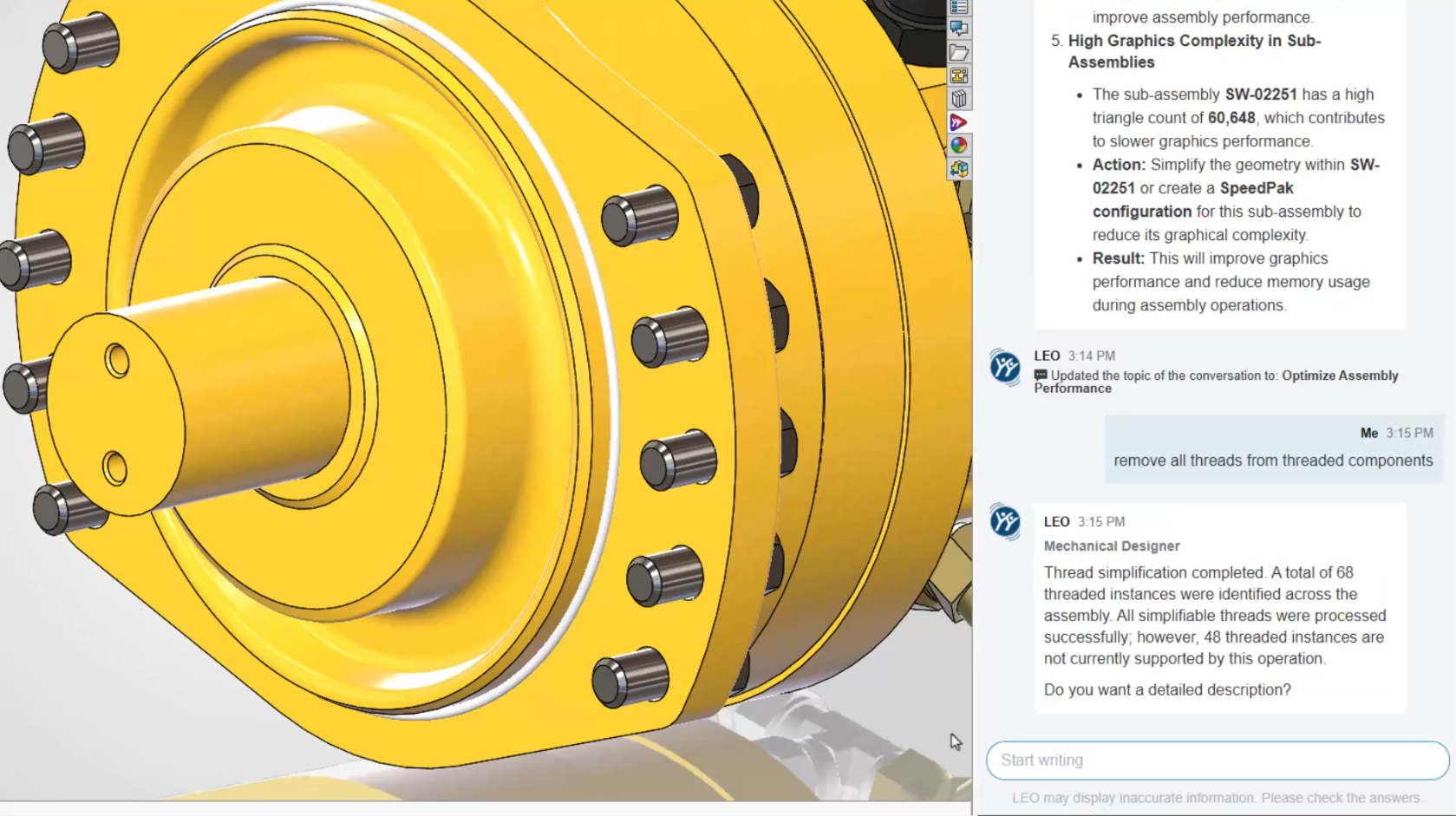
    Thread Simplification

    Modeled threads consume significant system resources.

    LEO can identify imported fasteners with modeled threads and convert them into cosmetic threads while preserving drawing representation.

    The result is smaller files and noticeably faster assembly performance.

    Thread Simplification

    AI-Guided SpeedPak Creation

    SpeedPak has always been one of SOLIDWORKS’ most powerful large assembly tools.

    Many users simply aren’t sure when, or how, to use it effectively.

    LEO now recommends appropriate SpeedPak strategies based on your assembly structure and automatically generates them for you.

    For companies working with large assemblies every day, this could become one of the most valuable additions in FD03.

    AI-Guided SpeedPak Creation

    PLM Information Without Leaving SOLIDWORKS

    For customers using Cloud Services or the 3DEXPERIENCE platform, LEO continues to bridge the gap between CAD and PLM.

    Rather than navigating multiple dashboards, you can simply ask questions like:

    • Who owns this file?

    • What revision is it?

    • Are there pending approvals?

    • What configurations exist?

    • Are there open change actions?

    It’s another example of AI reducing navigation while making information easier to access.

    What FD03 Means for SOLIDWORKS Users

    If FD02 introduced AI-powered tools, FD03 introduces an AI-powered workflow.

    LEO is gradually becoming the central interface for interacting with SOLIDWORKS, allowing engineers to work more naturally using conversation instead of commands.

    More importantly, SOLIDWORKS continues to take a practical approach to AI.

    None of these features attempt to replace engineers.

    Instead, they focus on reducing repetitive work, improving productivity, and helping users get more value from SOLIDWORKS without changing the way they already design.

    That’s exactly where AI delivers the greatest benefit.

    Ready to Explore SOLIDWORKS AI?

    Many of the features introduced in FD03 are available as part of the latest SOLIDWORKS Design Functional Delivery, with additional capabilities continuing to roll out throughout the year.

    At Solidxperts, we’re continuously testing the latest AI enhancements so we can help our customers understand not just what’s new, but how to apply these tools to real engineering projects.

    Whether you’re looking to modernize your design workflow, improve productivity, or simply explore what AI can do inside SOLIDWORKS, our team is here to help.


    Michael Habrich

    3DEXPERIENCE Specialist

    X_green_halo

    Any questions? Need help? Ask one of our experts.

    Whether you’re ready to get started or just have a few more questions, you can contact us toll-free:
      SOLIDWORKS AI: Auto-generate SOLIDWORKS Macros

      BLOG

      SOLIDWORKS AI: Auto-generate SOLIDWORKS Macros

      [techtips_featured_image_shortcode]

      Editor’s Note (Updated): This article captures our initial observations after discovering the AI Macro Generation interface in an early SOLIDWORKS 2026 release. Since then, the feature has been officially introduced in SOLIDWORKS 2026 FD03. We’ve left this article online for historical context, but we recommend reading our updated guide for the most current information and feature walkthrough.

      Is SOLIDWORKS About to Generate Macros for You?

      If you’ve been exploring the latest updates in SOLIDWORKS 2026 SP2.1 and 3DEXPERIENCE FD02, you might have noticed something… unexpected.

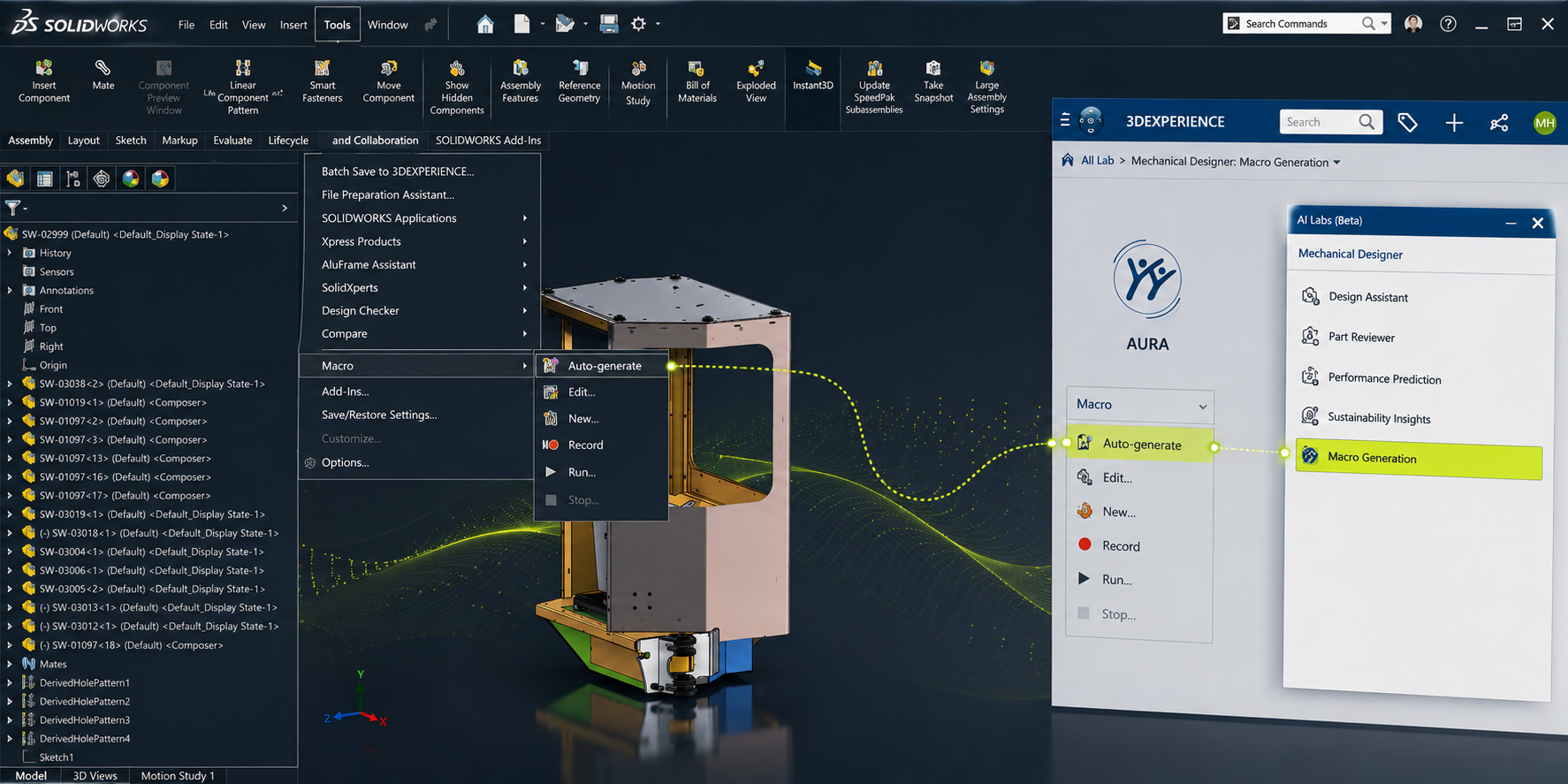
      Buried under Tools > Macro, there’s a new option:
      “Auto-generate”, complete with the AURA logo.

      At first glance, it doesn’t do much (yet). But it raises an interesting question:

      👉 Is SOLIDWORKS getting ready to generate macros for you using AI?

      Let’s take a closer look at what’s going on, and what it could mean for your day-to-day work.

      What We Found in the Interface

      Here’s where things get interesting.

      Inside the Macro menu, alongside familiar options like Record and Edit, there’s now:

      • Auto-generate

      • Marked with the AURA icon

      At the same time, digging into the AI Labs tab reveals something even more telling:

      Macro Generation listed as a competency

      That’s not placeholder language. That’s a capability label.

      So… What Is AURA, Exactly?

      If you’ve followed recent updates on the 3DEXPERIENCE platform, you’ve probably heard of AURA.

      AURA is Dassault Systèmes’ push into context-aware AI assistance, not just generating content, but actually:

      • Understanding what you’re doing

      • Anticipating next steps

      • Helping automate repetitive tasks

      In other words, it’s not just “AI for show.” It’s meant to sit inside your workflow.

      Macro generation fits that direction perfectly.

      Why This Matters (More Than It Looks)

      Let’s be honest, macros in SOLIDWORKS are powerful, but:

      • Most users don’t write them

      • Many rely on recorded macros (which are fragile)

      • Editing VBA code isn’t exactly user-friendly

      Now imagine this instead:

      👉 You describe what you want:

      “Rename all selected components using this convention”

      👉 And SOLIDWORKS builds the macro for you.

      That’s the gap this feature is aiming to close.

      What AI Macro Generation Could Look Like

      While the feature isn’t active yet, we can make some realistic assumptions based on current AI direction:

      1. Prompt-Based Automation

      You type a request, similar to how you interact with AI tools today.

      2. Context Awareness

      Instead of generic scripts, it understands:

      • Assembly structure

      • Selected components

      • Active document type

      3. Editable Output

      It likely generates:

      • VBA macros (initially)

      • Possibly with explanations or annotations

      4. Iterative Refinement

      Not quite right? Adjust the prompt instead of rewriting code.

      Is This Feature Live Yet?

      Short answer: No, not fully.

      Right now:

      • The Auto-generate option appears in the UI

      • But doesn’t execute (at least in SP2.1 environments we’ve tested)

      This strongly suggests:

      • It’s either feature-gated

      • Or not yet connected to backend AI services

      So no, you’re not missing a setting, it’s just not ready.

      Not an Easter Egg, A Direction

      It’s tempting to think this was accidentally left in the UI.

      But given:

      • The AURA branding

      • The AI Labs “Macro Generation” competency

      • The broader AI rollout in FD02

      This looks intentional.

      👉 More likely: a preview of what’s coming next

      What This Means for SOLIDWORKS Users

      If (or when) this becomes active, it could shift how teams approach automation:

      Less Dependency on API Expertise

      You won’t need to:

      • Learn VBA

      • Dig through API documentation

      Faster Process Standardization

      Teams could quickly:

      • Build repeatable workflows

      • Enforce naming conventions

      • Automate tedious cleanup tasks

      Lower Barrier to Entry

      More users can leverage automation, not just power-users.

      A Practical Example

      Let’s say your team regularly:

      • Imports vendor models

      • Needs to clean up feature trees

      • Apply materials

      • Rename files

      Today:

      • That’s either manual

      • Or handled by a fragile macro

      With AI macro generation:

      You could describe the workflow once, and reuse it reliably.

      Where This Fits in the Bigger Picture

      This isn’t happening in isolation.

      Dassault Systèmes is clearly moving toward:

      • AI-assisted modeling

      • Context-aware recommendations

      • Automation without coding

      Macro generation is just one piece of that puzzle.

      Should You Be Excited?

      Cautiously yes.

      But with realistic expectations:

      • First versions will likely be limited

      • Output may need validation

      • Complex workflows might still require manual refinement

      Still, even a 50% time savings on repetitive tasks is meaningful.

      Final Thoughts

      Right now, the Auto-generate macro button is more promise than product.

      But it tells us something important:

      👉 SOLIDWORKS isn’t just adding AI features, it’s rethinking how users interact with automation.

      And if this lands the way it’s intended, it could make one of the most underused features in SOLIDWORKS… actually usable.

      Want to Stay Ahead of What’s Coming?

      At Solidxperts, we keep a close eye on updates like this—not just what’s announced, but what’s emerging.

      If you want help:

      • Identifying automation opportunities

      • Preparing your team for AI-assisted workflows

      • Or getting more out of your SOLIDWORKS environment

      Reach out at info@solidxperience.com, we’re always happy to talk shop.


      Michael Habrich

      3DEXPERIENCE Specialist

      X_green_halo

      Any questions? Need help? Ask one of our experts.

      Whether you’re ready to get started or just have a few more questions, you can contact us toll-free:
        Uninstalling 3DEXPERIENCE SOLIDWORKS and the SOLIDWORKS Connector

        BLOG

        Uninstalling 3DEXPERIENCE SOLIDWORKS and the SOLIDWORKS Connector

        [techtips_featured_image_shortcode]

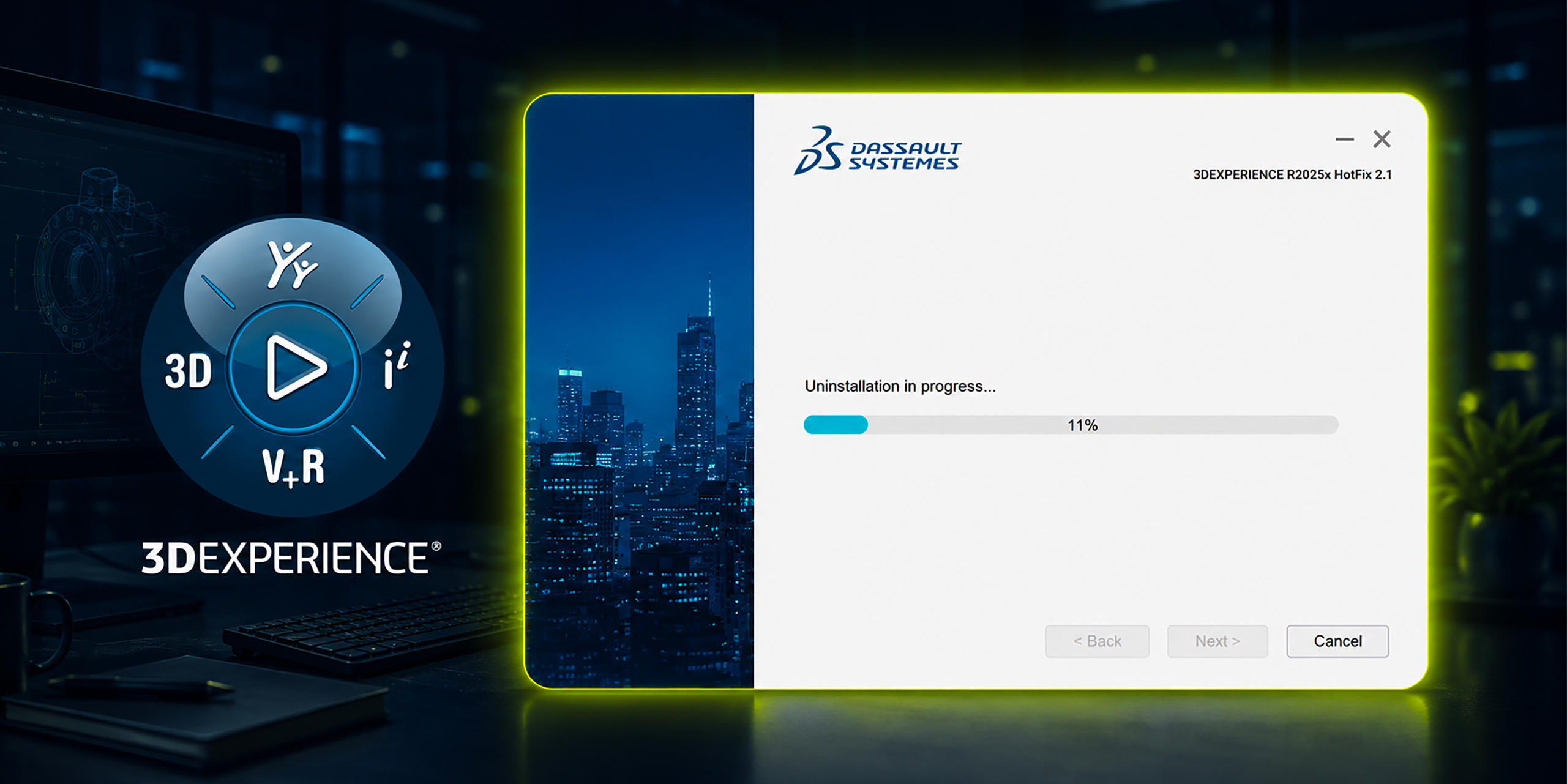
        Both 3DEXPERIENCE SOLIDWORKS (SOLIDWORKS Connected) and the Design with SOLIDWORKS connector can be removed directly from the 3DEXPERIENCE platform. If platform access is no longer available, they can also be uninstalled through Windows.

        Below are the recommended methods, starting with the simplest approach.

        Option 1: Uninstall from the 3DEXPERIENCE Platform

        This is the preferred method when you still have access to your 3DEXPERIENCE tenant.

        1. Log in to the 3DEXPERIENCE platform.

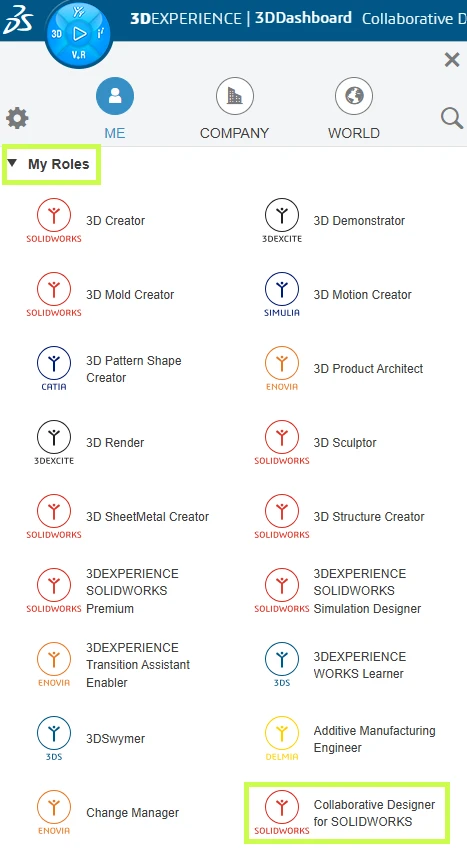
        2. Click the Compass (image) icon in the upper-left corner.

        3. Under My Roles, select:

          • 3DEXPERIENCE SOLIDWORKS (for SOLIDWORKS Connected), or

          • Collaborative Designer for SOLIDWORKS (for the Design with SOLIDWORKS connector)

        Steps for uninstalling 3DEXPERIENCE SOLIDWORKS components

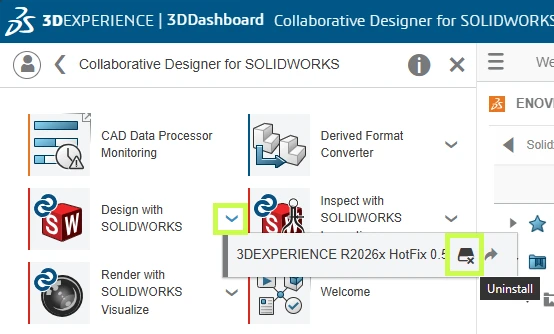
        4. Locate the SOLIDWORKS app under the selected role.

        5. Click the down arrow next to the app and select Uninstall.

        ### **Alt text (EN)** Steps to uninstall 3DEXPERIENCE SOLIDWORKS components on Windows

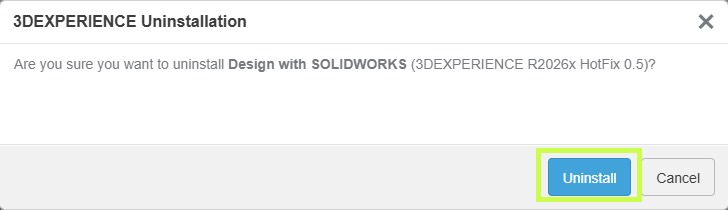
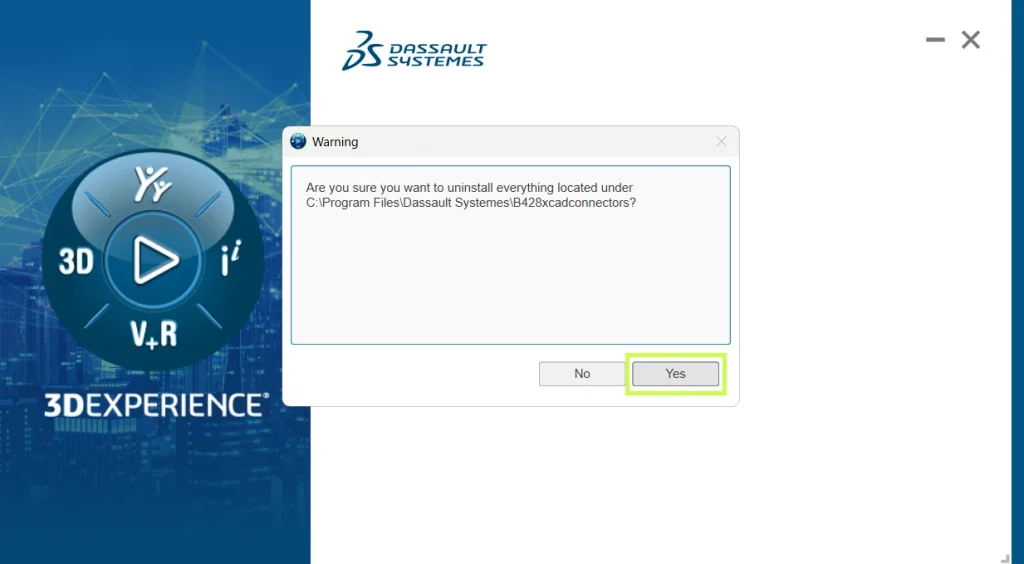
        You’ll be prompted to confirm the uninstall twice. Confirm both messages to proceed.

        User interface showing SOLIDWORKS Connector uninstallation processInterface showing the progress of uninstalling the SOLIDWORKS Connector in 3DEXPERIENCE SOLIDWORKS on Windows

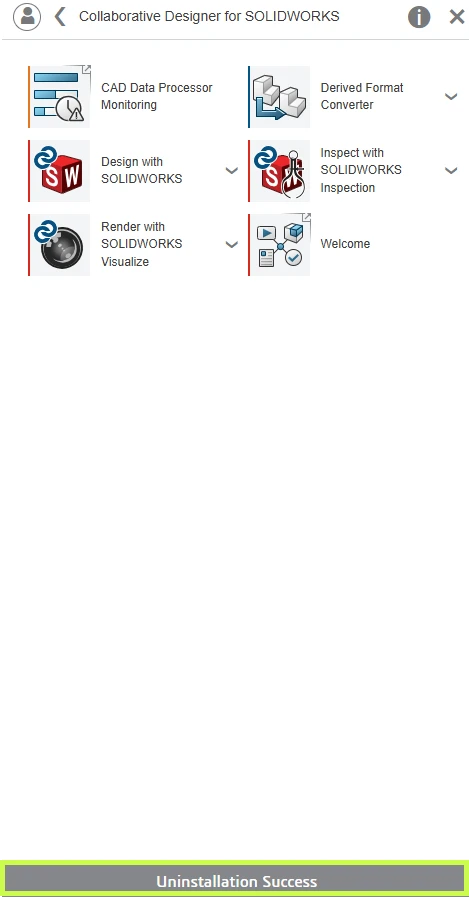
        Once complete, a confirmation message will appear at the bottom of the apps window indicating the uninstall was successful.

        Uninstall Progress Window for SOLIDWORKS Connector in 3DEXPERIENCE

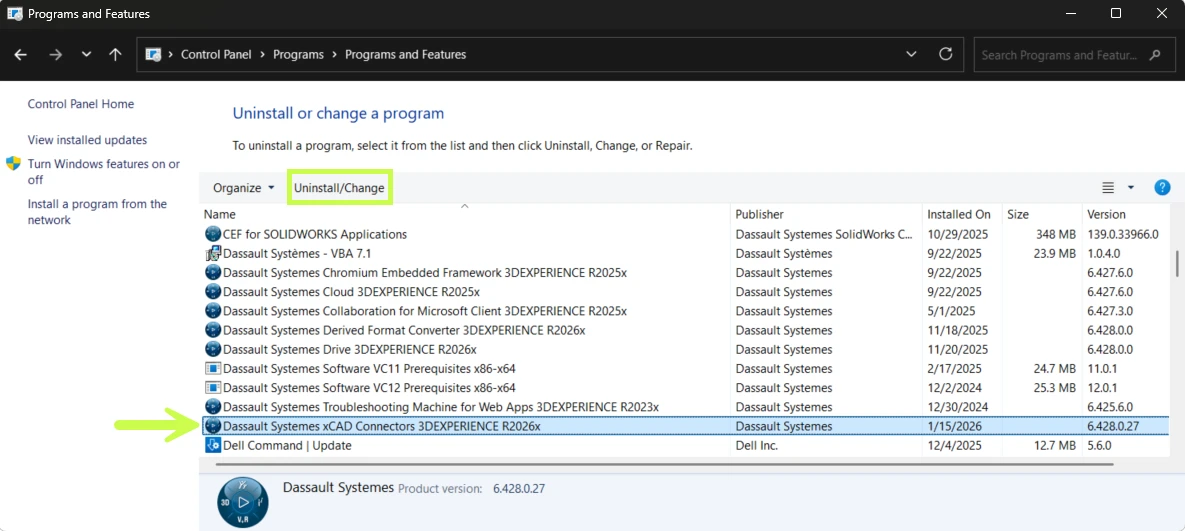
        Option 2: Uninstall from the Windows Control Panel

        If access to the 3DEXPERIENCE platform has been discontinued, you can uninstall using Windows.

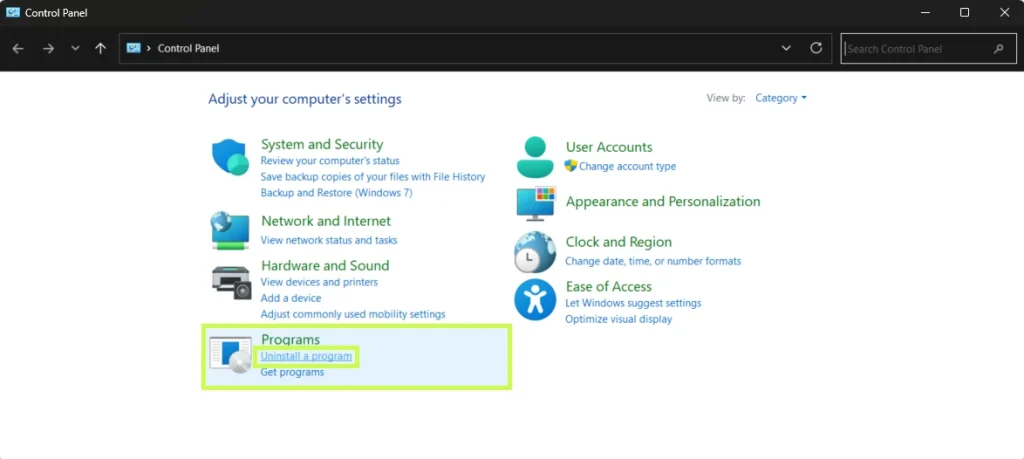
        1. Open the Windows Control Panel

          • The quickest way is to click Start and search for Control Panel

        2. Select Uninstall a program

          • If using icon view, go to Programs and Features

        Window showing the progress of removing the SOLIDWORKS Connector in 3DEXPERIENCE SOLIDWORKS on Windows

        3. Locate one of the following:

          • Dassault Systèmes R20XXx SOLIDWORKS (for SOLIDWORKS Connected)

          • Dassault Systèmes xCAD Connectors (for the SOLIDWORKS Connector)

        4. Select the application and click Uninstall/ChangeUser interface displaying the ongoing uninstallation of the SOLIDWORKS Connector within 3DEXPERIENCE SOLIDWORKS

        5. Confirm the uninstall when prompted

        A progress dialog will appear. Once it closes, the uninstall is complete.

        Performing a Clean Uninstall (Advanced)

        In rare cases typically when reinstalling or resolving persistent issues a clean uninstall may be required.

        Important: This process involves removing system components and editing the Windows registry. We strongly recommend working with your IT team or Solidxperts Technical Support before proceeding.

        Step 1: Remove Prerequisites

        After uninstalling SOLIDWORKS Connected or the SOLIDWORKS Connector, return to Control Panel → Uninstall a program and remove only the following items.

        ⚠️ Do not uninstall other Microsoft Visual C++ versions, as they may be required by other applications.

        • 3DEXPERIENCE Launcher

        • CEF for SOLIDWORKS Applications

        • Dassault Systèmes Software VC10 Prerequisites x86-x64

        • Dassault Systèmes Software VC11 Prerequisites x86-x64

        • Microsoft Visual C++ 2012 Redistributable (x86 & x64)

        • Microsoft Visual C++ 2013 Redistributable (x86 & x64)

        • Microsoft Visual C++ 2015–2019 Redistributable (x86 & x64)

        • Microsoft Visual Studio Tools for Applications 2019

        • WPTx64

        • Visual Basic (VBA) 7.1

        Step 2: Delete Remaining Folders

        Some folders may be hidden. In File Explorer, enable View → Show → Hidden items.

        Delete the following folders if they exist:

        C:\Program Files\Dassault Systemes\SOLIDWORKS 3DEXPERIENCE
        C:\Program Files\Dassault Systemes\B4XXxcadconnectors
        C:\Program Files\Common Files\SOLIDWORKS Shared
        C:\Program Files (x86)\Common Files\SOLIDWORKS Shared
        C:\Users\Public\Documents\SOLIDWORKS
        C:\Users\Public\Documents\Dassault Systemes
        C:\ProgramData\DassaultSystemes\3DEXPERIENCELauncher
        C:\ProgramData\SOLIDWORKS
        C:\Users\<UserName>\AppData\Roaming\DassaultSystemes
        C:\Users\<UserName>\AppData\Roaming\SOLIDWORKS
        C:\Users\<UserName>\AppData\Local\TempSWBackupDirectory
        C:\Users\<UserName>\AppData\Local\DassaultSystemes
        C:\Users\<UserName>\AppData\Local\SolidWorks

        Step 3: Clean the Registry (Advanced)

        ⚠️ Caution: Incorrect registry changes can cause serious system issues. Always consult an IT professional before proceeding.

        Remove the following registry keys if present:

        HKEY_CURRENT_USER\Software\Dassault Systemes\SolidWorks Shared
        HKEY_CURRENT_USER\Software\Dassault Systemes\SolidWorksPDM
        HKEY_CURRENT_USER\Software\SolidWorks
        HKEY_LOCAL_MACHINE\SOFTWARE\Dassault Systemes\SolidWorksPDM
        HKEY_LOCAL_MACHINE\SOFTWARE\Dassault Systemes\SwxConnectors
        HKEY_LOCAL_MACHINE\SOFTWARE\Dassault Systemes\V6_Common
        HKEY_LOCAL_MACHINE\SOFTWARE\SolidWorks
        HKEY_LOCAL_MACHINE\SOFTWARE\Srac
        HKEY_LOCAL_MACHINE\SOFTWARE\WOW6432Node\SolidWorks

        Step 4 and Final Step: Restart

        Once all steps are complete, restart the computer to finalize the cleanup.

        Final Thoughts

        In most cases, uninstalling directly from the 3DEXPERIENCE platform or Windows Control Panel is all that’s required. A clean uninstall should only be used when troubleshooting or preparing for a fresh installation.

        If you have questions or run into issues, your Solidxperts Technical Support team is here to help just reach out.

        Looking to go further?

        • Check out more tips and tutorials on our YouTube channel.

        • Explore best practices with our experts.

        • Or reach out to our team, we’re here to help you get the most out of your platform.

        Your platform should work the way your team works and we’re here to help make that happen.


        Michael Habrich

        3DEXPERIENCE Specialist

        X_green_halo

        Any questions? Need help? Ask one of our experts.

        Whether you’re ready to get started or just have a few more questions, you can contact us toll-free:
          SOLIDWORKS Design vs Onshape: Which CAD Platform Is Right for Your Team?

          BLOG

          SOLIDWORKS Design vs Onshape: Which CAD Platform Is Right for Your Team?

          [techtips_featured_image_shortcode]

          Choosing a CAD platform is a bigger decision than just comparing modeling tools.

          Today, engineering teams need to think about collaboration, data management, cloud connectivity, licensing flexibility, training requirements, and even AI-powered productivity tools. Whether you’re replacing an older CAD system, evaluating cloud CAD for the first time, or planning for future growth, the platform you choose will impact your workflow for years.

          Two of the most common options being evaluated today are SOLIDWORKS Design and Onshape.

          Both are professional CAD solutions that support parametric modeling and offer cloud connected workflows. But they are built around very different philosophies.

          Let’s break down the differences.

          Quick Answer: SOLIDWORKS Design or Onshape?

          If your team wants a mature, industry-standard CAD platform with powerful desktop performance, extensive engineering tools, flexible licensing options, and access to the broader 3DEXPERIENCE ecosystem, SOLIDWORKS Design is typically the stronger choice.

          If your priority is a browser only CAD environment with simplified deployment and built-in cloud collaboration, Onshape may be worth considering.

          The right answer depends on your team’s workflows, product complexity, and long-term goals.

          What Is SOLIDWORKS Design?

          SOLIDWORKS Design is the latest evolution of the SOLIDWORKS portfolio.

          It combines the CAD environment engineers have trusted for decades with modern cloud services, collaboration tools, revision management, and AI-powered capabilities through the 3DEXPERIENCE platform.

          Today, organizations can choose between multiple deployment approaches:

          SOLIDWORKS Design Single-User License

          A named-user license connected directly to cloud services and the 3DEXPERIENCE platform.

          Benefits include:

          • Access from multiple devices

          • Built-in cloud collaboration

          • Cloud file and revision management

          • Continuous updates

          • AI-enabled cloud services and tools

          SOLIDWORKS Design Device License

          A machine-based license designed for organizations that prefer traditional deployment methods.

          Benefits include:

          • Local installation control

          • Machine-based activation

          • Multi-user workstation environments

          • Optional cloud connectivity

          • Support for controlled IT deployment strategies

          Both licensing options provide access to Cloud Services and future expansion into the broader 3DEXPERIENCE ecosystem.

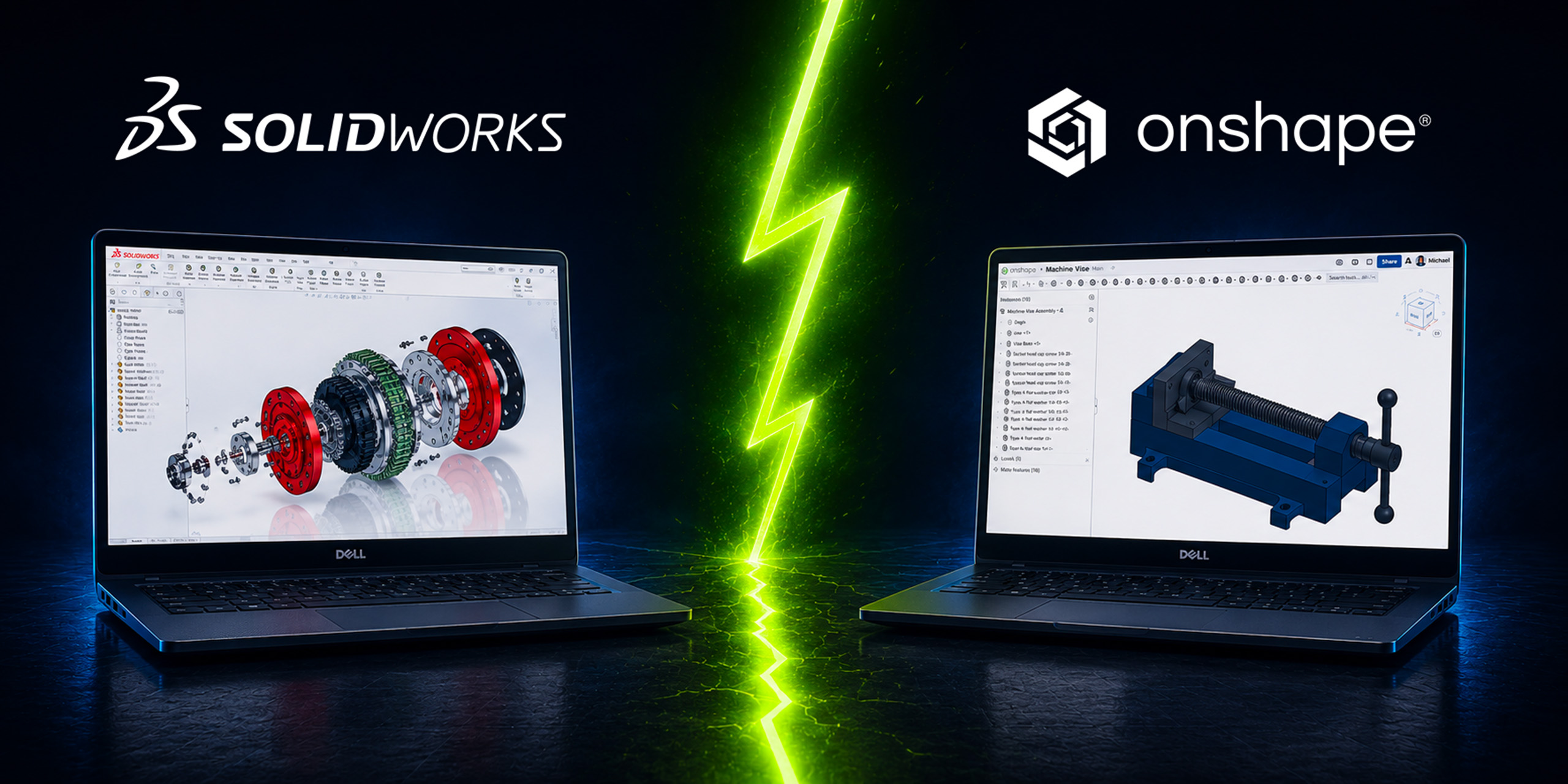
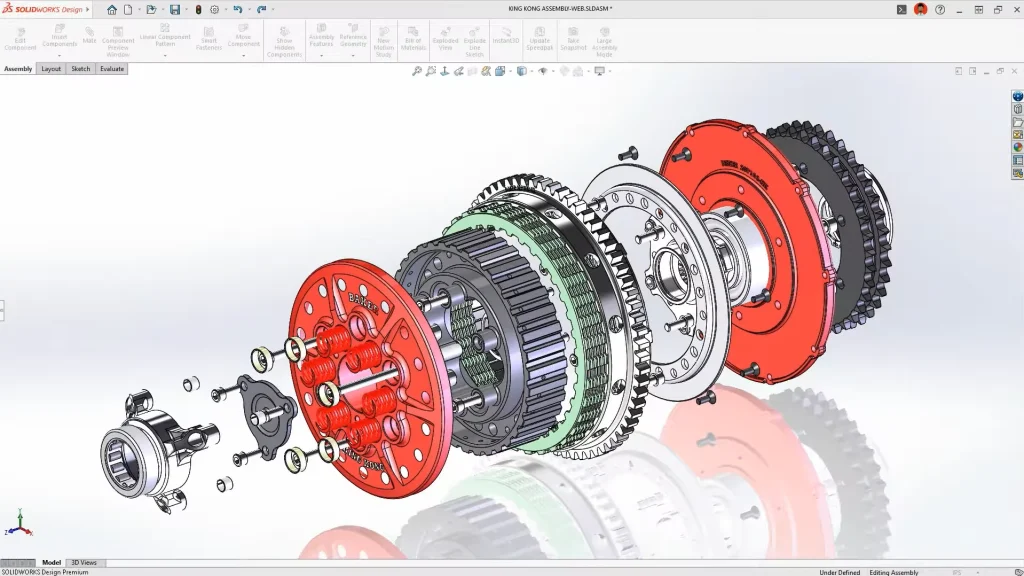
          Comparison of SOLIDWORKS Design and Onshape interfaces to help teams choose the right CAD platform.SOLIDWORKS CAD Modeling Environment

          What Is Onshape?

          Onshape is a fully browser based CAD platform.

          Unlike traditional desktop CAD, there is no local installation. Users access their CAD environment through a web browser, and all data is stored in the cloud.

          Because the platform is cloud-native, Onshape provides:

          • Real time collaboration

          • Built-in version history

          • Browser based access

          • Automatic updates

          • Simplified IT deployment

          This makes it attractive for distributed teams, startups, educational institutions, and organizations looking to avoid workstation management.

          Side-by-side comparison of SOLIDWORKS and Onshape highlighting key features for engineering teams.

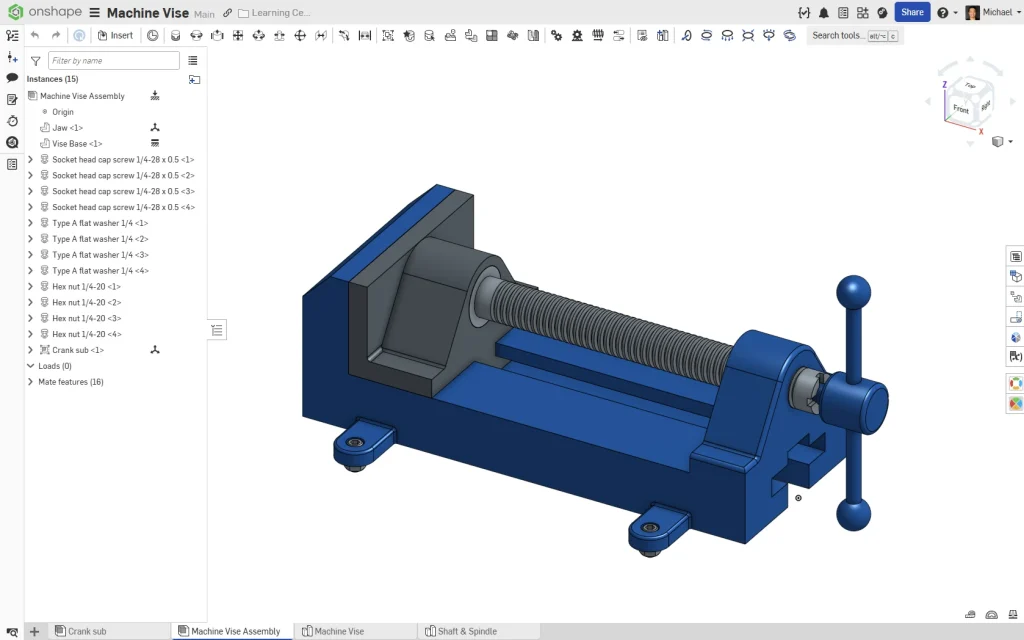
          Onshape CAD Modeling Environment

          SOLIDWORKS Design vs Onshape: The Biggest Differences

          Modeling Experience

          Both platforms use modern parametric modeling workflows.

          However, SOLIDWORKS Design still offers a more mature and feature rich modeling environment for many engineering use cases.

          Areas where SOLIDWORKS continues to excel include:

          • Large assemblies

          • Weldments

          • Routing

          • Drawings and detailing

          • Manufacturing documentation

          • Simulation integration

          • CAM integration

          • Advanced surfacing workflows

          For many engineers, SOLIDWORKS remains the benchmark for production ready mechanical design.

          Onshape delivers a modern modeling experience and continues to evolve rapidly, but some organizations transitioning from mature desktop CAD environments may find certain advanced workflows less developed.

          Performance

          This is where deployment philosophy matters.

          SOLIDWORKS Design

          Most CAD calculations happen locally on workstation hardware.

          Advantages:

          • Excellent performance on complex assemblies

          • Direct access to GPU resources

          • Better support for demanding engineering workloads

          • Less dependence on internet speed during modeling

          Onshape

          All modeling calculations occur on cloud infrastructure.

          Advantages:

          • Lower workstation requirements

          • Easy access from almost any device

          • Consistent performance across users

          For engineering teams working on large products, machinery, manufacturing equipment, or highly detailed assemblies, local workstation performance still offers significant advantages.

          Data Management

          Historically, data management was a major differentiator.

          Today, the gap is much smaller.

          Onshape

          Includes cloud-based data management by default.

          Users benefit from:

          • Version history

          • Branching workflows

          • Built-in collaboration

          • Cloud storage

          SOLIDWORKS Design

          Includes Cloud Services and can scale directly into the 3DEXPERIENCE platform.

          Organizations can start with:

          • Share and Markup

          • Store and Revise

          • Collaborative Spaces

          • Cloud revision management

          And later expand into:

          • Product lifecycle management (PLM)

          • Change actions

          • Governance workflows

          • Enterprise collaboration

          This creates a growth path from basic collaboration all the way to enterprise level product development.

          What About SOLIDWORKS xDesign?

          This is an important distinction that often gets overlooked.

          When comparing browser-based CAD, the most direct comparison is often SOLIDWORKS xDesign versus Onshape, not SOLIDWORKS Design versus Onshape.

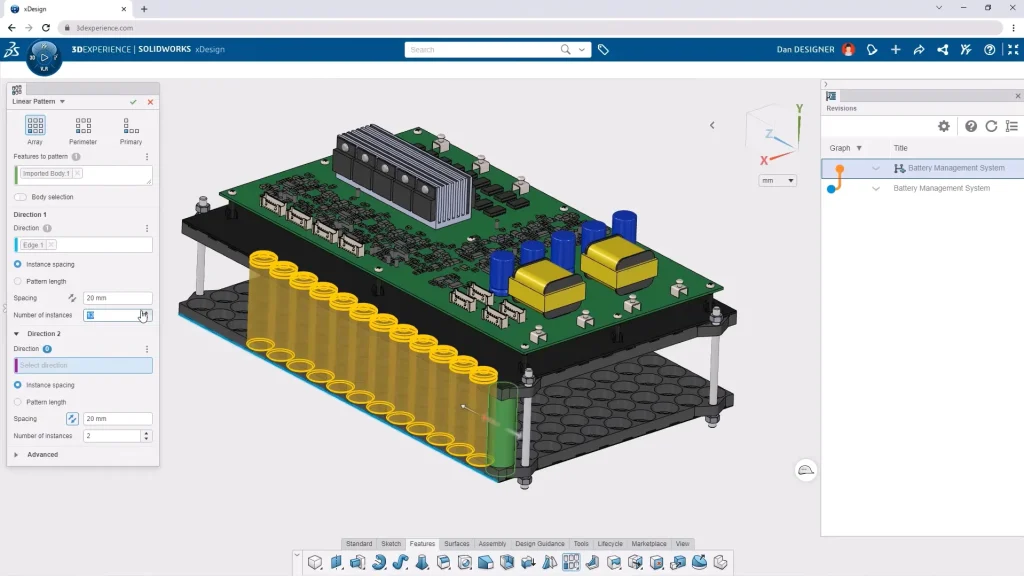
          SOLIDWORKS xDesign is Dassault Systèmes’ cloud-native design solution, running entirely in a web browser with no local installation required. It combines modeling, collaboration, lifecycle management, and cloud storage directly within the 3DEXPERIENCE platform.

          Overview of SOLIDWORKS Design and Onshape showing differences in workflow and collaboration features.

          SOLIDWORKS xDesign Modeling Environment

          For organizations that like the flexibility of browser-based CAD but want to stay within the SOLIDWORKS ecosystem, xDesign is often worth evaluating alongside Onshape.

          Many companies ultimately adopt a hybrid strategy:

          • SOLIDWORKS Design for advanced mechanical design

          • SOLIDWORKS xDesign for cloud-native collaboration and conceptual work

          • 3DEXPERIENCE for data management and lifecycle control

          AI Features: SOLIDWORKS vs Onshape

          AI is becoming part of every CAD discussion, but it’s important to separate practical tools from marketing buzzwords.

          Neither platform has a “design my product” button.

          Instead, both focus on productivity improvements.

          AI in Onshape

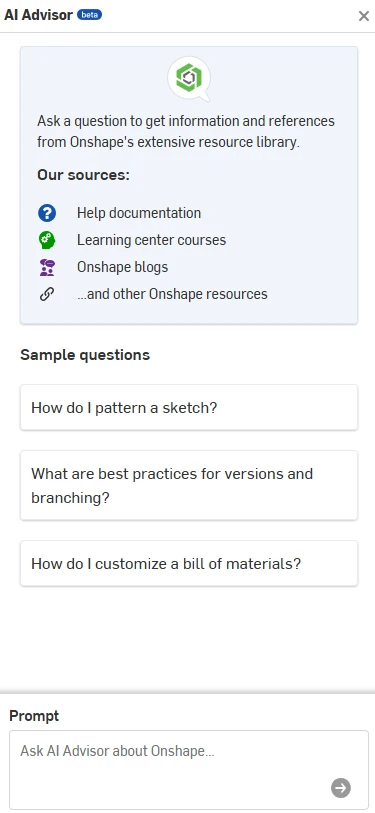
          Onshape currently offers AI Advisor, an AI-powered assistant designed to answer questions and guide users through workflows using Onshape documentation and training resources as its knowledge base.

          AI Advisor can:

          • Answer workflow questions

          • Recommend best practices

          • Surface documentation

          • Provide troubleshooting guidance

          • Deliver contextual assistance inside the platform

          Importantly, Onshape states that AI Advisor does not currently generate designs or make engineering decisions.

          Visual comparison of SOLIDWORKS Design and Onshape focused on team collaboration and cloud capabilities.

          Onshape AI Advisor

          AI in SOLIDWORKS

          SOLIDWORKS has been expanding its AI roadmap aggressively through both desktop and cloud-connected tools.

          Recent AI capabilities include:

          • Auto-Generate Drawings

          • Command Predictor

          • Fastener Recognition

          • Assembly Performance Evaluator

          • Material Appearance Manager

          • BREP-to-Parametric CAD conversion

          • Design Change Impact analysis

          • PLM Model Insights

          • AURA AI Assistant

          Rather than acting as a documentation assistant, many of these tools directly interact with engineering workflows and CAD data.

          The goal isn’t replacing engineers. It’s reducing repetitive work, accelerating documentation, improving performance, and helping teams make decisions faster.

          Illustration comparing SOLIDWORKS Design and Onshape to help determine the best CAD solution for design teams.

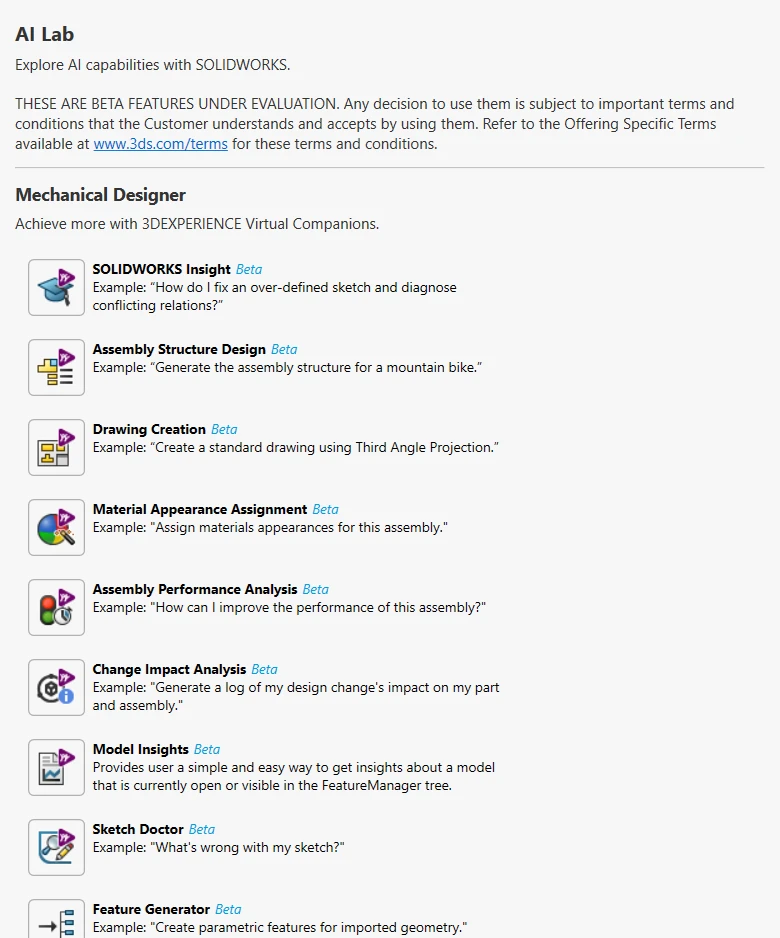
          SOLIDWORKS AI Lab

          Which Platform Is Better for Growing Companies?

          This is often the most important question.

          For startups prioritizing fast deployment and simple browser access, Onshape can be an attractive option.

          For companies expecting growth, increasing product complexity, manufacturing integration, simulation requirements, or future PLM adoption, SOLIDWORKS Design often provides a more scalable path.

          One of the biggest advantages of the SOLIDWORKS ecosystem is that organizations don’t need to commit to everything on day one.

          You can start with:

          • SOLIDWORKS Design

          • Cloud Services

          • Basic collaboration

          Then gradually expand into:

          • PDM

          • PLM

          • Simulation

          • Manufacturing

          • Electrical

          • Cloud-native design

          • AI-driven workflows

          Without changing CAD platforms.

          Why work with Solidxperts?

          Choosing software is only part of the project.

          Implementation, training, data management strategy, and user adoption are often what determine whether a deployment succeeds.

          At Solidxperts, we work with organizations every day that are evaluating:

          • SOLIDWORKS Design

          • SOLIDWORKS xDesign

          • Cloud Services

          • 3DEXPERIENCE

          • PDM and PLM solutions

          • CAD migration projects

          Whether you’re moving from another CAD platform, modernizing your data management strategy, or exploring AI-enabled workflows, our team can help you build a roadmap that fits your reality not just a software brochure.

          The goal isn’t simply choosing a CAD tool.

          It’s building a design environment that will still make sense five years from now.

          Looking to go further?


          Michael Habrich

          3DEXPERIENCE Specialist

          X_green_halo

          Any questions? Need help? Ask one of our experts.

          Whether you’re ready to get started or just have a few more questions, you can contact us toll-free:
            Managing Roles on the 3DEXPERIENCE Platform

            BLOG

            Managing Roles on the 3DEXPERIENCE Platform

            [techtips_featured_image_shortcode]

            More and more organizations are moving to the 3DEXPERIENCE platform to streamline collaboration, improve data management, and connect their teams. One of the most important pieces of a successful rollout is understanding how Roles work, how they’re assigned, and how licensing is managed.

            In this article, we’ll walk through the full lifecycle of Role management, from inviting members to your tenant to assigning Roles individually or by group.

            Platform Administrator Access

            The steps outlined below require you to be a 3DEXPERIENCE Platform Administrator for your company tenant.

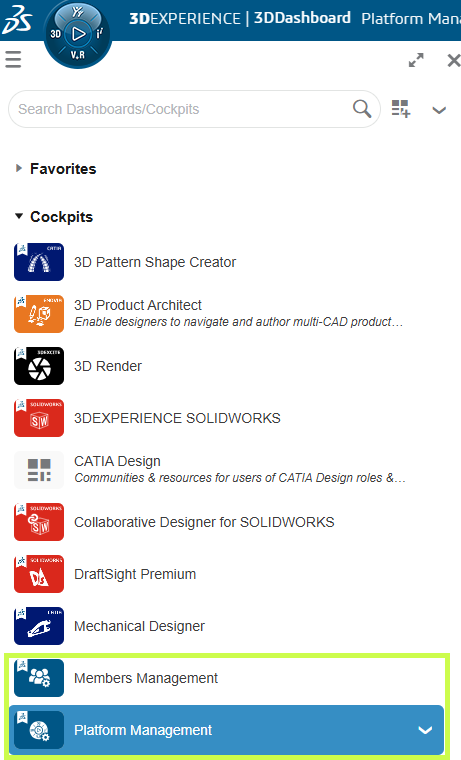
            If you don’t see the Platform Management or Members Management dashboards:

            • Reach out to your internal 3DEXPERIENCE administrator, or

            • If you are the admin and still can’t access them, contact your technical support team to help resolve the issue.

            Screenshot showing how to manage user roles and permissions on the 3DEXPERIENCE platform.

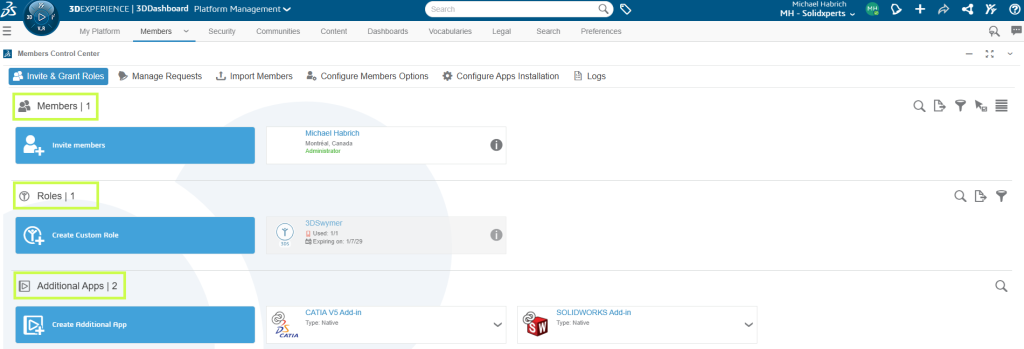
            Members Control Center

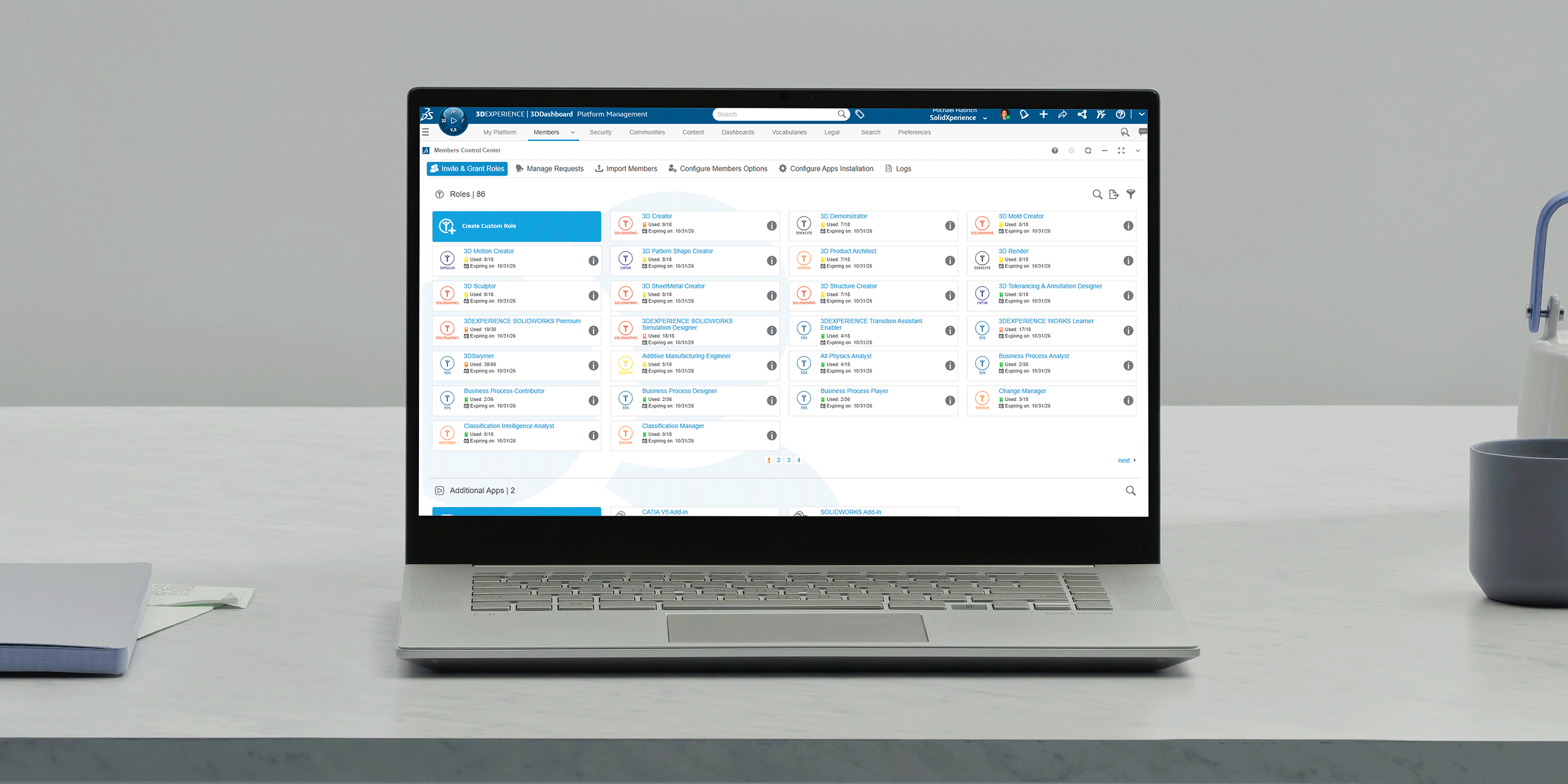
            Once you have the appropriate permissions, open the Members Control Center from:

            • The Members Management Dashboard, or

            • The Members tab within the Platform Management Dashboard

            This is your main workspace for:

            • Reviewing existing members

            • Viewing available Roles and license counts

            • Managing additional apps assigned to the tenant

            3DEXPERIENCE platform interface displaying tools for managing user roles, access rights, and responsibilities.

            Licensing Options (Before You Assign Roles)

            Before assigning any Roles, it’s a good idea to review the licensing behavior for your tenant.

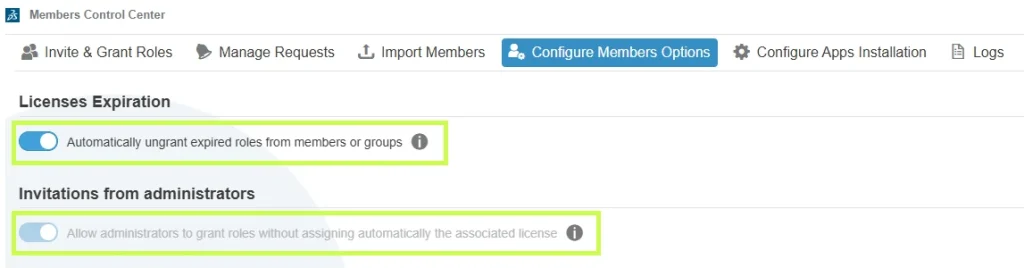
            From the Members Control Center, select Configure Members Options.

            There are two key settings to review:

            1. License Expiration

            We strongly recommend enabling Automatically ungrant expired roles from members or groups.
            This ensures that:

            • Roles are automatically removed when licenses expire

            • Users don’t encounter access errors due to expired licensing

            2. Invitations from Administrators

            The option Allow administrators to grant roles without assigning automatically the associated license controls how external users access Roles:

            • Enabled: external users can use their own licenses

            • Disabled: licenses must come from your tenant

            Taking a moment to configure these options upfront can prevent licensing issues down the road.

            View of the 3DEXPERIENCE platform showing role configuration and assignment for team members.

            Understanding Member Role Assignments

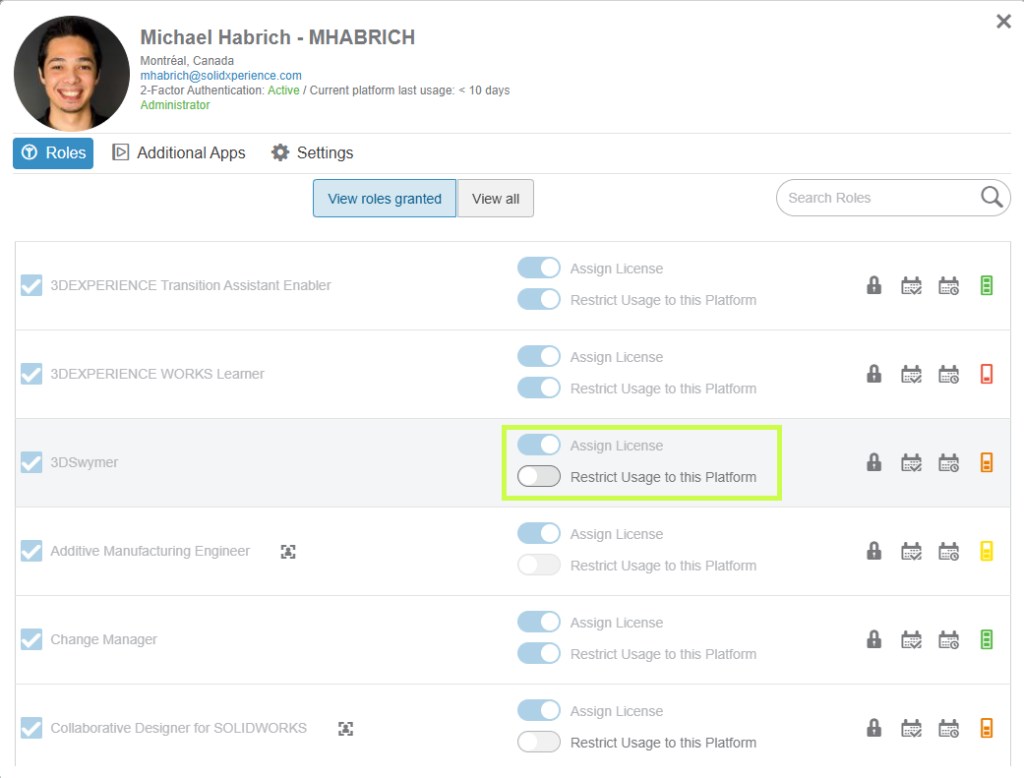
            To see how these settings affect a specific user:

            1. Go back to Invite & Grant Roles

            2. Select Details for a member

            Each Role represents a purchased license and unlocks access to specific apps and capabilities.

            Key options include:

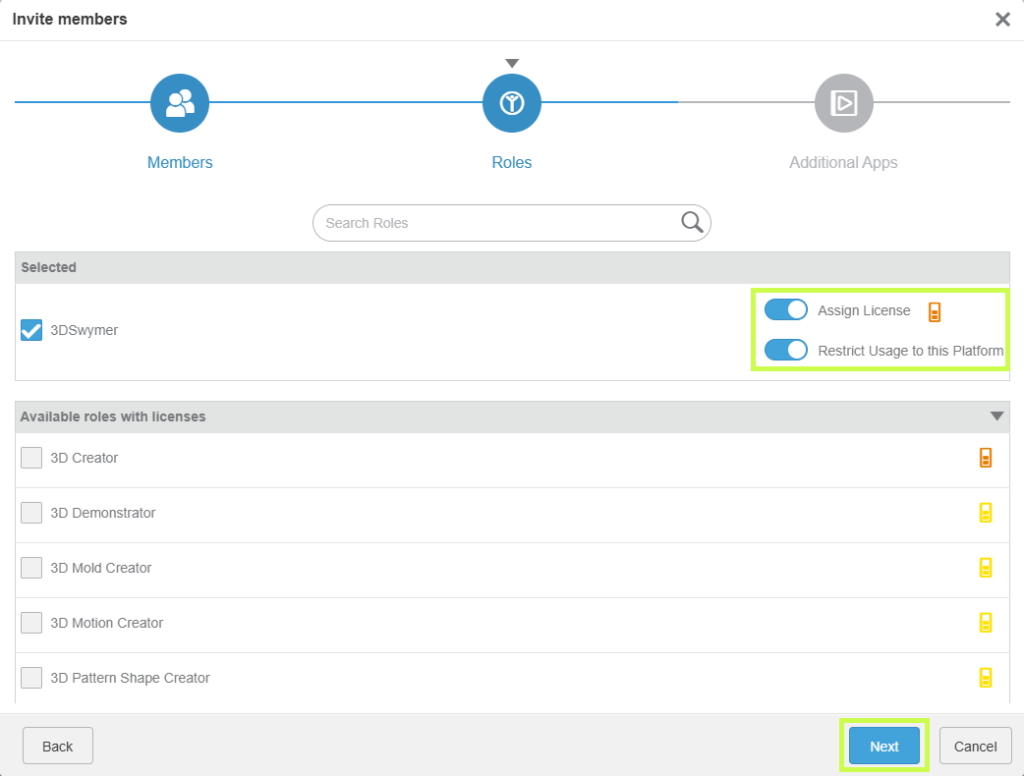
            Assign License:

            • Enabled → license is consumed from your tenant
            • Disabled → external user uses a license from another tenant

            Restrict Usage to the Platform:

            • Enabled → license can only be used on this tenant
            • Disabled → license can be used across tenants

            User management dashboard in the 3DEXPERIENCE platform used to assign, modify, and monitor platform roles.

            Assigning Roles to Members

            To assign Roles:

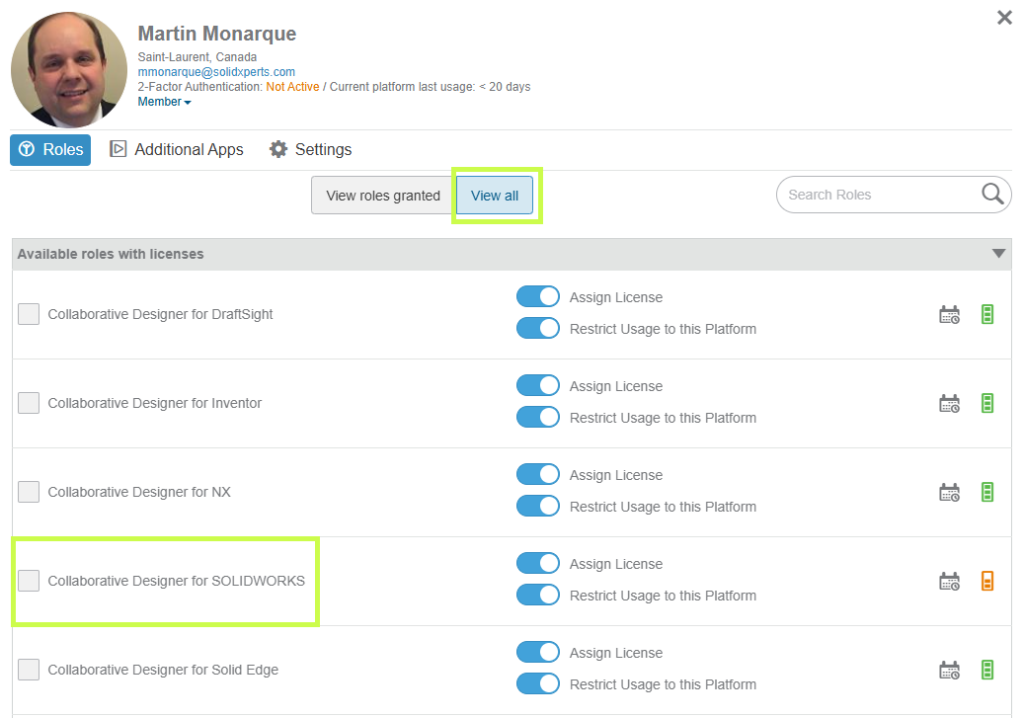
            1. Click View All to see every available Role

            2. Use search if needed, by Role name or trigram (for example, UES for Collaborative Designer for SOLIDWORKS)

            3. Set the licensing options for the Role

            4. Select the checkbox to grant it

            3DEXPERIENCE administration tools used to manage user roles and access permissions.

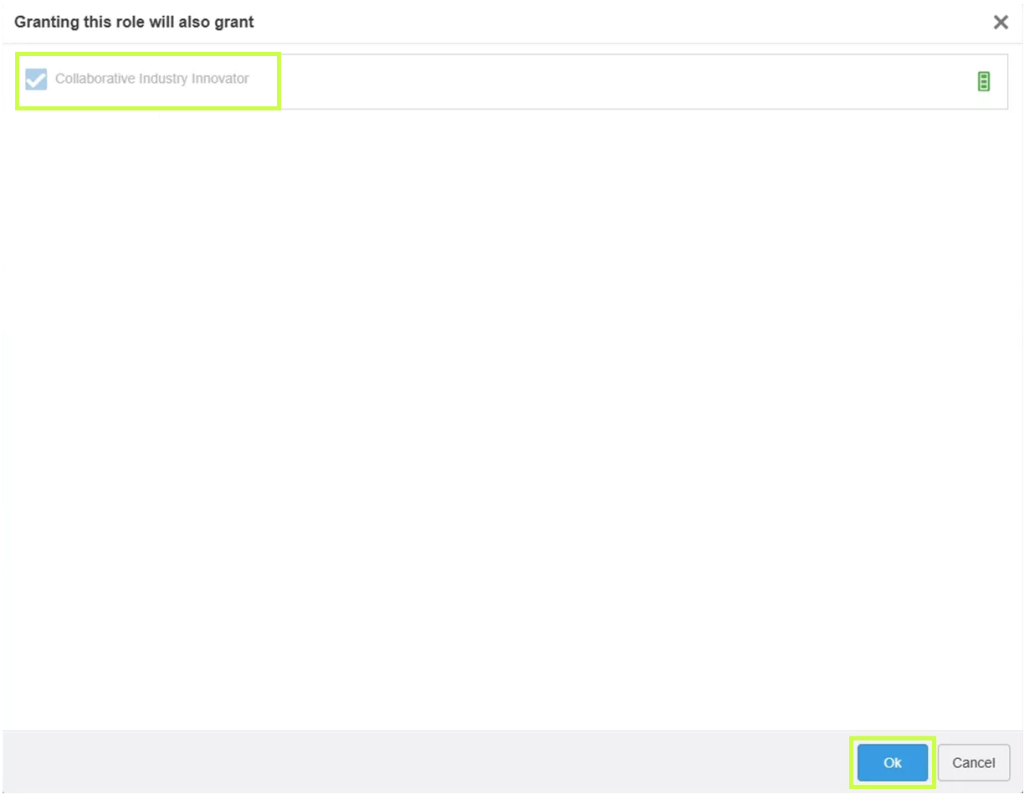
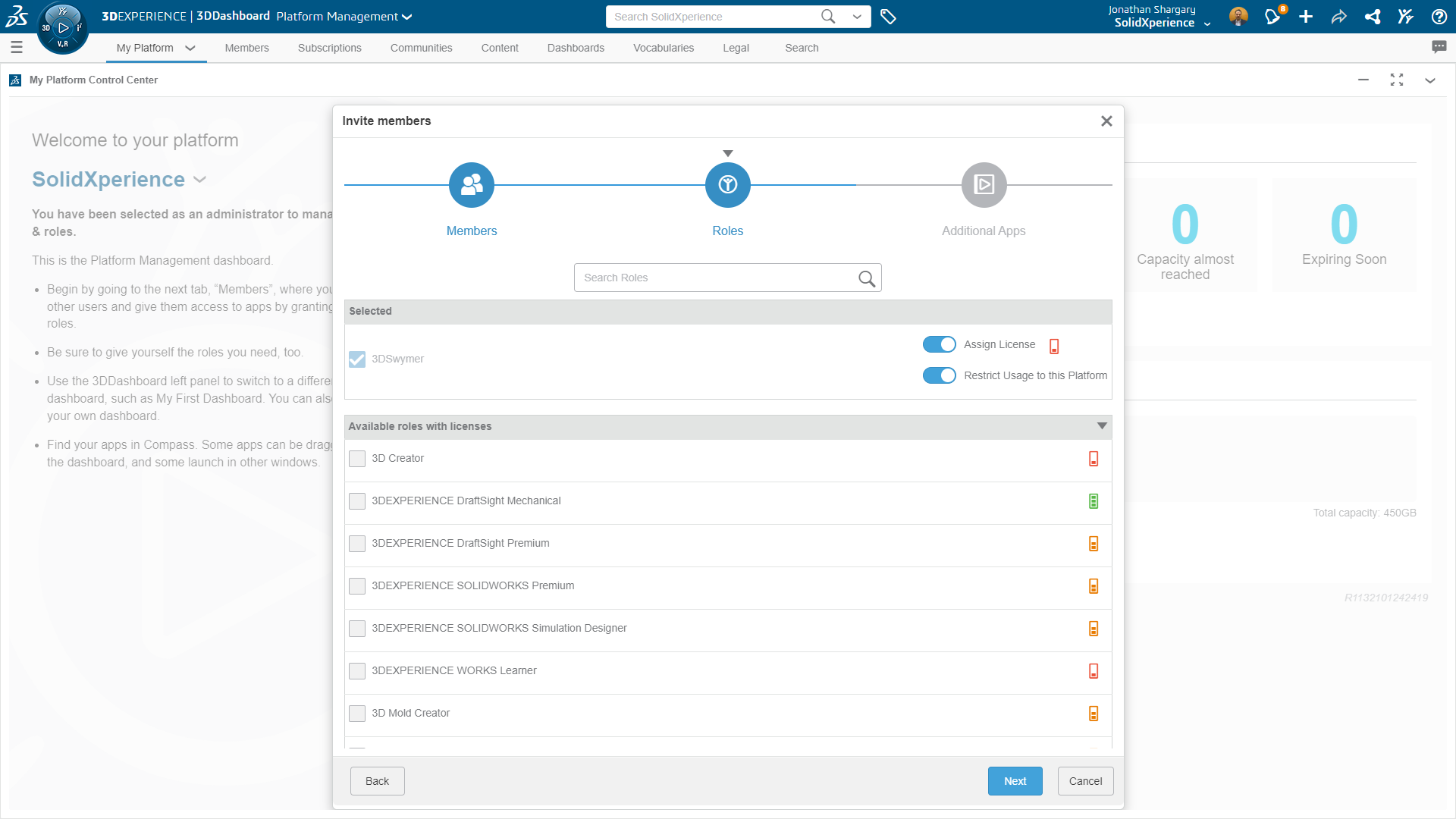
            If a Role requires prerequisites, you’ll be prompted to add them automatically. Simply confirm to proceed.

            3DEXPERIENCE platform screen illustrating the organization of user roles and permissions within a company.

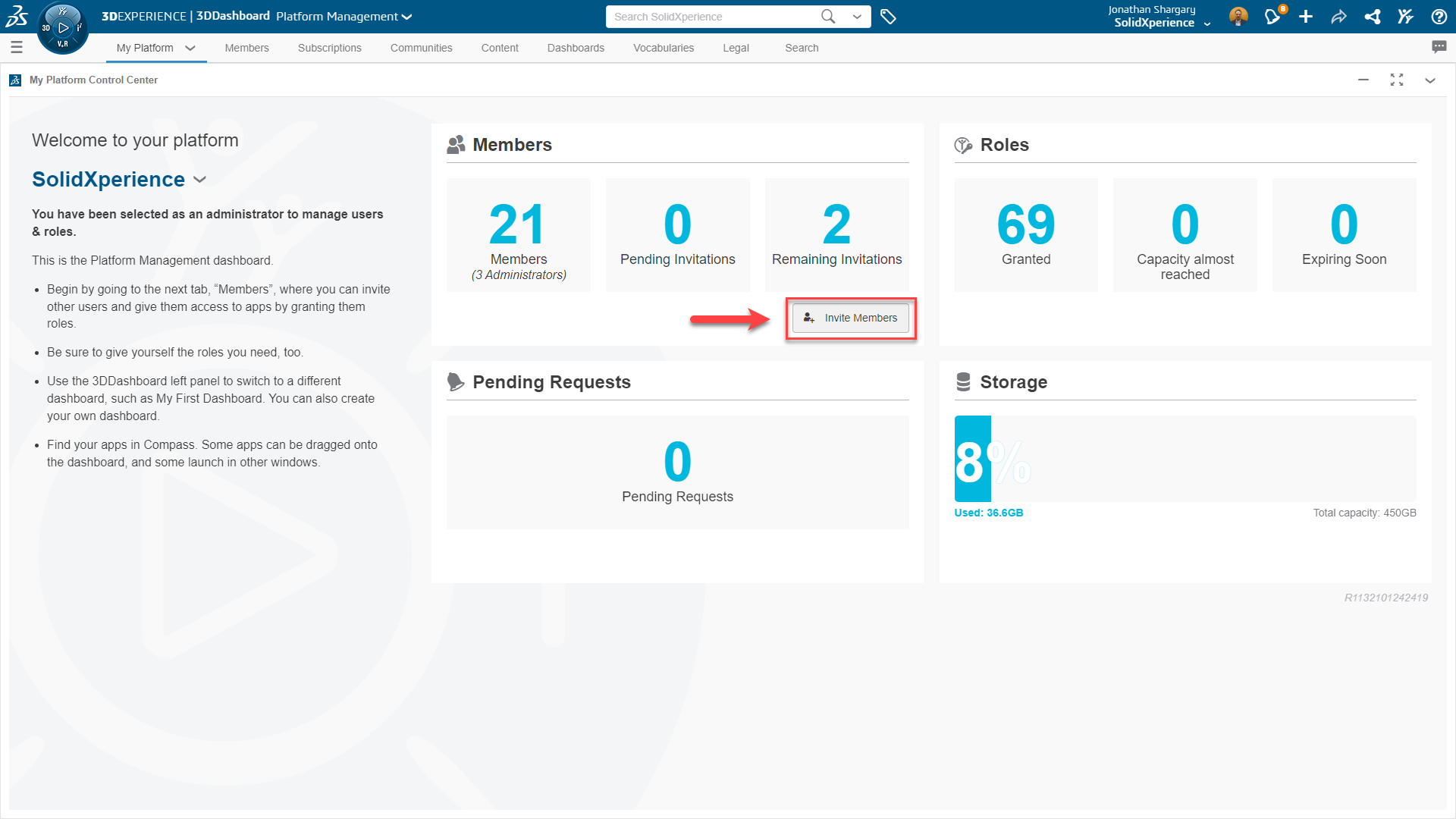
            Inviting New Members

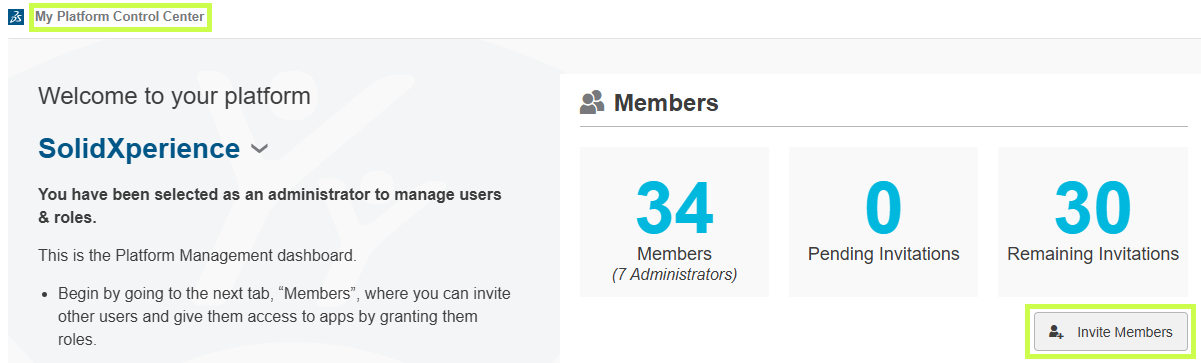
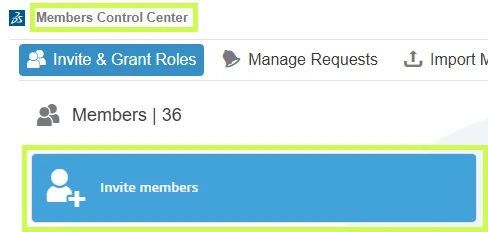
            Roles can also be assigned during the invitation process. You can invite users from:

            • My Platform Control Center

            Centralized management of user roles, licenses, and access permissions within the 3DEXPERIENCE environment.

            • Members Control Center

            3DEXPERIENCE administration interface used to define user roles, responsibilities, and access levels.

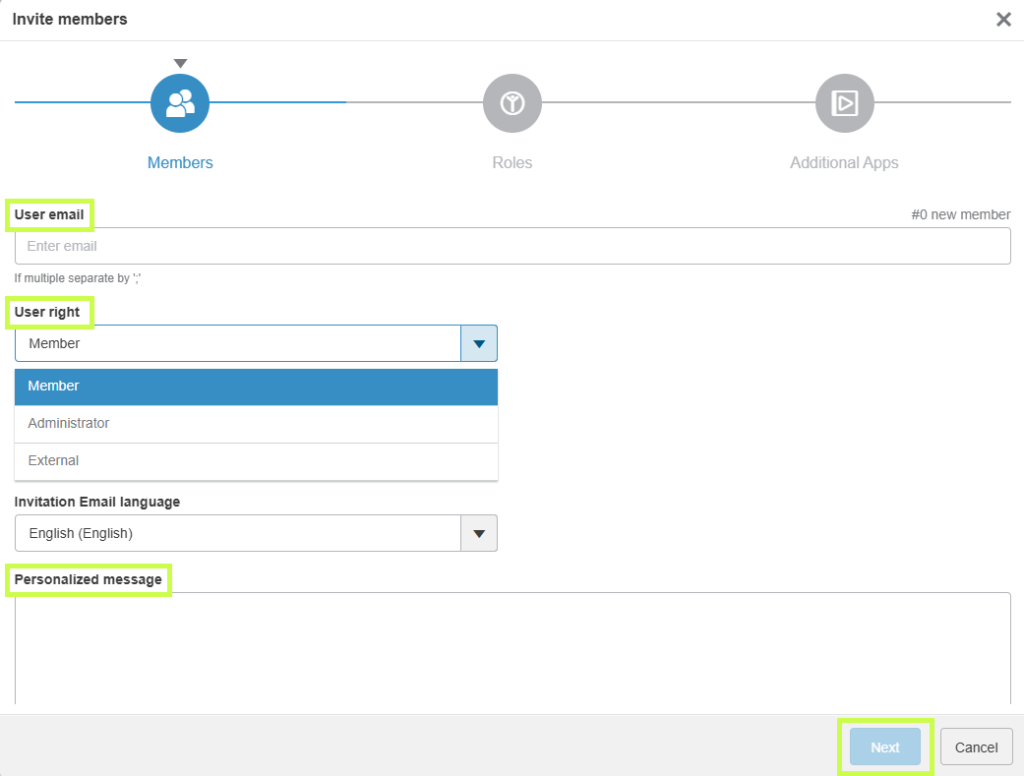
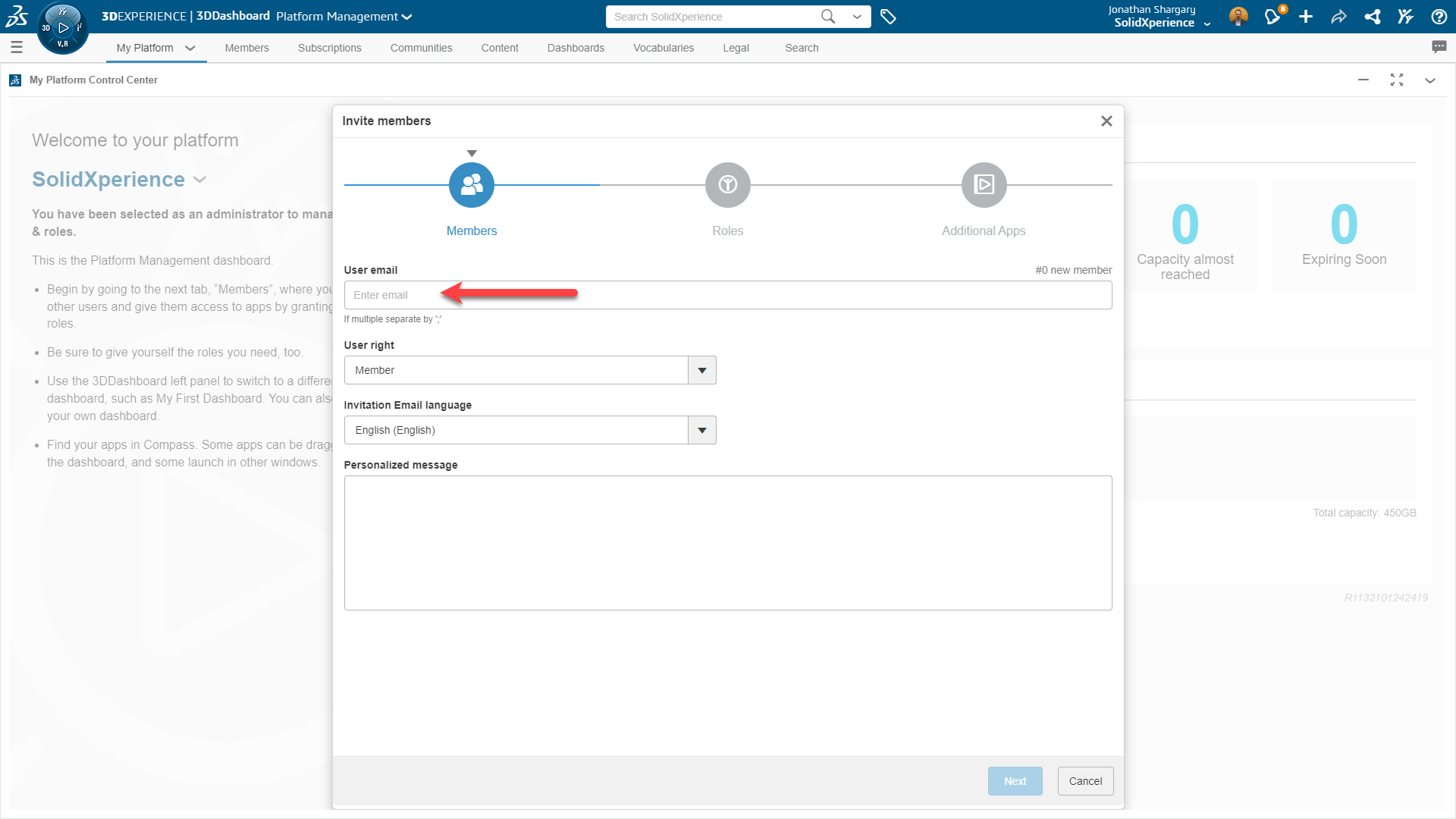
            Steps to Invite a Member:

            1. Click Invite Member

            2. Enter one or more email addresses

            3. Choose user rights:

            • Member
            • Tenant Administrator (always a good idea to have a backup admin)
            • External User

            4. Optionally include a personal message

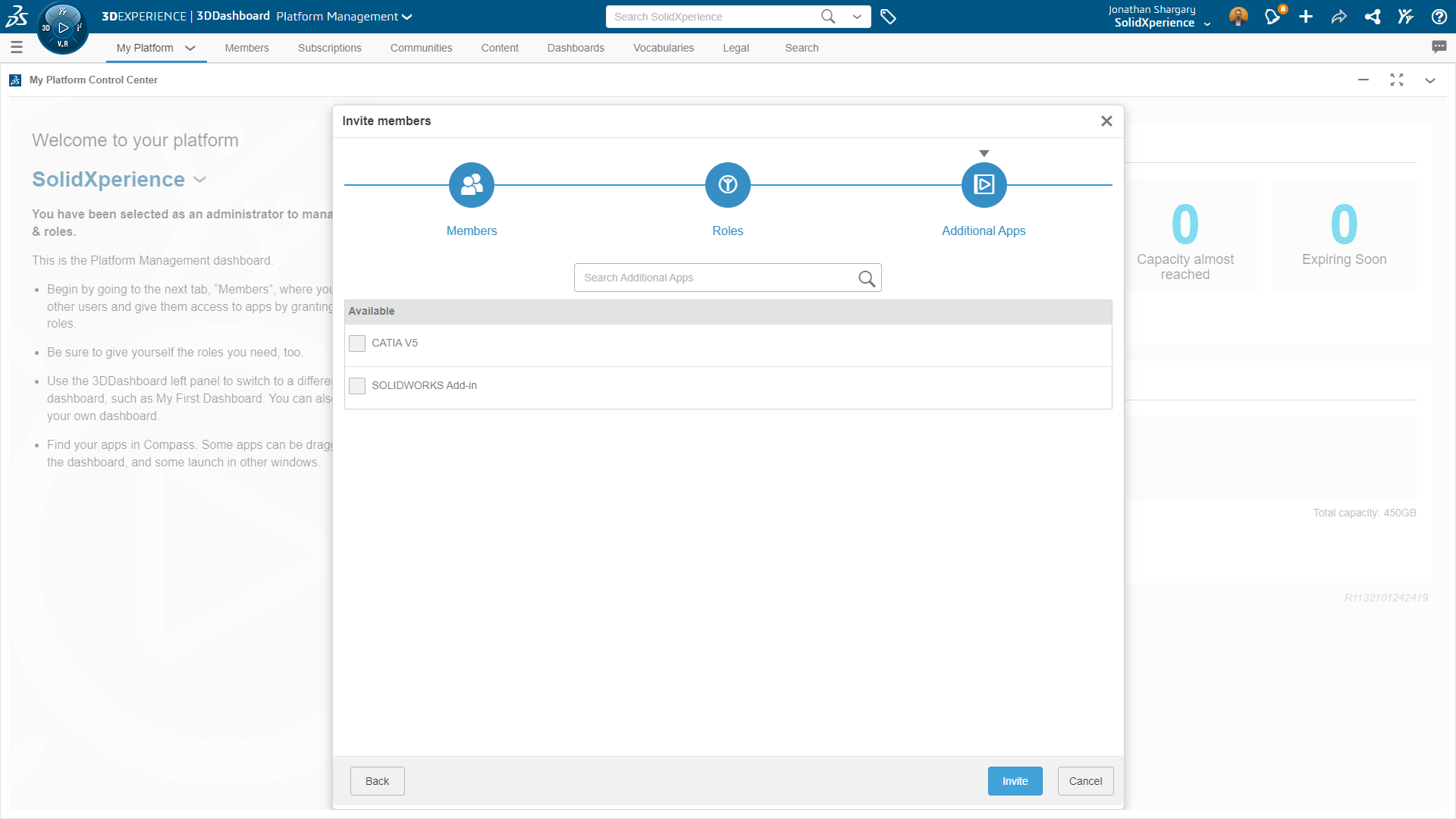
            5. Click Next to select Roles

            User management on the 3DEXPERIENCE platform with role assignment and application access control.

            Choose the Roles to assign, review any prerequisite requirements, and configure licensing options if needed.

            3DEXPERIENCE administration panel showing user profile management and associated role configuration.

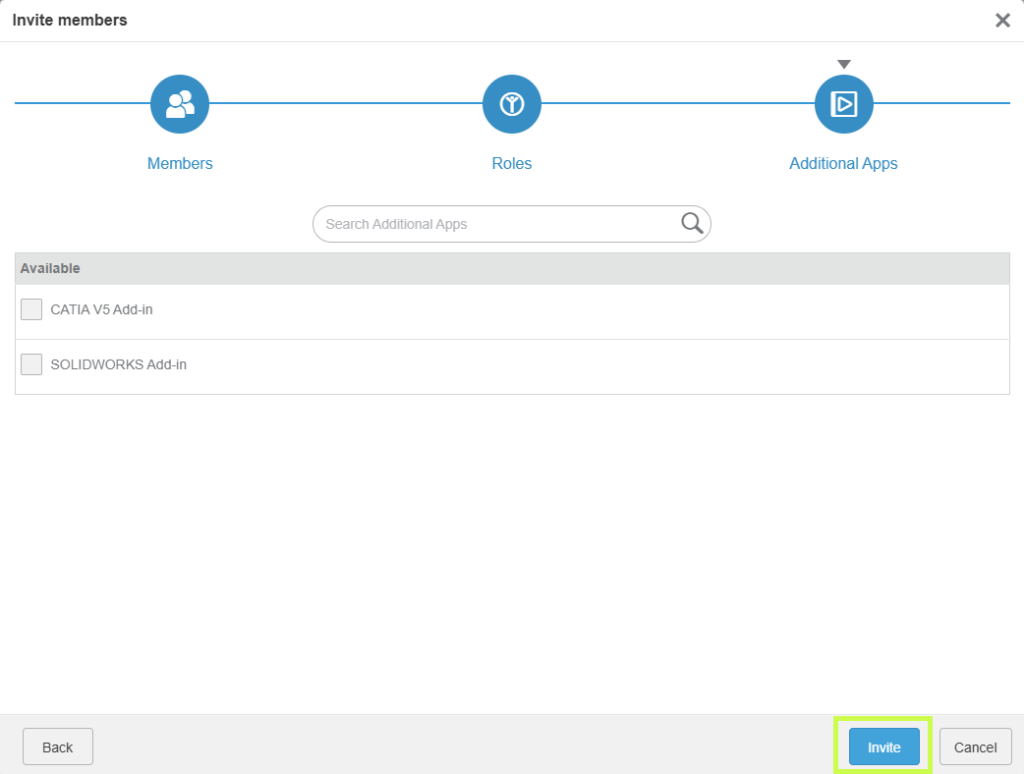
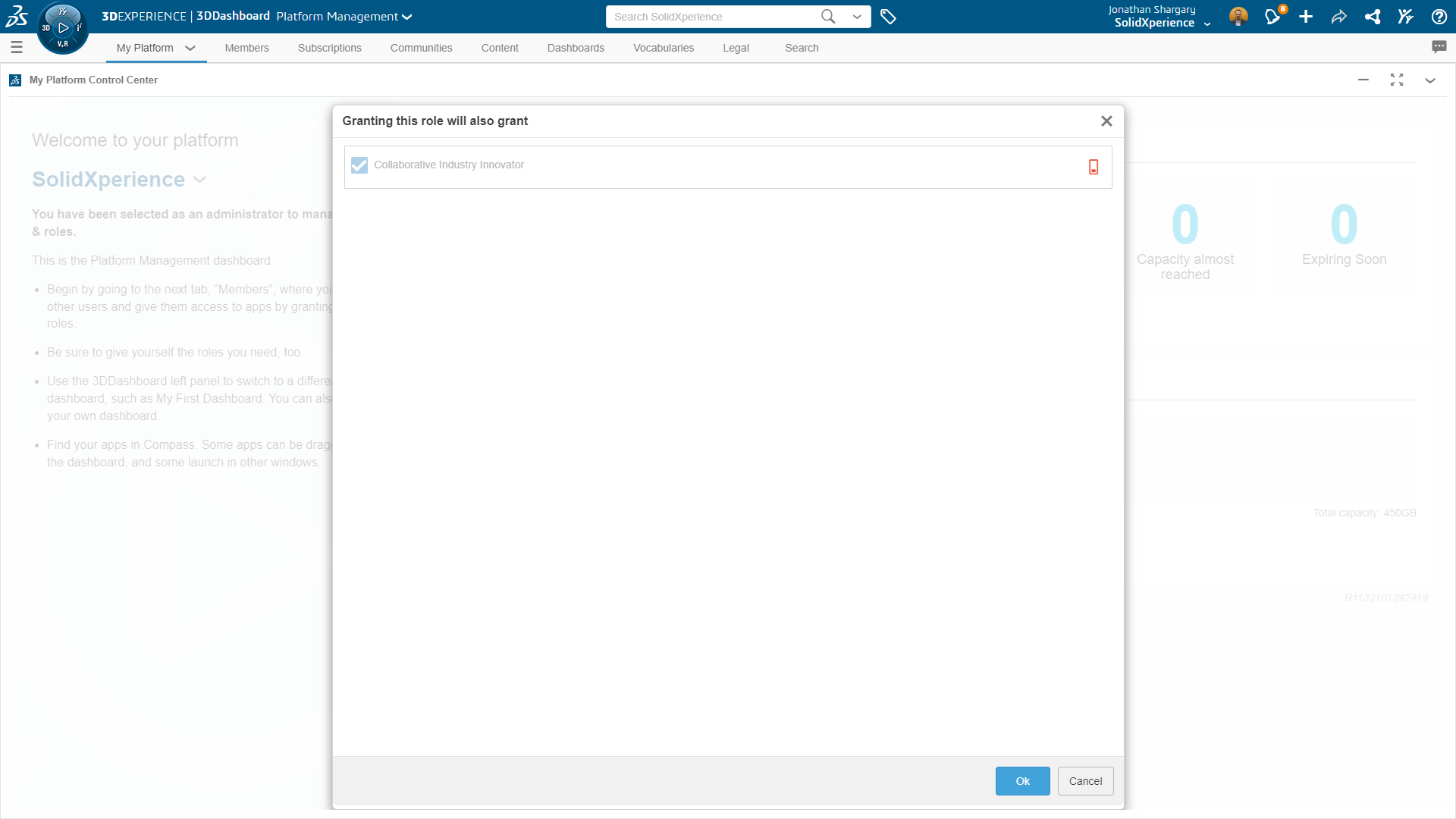
            In the final step, select any available apps and click Invite to complete the process.

            3DEXPERIENCE interface for user role management with options to assign and update permissions.

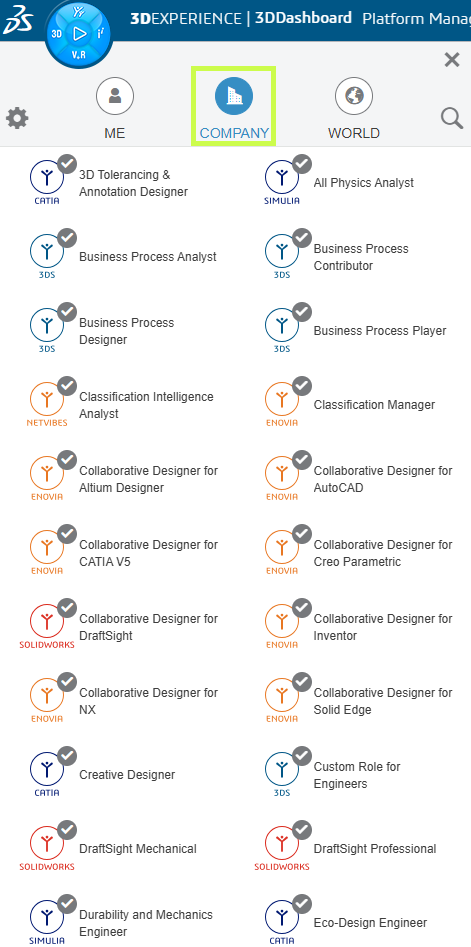
            Requesting Roles (User-Initiated)

            Users can also request Roles directly from the platform:

            1. Open the Compass

            2. Go to Company

            3DEXPERIENCE administration screen displaying a user list and their assigned roles configuration.

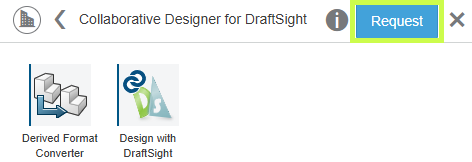
            3. Select a Role and click Request

            3DEXPERIENCE interface displaying role and access management settings for platform users.

            The administrator will receive both a platform notification and an email.

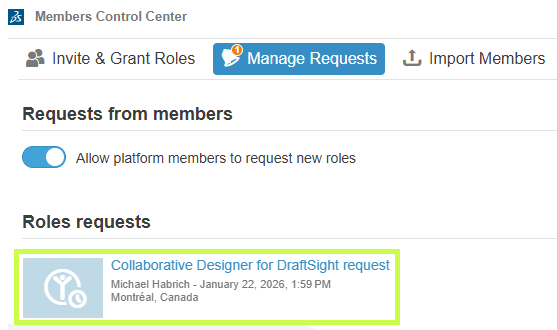
            Approving Role Requests:

            1. Open the Members Control Center

            2. Select Manage Requests

            3. Open the request tile

            3DEXPERIENCE configuration screen showing selection and assignment of user roles based on permissions.

            4. Click Accept to grant the Role

            3DEXPERIENCE administration interface showing user role management with filtering and assignment options.

            Assigning Roles Using Groups

            Groups are a powerful way to manage Roles at scale.

            Creating a User Group:

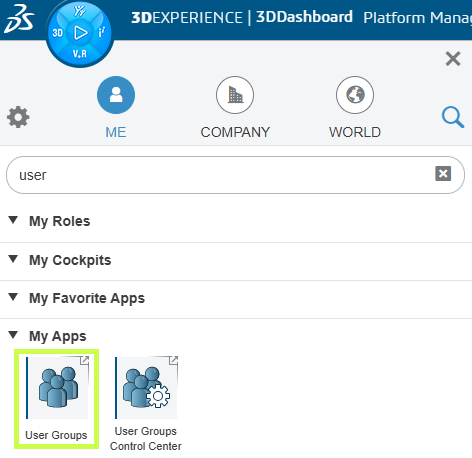
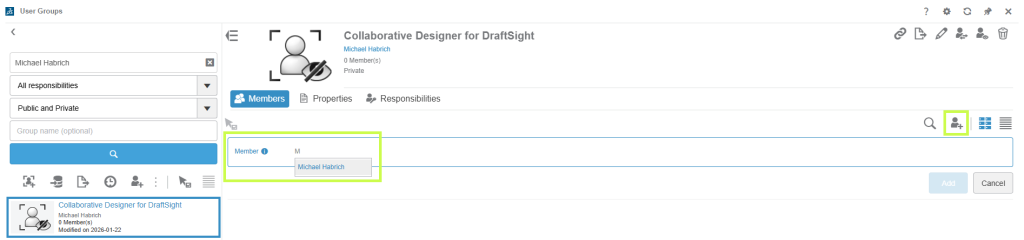
            1. Open the User Groups app (via the Compass)

            3DEXPERIENCE dashboard displaying available roles and their assignment to platform users.

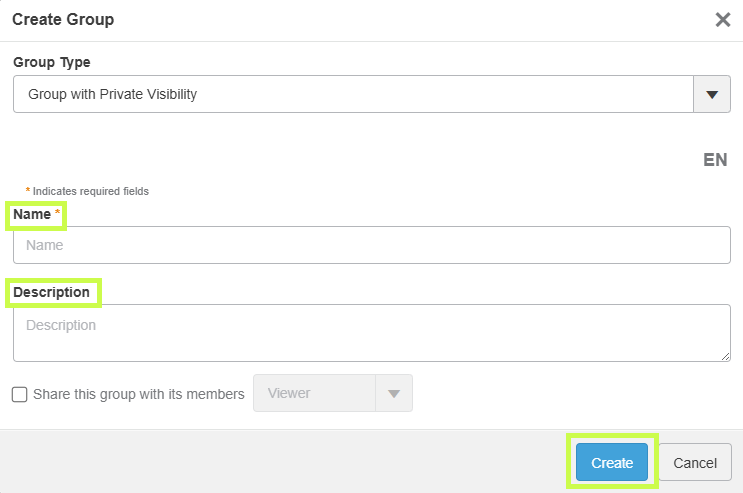
            2. Click Create Group

            3DEXPERIENCE management screen showing role selection and customization of access rights for each user.

            3. Enter a name and description

            • Tip: name the group after the Role it will receive

            3DEXPERIENCE administration console for viewing, assigning, and managing user roles in a collaborative environment.

            4. Click Create

            5. Add members to the group and save

            3DEXPERIENCE interface showing user role management with search, filtering, and permission assignment options.

            Assigning Roles to a Group:

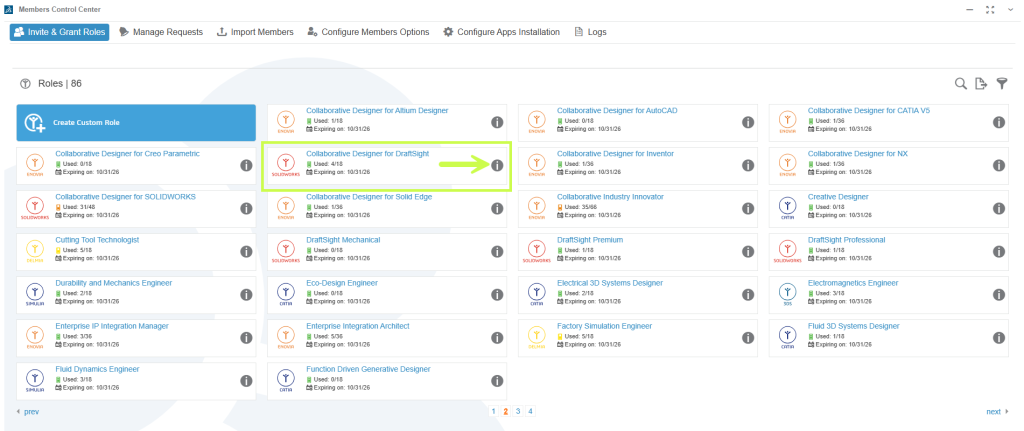
            1. Go to Members Control Center → Invite & Grant Roles

            2. Open Details for the desired Role

            3DEXPERIENCE interface displaying user role management with a preview of permissions associated with each role.

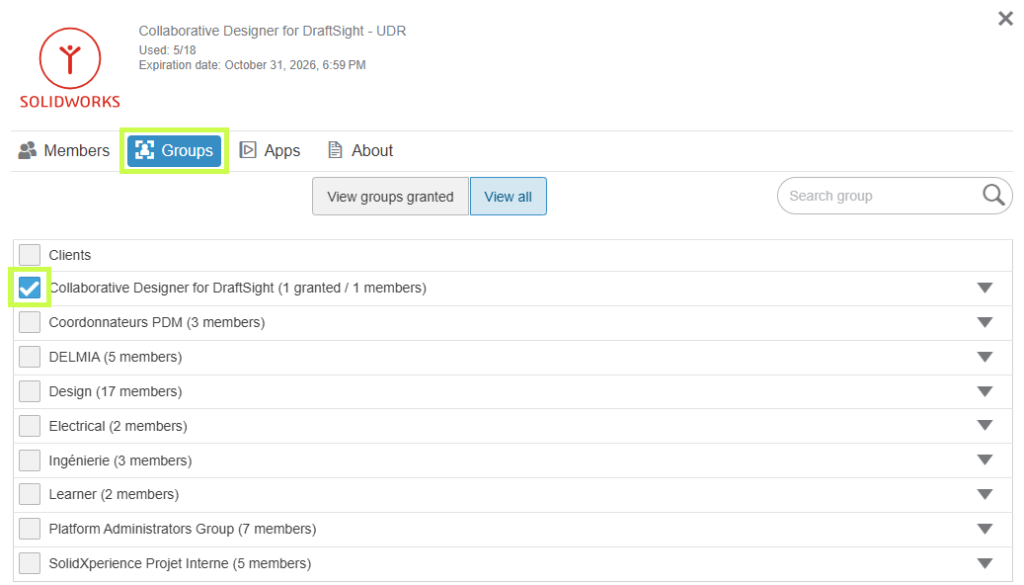
            3. Switch to the Groups tab

            4. Select the appropriate group and confirm any prerequisite Roles

            3DEXPERIENCE administration screen illustrating user role management and access rights structure within the platform.

            Any user added to the group will automatically receive the assigned Role.

            Removing Members from the Tenant

            When a user no longer needs access:

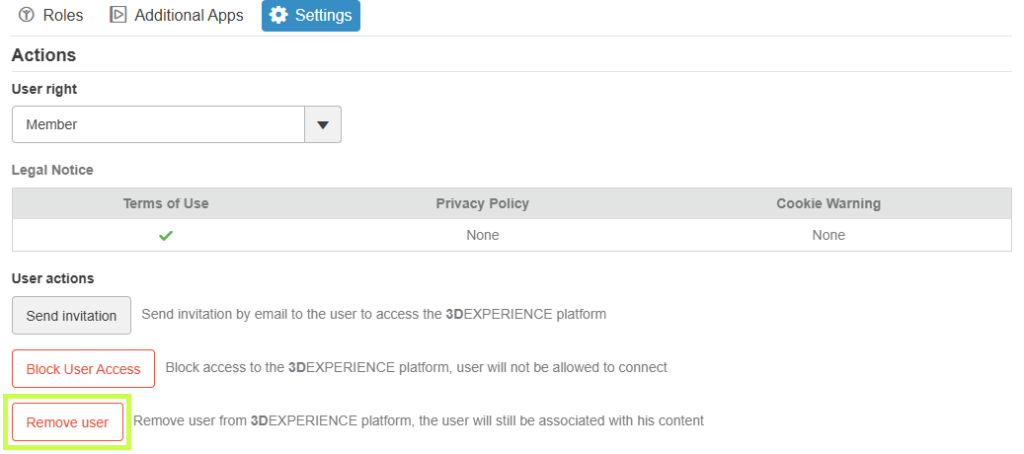
            1. Open the Members Control Center

            2. Select Details for the member

            3. Go to Settings

            4. Remove the user from the tenant

            3DEXPERIENCE user role management interface showing available roles and their assignment to organization members.

            Warning Make sure to remove any roles that have been assigned to that user before removing them from the platform to avoid any issues with future re-assignment.

            check mark button The best practice is to use User Groups to assign roles, that way you can simply remove a user from the User Group to remove their roles.

            Final Thoughts

            Managing Roles effectively is key to getting the most value from the 3DEXPERIENCE platform. With the right setup, you can ensure users have exactly the tools they need no more, no less while keeping licensing clean and manageable.

            Looking to go further?

            Your platform should work the way your team works and we’re here to help make that happen.


            Michael Habrich

            3DEXPERIENCE Specialist

            X_green_halo

            Any questions? Need help? Ask one of our experts.

            Whether you’re ready to get started or just have a few more questions, you can contact us toll-free:
              FAQ: AI at the Core of SOLIDWORKS and 3DEXPERIENCE

              BLOG

              FAQ: AI at the Core of SOLIDWORKS and 3DEXPERIENCE

              What is AI in SOLIDWORKS?

              At its core, SOLIDWORKS AI refers to a set of intelligent capabilities that assist engineers by automating repetitive tasks, providing design guidance, and enabling workflow orchestration through built-in features and Virtual Companions that can be interacted with using natural language.

              What AI features are currently available in SOLIDWORKS?

              Currently, available capabilities include automated drawing generation, general design assistance through an interactive chat interface, command prediction, sketch analysis and repair, fastener recognition, and many additional features that are being rapidly developed and expanded.

              Learn more about what’s available in SOLIDWORKS AI.

              Stay up to date with the latest SOLIDWORKS Design features.

              What is the difference between built-in AI features and Virtual Companions in SOLIDWORKS?

              On one hand, built-in AI refers to machine learning-based capabilities that enhance existing design workflows. On the other hand, Virtual Companions are AI assistants that can be engaged using natural language to access knowledge and perform specific tasks. Both built-in AI features and Virtual Companions are available directly within the SOLIDWORKS Design user interface.

              What are the roles of the new Virtual Companions?

              Unlike generic conversational agents, our companions embody AI at the heart of engineering, grounded in physics and causality.

              Name

              Specialty

              Example Application (E-Foil Wing)

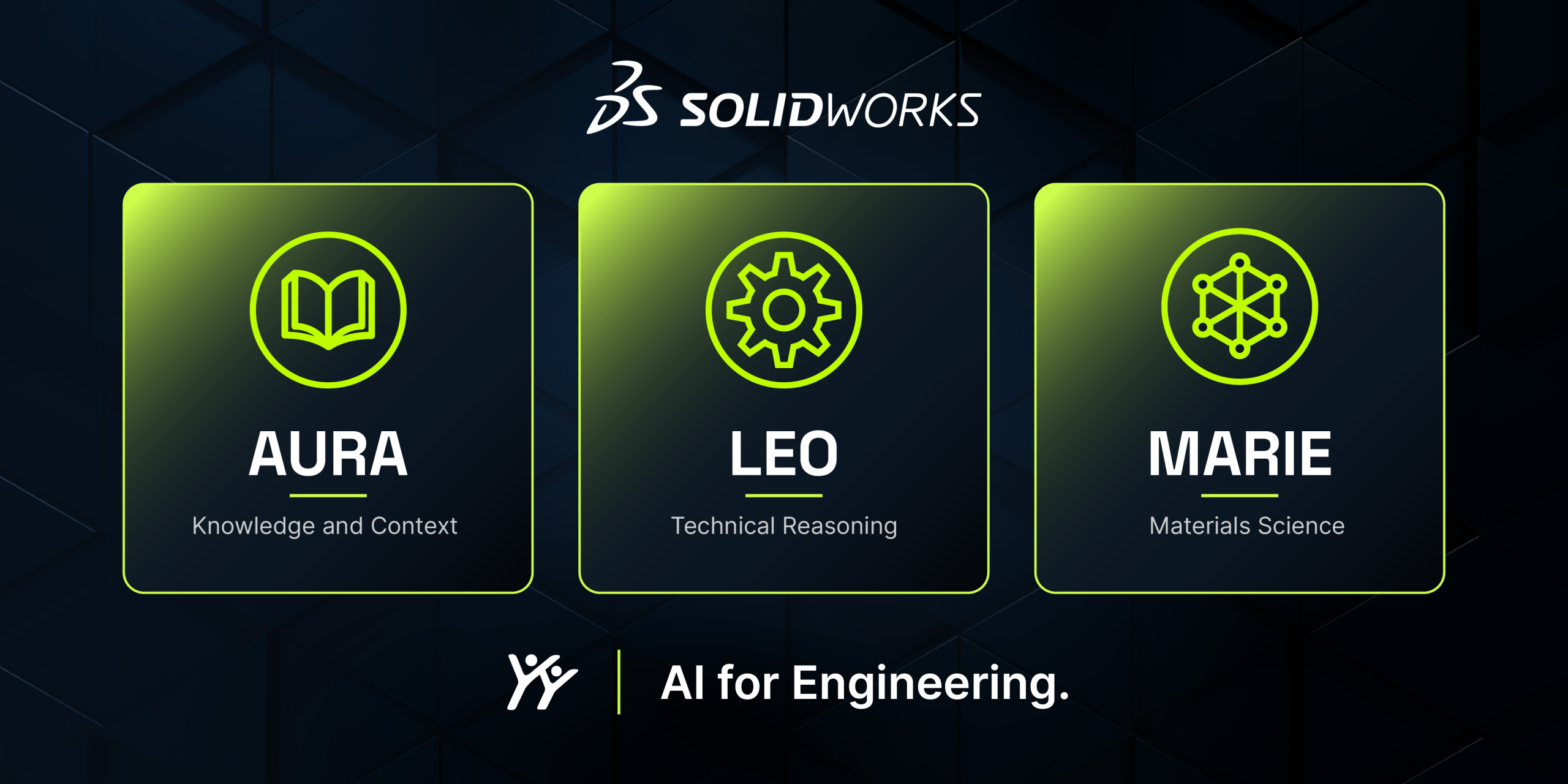
              AURA

              Knowledge and Context

              Balances requirements for strength, lightweight construction, and water resistance (for example, choosing between carbon fiber and fiberglass).

              LEO

              Engineering Reasoning

              Optimizes the strength-to-weight ratio using carbon composites, specifically unidirectional carbon fiber with epoxy resin for stiffness and fatigue resistance.

              MARIE

              Materials Science

              Analyzes critical factors such as density (1.6 g/cm³), elastic modulus, and resistance to water-induced degradation.

              How do these entities collaborate to optimize a project?

              Innovation emerges from the combination of multiple perspectives. AURA explores the range of possibilities, MARIE grounds the project in rigorous materials science, and LEO ensures mechanical and manufacturing feasibility. Together, they help identify the optimal technical solution without compromising safety or manufacturability.

              Why is the move to the Cloud essential for these new AI capabilities?

              Knowledge extraction, deep data mining, and the execution of complex AI models require significant computing power. Cloud infrastructure is the only practical way to provide these resources flexibly and cost-effectively to organizations of all sizes.

              Does SOLIDWORKS AI use customer data for training?

              No. Customer data is not used to train AI models. Governance controls ensure the protection of intellectual property. You can learn more by visiting the 3DS Trust Center.

              Can AI automatically create drawings?

              Yes. SOLIDWORKS Design includes the ability to automatically generate 2D drawings by interacting with Virtual Companions using natural language. Drawings can be created according to specified standards, templates, and dimensioning schemes, helping accelerate the documentation process.

              Can AI automate repetitive CAD tasks?

              Yes. SOLIDWORKS AI automates repetitive engineering tasks such as drawing creation and assembly structure generation. Additional capabilities will continue to be introduced in future releases.

              How does SOLIDWORKS AI protect intellectual property?

              SOLIDWORKS AI ensures that customer intellectual property remains isolated and secure. Learn more about the specific security protocols by visiting the 3DS Trust Center.

              How do I get started with AI in SOLIDWORKS?

              Start by exploring the built-in AI capabilities and current Virtual Companion features available through the AI Lab task pane directly within SOLIDWORKS Design. Access to Virtual Companions requires Cloud Services to be enabled, which are included with every SOLIDWORKS Design license.

              Can AI automatically fix CAD models?

              AI can identify issues, explain errors, and suggest corrections. However, engineers remain responsible for reviewing and approving any modifications.

              Will AI replace CAD designers and engineers?

              No. AI helps automate repetitive tasks and uncover valuable insights, but engineers remain responsible for design intent, validation, and decision-making.

              Want to Learn More?

              Discover more tips and tutorials on our YouTube channel.

              Explore best practices with our experts.

              Or contact our team, we’re here to help you get the most out of your platform.


              Benoit Bilodeau

              Senior Solutions Architect

              X_green_halo

              Vous avez des questions ? Besoin d’aide ? Demandez à l’un de nos experts.

              Que vous soyez prêt à commencer ou que vous ayez quelques questions supplémentaires, vous pouvez nous contacter sans frais :

                Exporting Derived Outputs from the 3DEXPERIENCE Platform

                BLOG

                Exporting Derived Outputs from the 3DEXPERIENCE Platform

                [techtips_featured_image_shortcode]

                On the 3DEXPERIENCE platform, Derived Outputs such as PDFs, DXFs, STEP files, and other neutral formats are created from your CAD data for downstream use. These files are often shared with customers, suppliers, or partners who don’t have access to your platform tenant.

                In this article, we’ll walk through a few practical ways to package and export Derived Outputs so they’re ready to send outside your organization.

                Note: Dassault Systèmes provides general documentation on Derived Outputs. If you need help with setup, automation, or best practices, our technical support and implementation teams are always happy to help.

                Choosing the Right Method

                There are a couple of different apps and workflows you can use, each with its own advantages depending on:

                • The number of files involved

                • Whether you’re working with a single assembly or many

                • How much cleanup you want to do afterward

                Let’s take a look at the most common approaches.

                Using the Product Explorer App

                Method 1: Download Derived Outputs from a Single Assembly

                1. Open the assembly in Product Explorer that already has Derived Outputs.

                2. Select the top-level assembly node (it will highlight in blue).

                User exporting derived output files from the 3DEXPERIENCE Platform interface.

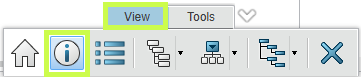
                3. Click the Information (i) icon in the lower toolbar.

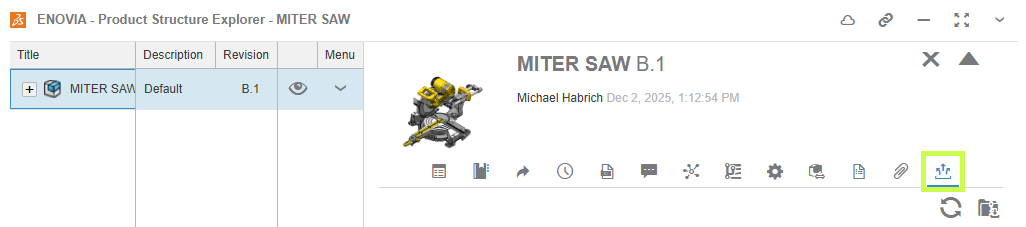
                Derived outputs including PDF, DXF, and STEP files displayed within the 3DEXPERIENCE Platform.

                This opens the information side panel.

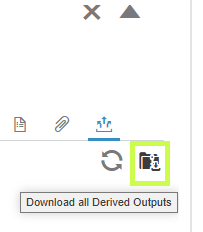
                4. Navigate to Derived Formats.

                Engineer preparing CAD-derived files for external sharing using the 3DEXPERIENCE Platform.

                5. Click Download All Derived Outputs.

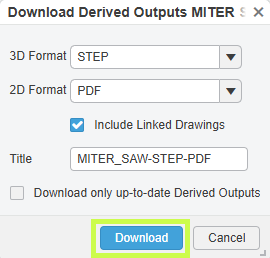
                Export settings window for derived outputs on the 3DEXPERIENCE Platform.

                6. Choose which 2D and 3D formats you want to include.

                7. Name the ZIP file and click Download.

                Downloading multiple derived outputs from the 3DEXPERIENCE Platform in a packaged folder.

                If you’ve added multiple assemblies to Product Explorer, you’ll need to repeat this process for each one.

                Trade-off:

                • ✔ Clean output (Derived Outputs only)

                • ✖ One assembly at a time

                Method 2: Export Multiple Assemblies at Once

                If you need to collect outputs from several assemblies or even unrelated parts, this method is much faster.

                1. Add assemblies or parts to Product Explorer.

                2. Select multiple items using checkboxes or Shift + Select.

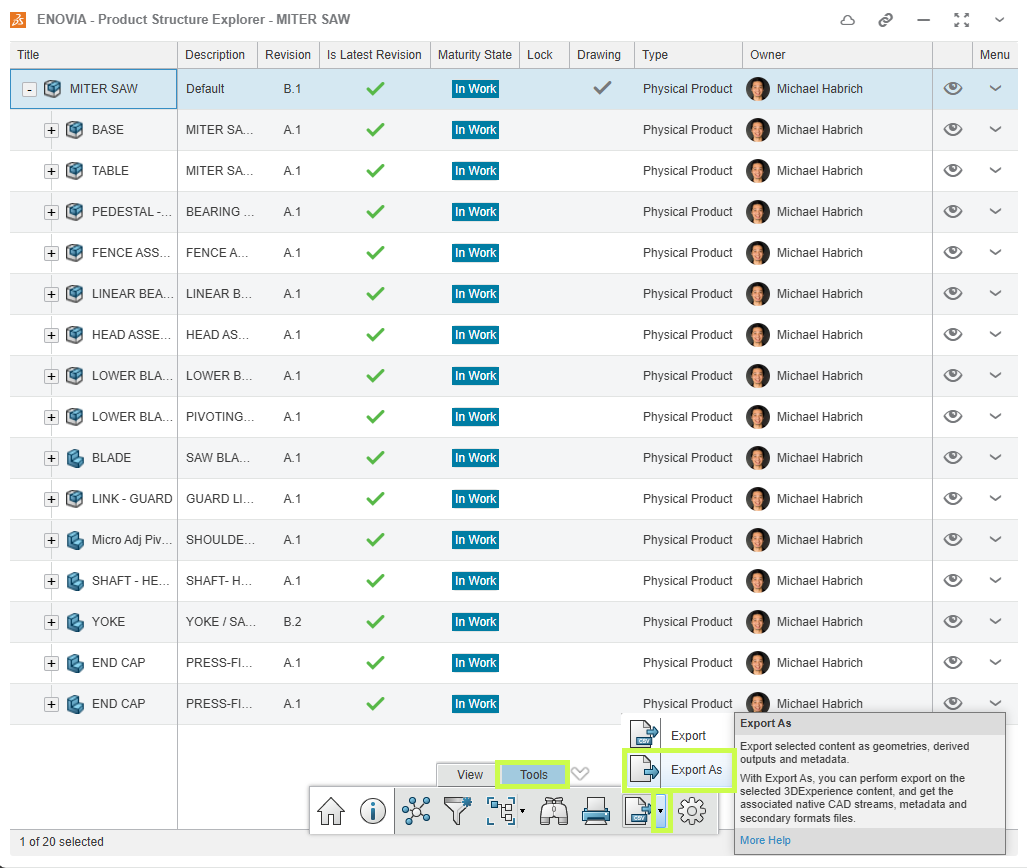
                3. Click Export As from the bottom toolbar.

                Example of neutral CAD file formats generated from SOLIDWORKS data in 3DEXPERIENCE

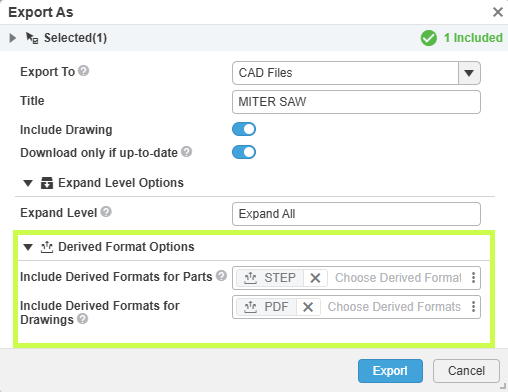
                4. Name the export, enable Expand All, and set the Derived Format Options.

                5. Click Export.

                Collaboration workflow using exported derived outputs from the 3DEXPERIENCE Platform.

                A background job will start.

                Once complete:

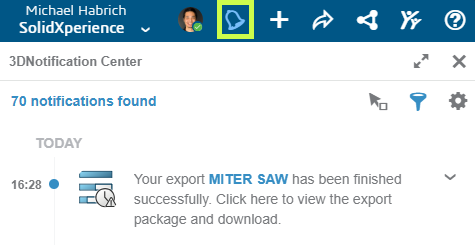
                • A notification appears in the upper-right corner.

                User selecting derived output files for export from a project dashboard in 3DEXPERIENCE.
                • Click the notification to open the CAD Data Processor Monitoring app.

                • Use the Download button to retrieve the ZIP file.

                Exported PDF and STEP files ready for downstream manufacturing and review.

                This ZIP will include both CAD files and Derived Outputs. To keep only the outputs, simply open the ZIP in Windows Explorer, sort by file type, and remove any files you don’t need.

                Trade-off:

                • ✔ Multiple assemblies or mixed files at once

                • ✖ Manual cleanup required

                Using the Bookmark Editor App

                Method 1: Download Outputs from a Single Assembly

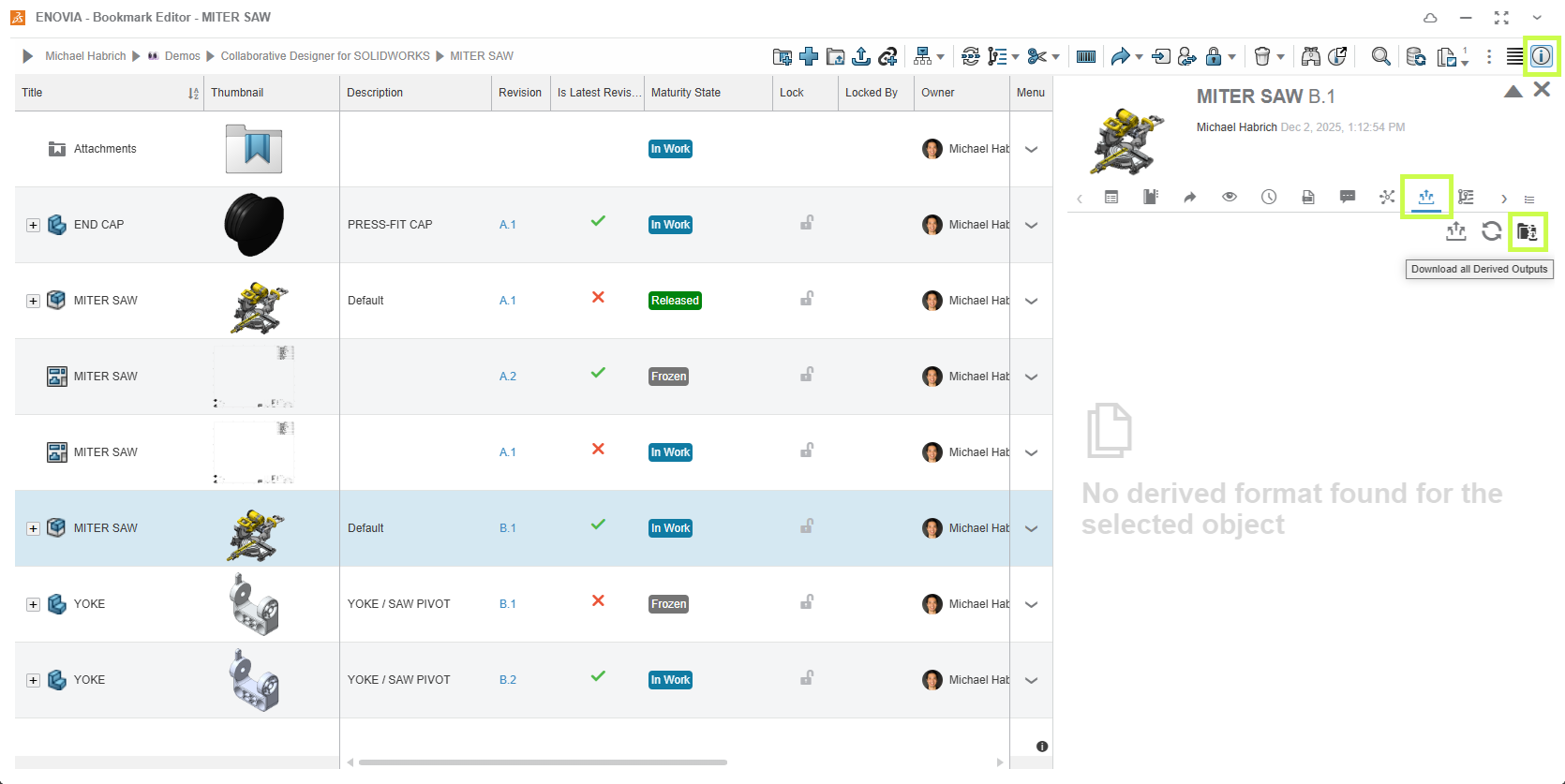
                1. Locate the assembly in a bookmark (or add it to one).

                2. Right-click the assembly and choose Information, or open the side panel

                3. In the window or side panel, navigate to Derived Outputs.

                4. Click Download All Derived Outputs.

                Packaging derived outputs into a ZIP archive from the 3DEXPERIENCE Platform.

                This workflow mirrors the single-assembly method in Product Explorer.

                Trade-off:

                • ✔ Simple and clean

                • ✖ One assembly at a time

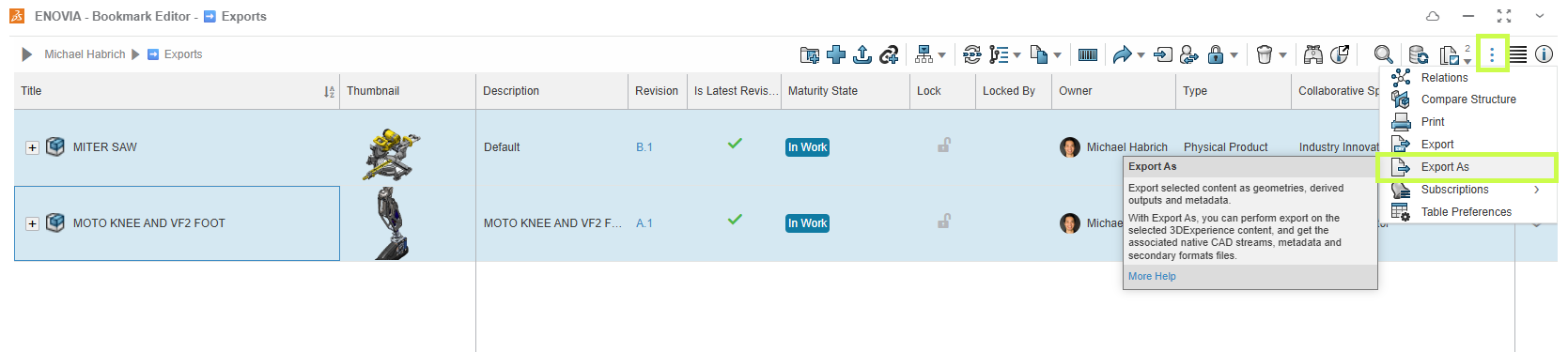
                Method 2: Export Multiple Items from a Bookmark

                This method works the same way as the multi-selection approach in Product Explorer.

                1. Add all required assemblies or parts to a bookmark.

                2. Select the files you want.

                3. Click Export As from the upper toolbar.

                Digital workflow illustrating the transfer of derived outputs from CAD to external stakeholders.

                4. Configure the Derived Format options and start the export.

                As before, the resulting ZIP will include CAD data along with the Derived Outputs, so some cleanup may be required.

                Trade-off:

                • ✔ Ideal for large batches or mixed content

                • ✖ Requires removing CAD files afterward

                Final Thoughts

                Whether you’re sending a single PDF or packaging dozens of STEP and DXF files, the 3DEXPERIENCE platform gives you flexible ways to get the right data out securely and efficiently.

                The key is choosing the method that best fits your situation:

                • Single assembly, clean output → Download All Derived Outputs

                • Multiple files, faster packaging → Export As

                Looking to go further?

                • Check out more tips and tutorials on our YouTube channel.

                • Explore best practices with our experts.

                • Or reach out to your Solidxperts team we’re here to help you get the most out of your platform.


                Michael Habrich

                3DEXPERIENCE Specialist

                X_green_halo

                Any questions? Need help? Ask one of our experts.

                Whether you’re ready to get started or just have a few more questions, you can contact us toll-free:
                  3DDrive vs. 3DSpace: What’s the Difference?

                  BLOG

                  3DDrive vs. 3DSpace: What’s the Difference?

                  [techtips_featured_image_shortcode]

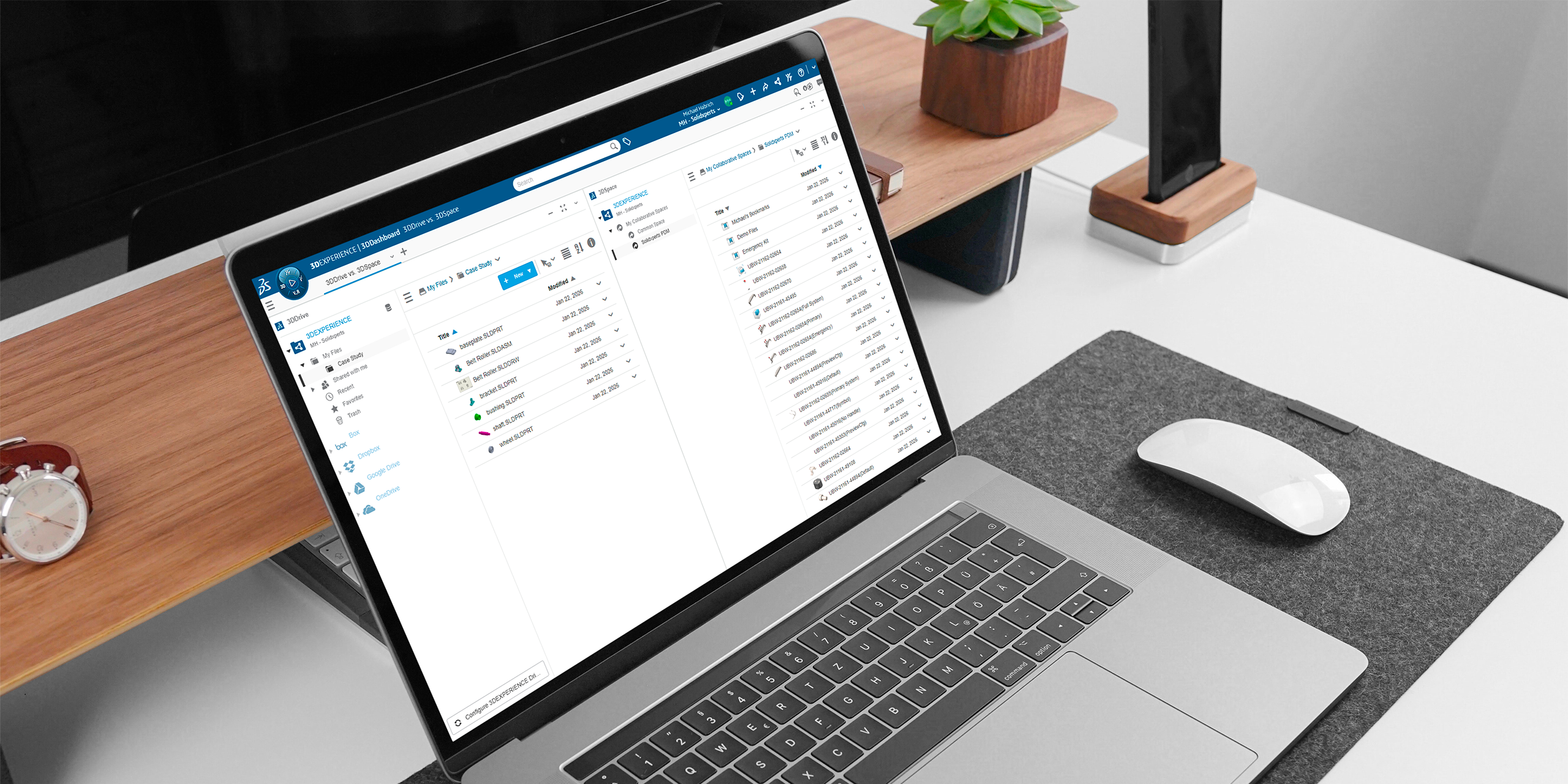
                  The 3DEXPERIENCE platform includes a powerful set of tools designed to support collaborative product development. Two of the most commonly used apps for storing and managing files are 3DDrive and 3DSpace.

                  At first glance, they can look similar, but they’re built for very different purposes. Understanding how each one is meant to be used will help your team work more efficiently and avoid confusion down the road.

                  What Is 3DDrive?

                  Think of 3DDrive as the 3DEXPERIENCE equivalent of tools like Dropbox or OneDrive.

                  3DDrive allows you to:

                  • Store and access files from anywhere

                  • Edit and collaborate on documents in real time

                  • Share files easily, including with external users

                  • Integrate with other cloud storage services

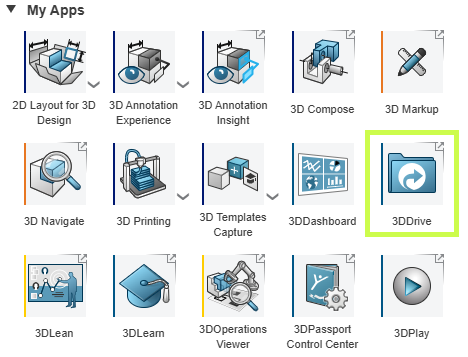
                  You’ll find 3DDrive under My Apps in the 3DEXPERIENCE platform, and it’s also accessible directly inside SOLIDWORKS.

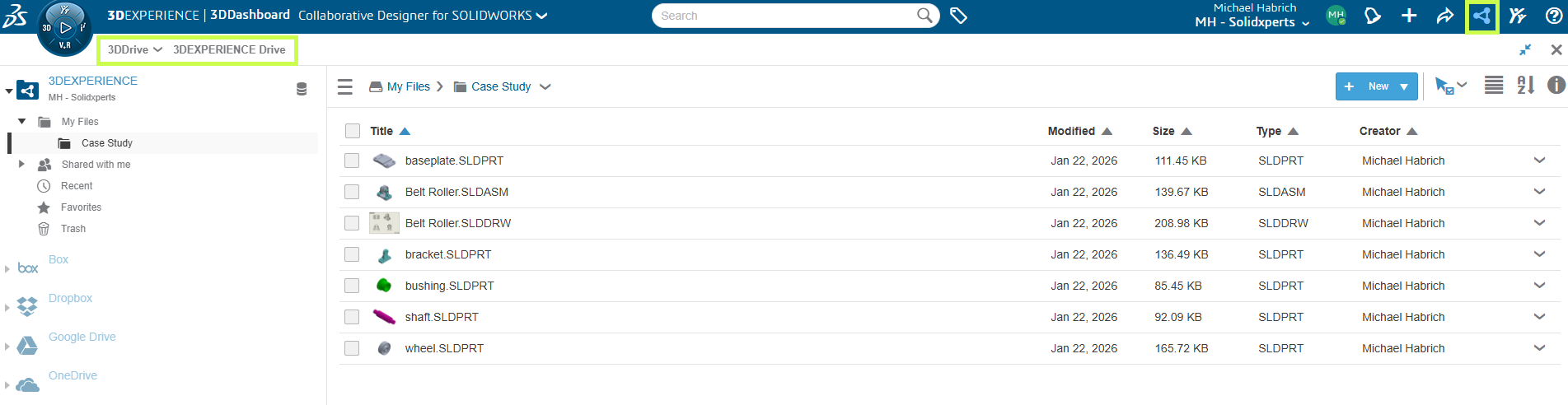
                  3DDrive interface in the 3DEXPERIENCE platform for cloud file sharing and management

                  3DDrive uses a familiar folder based structure and focuses on flexibility and convenience. It’s a great choice for:

                  • General file sharing

                  • Early-stage collaboration

                  • Working with customers, suppliers, or partners outside your organization

                  What it doesn’t include is built-in product data management there’s no revision control, lifecycle states, or formal approval process.

                  3DDrive interface in the 3DEXPERIENCE platform for cloud file sharing and management

                  What Is 3DSpace?

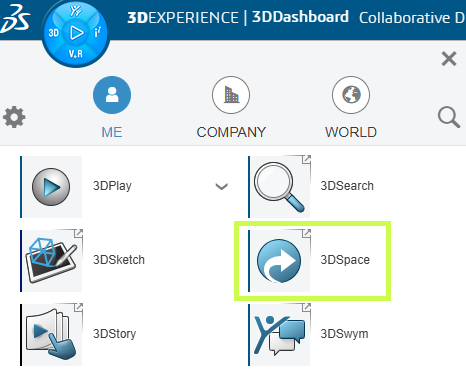
                  3DSpace is built for teams that need structure, control, and traceability.

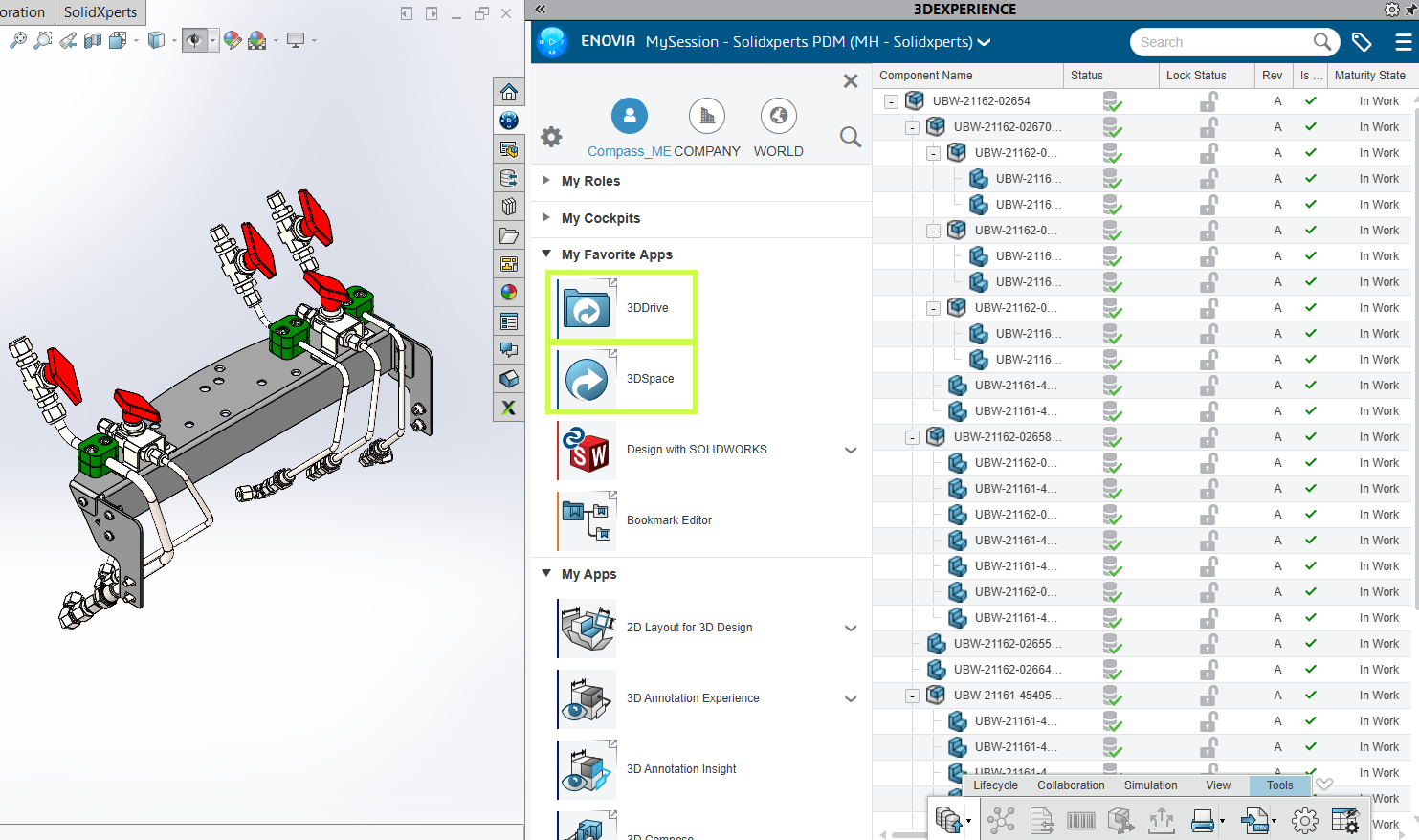
                  3DSpace interface in the 3DEXPERIENCE platform for product data management and revision control

                  Instead of simple folders, 3DSpace is organized around Collaborative Spaces, where teams work together on shared project data. Within 3DSpace, you can:

                  • Control access and permissions

                  • Track revisions and history

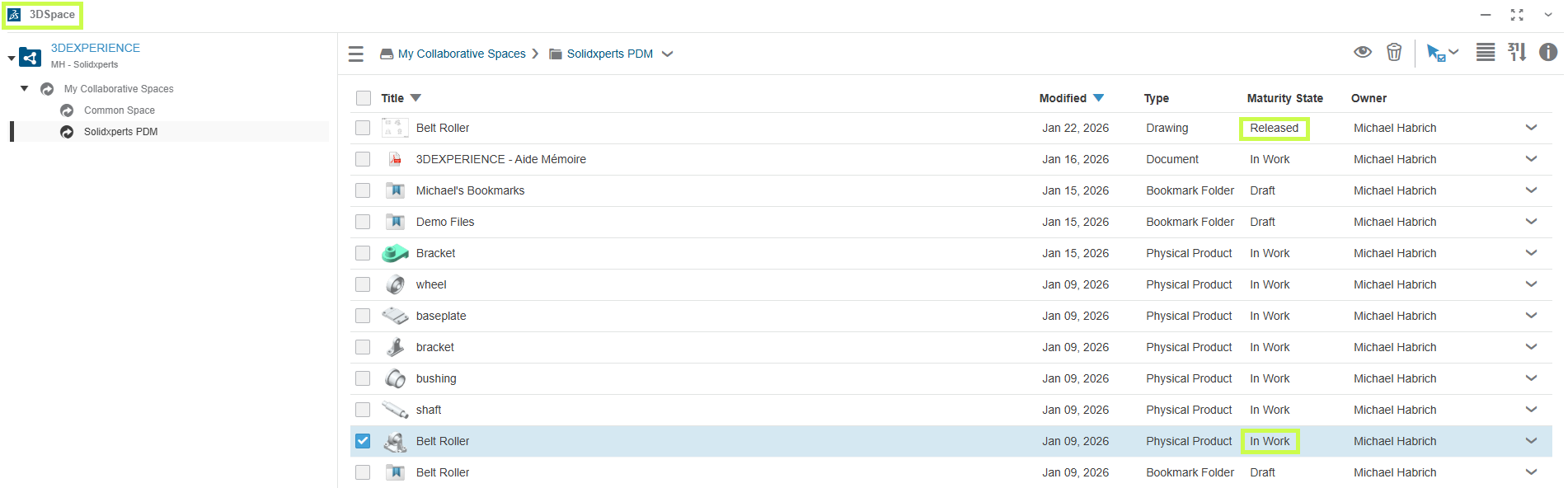
                  • Assign maturity states like In Work and Released

                  • Lock files to prevent conflicting edits

                  These capabilities make 3DSpace a strong foundation for PLM-driven workflows, including:

                  • Engineering change processes

                  • Approval workflows

                  • Long-term product data management

                  3DSpace is ideal for engineering teams that need confidence in version control and data integrity.

                  3DSpace interface in the 3DEXPERIENCE platform for product data management and revision control

                  3DDrive vs. 3DSpace: Which Should You Use?

                  The short answer: it depends on how you work.

                  • 3DDrive is best when:

                    • You need fast, flexible file sharing

                    • You collaborate frequently with external users

                    • You want a familiar, lightweight cloud storage experience

                  • 3DSpace is best when:

                    • You need controlled access and revision tracking

                    • Your team is ready for PLM-style workflows

                    • Data accuracy, traceability, and approvals matter

                  The good news is that both apps integrate directly with SOLIDWORKS, so you can access the right tool without leaving your design environment.

                  Comparison between 3DDrive and 3DSpace in 3DEXPERIENCE showing file sharing and product data management

                  Final Thoughts

                  3DDrive and 3DSpace aren’t competing tools. They’re complementary. Many teams start with 3DDrive for simple collaboration and gradually introduce 3DSpace as their data management needs grow.

                  Not sure which approach makes the most sense for your team? That’s where we come in.


                  Michael Habrich

                  3DEXPERIENCE Specialist

                  X_green_halo

                  Any questions? Need help? Ask one of our experts.

                  Whether you’re ready to get started or just have a few more questions, you can contact us toll-free:
                    Guide: Getting Started with AI in SOLIDWORKS

                    BLOG

                    Guide: Getting Started with AI in SOLIDWORKS in 2026

                    [techtips_featured_image_shortcode]

                    Artificial Intelligence is quickly becoming part of everyday engineering workflows, but if you’re a SOLIDWORKS user, the big question is usually:

                    “Where do I even start?”

                    The good news is that AI in SOLIDWORKS isn’t something separate you need to learn from scratch. It’s already being integrated into the tools you use every day through the 3DEXPERIENCE platform.

                    In this guide, we’ll walk through everything you need to get started, step by step:

                    • Required software and prerequisites

                    • Activating the 3DEXPERIENCE platform

                    • Installing the Design with SOLIDWORKS connector

                    • Accessing AI tools like the new AI Labs tab

                    No fluff, just what you need to get up and running.

                    Step 1: Understand What “AI in SOLIDWORKS” Actually Means

                    Before jumping into setup, it’s important to clarify something:

                    AI in SOLIDWORKS isn’t a single feature. It’s a set of capabilities delivered through the 3DEXPERIENCE platform.

                    Today, that includes things like:

                    • Design assistance and recommendations

                    • Automation of repetitive tasks

                    • Data-driven insights

                    • Early access tools in Virtual Companions

                    In other words, AI is layered into your workflow, not replacing it.

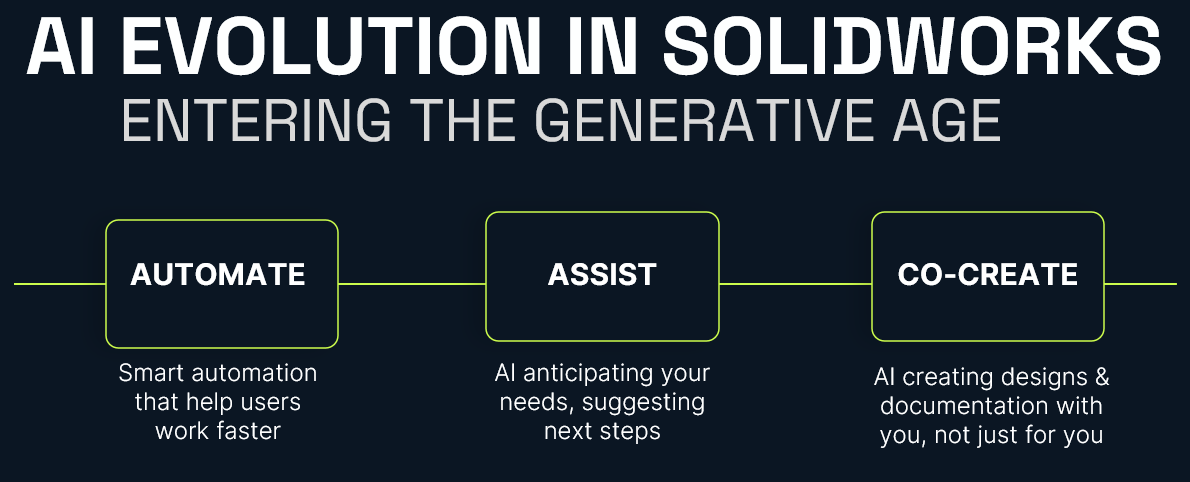
                    AI Evolution in SOLIDWORKS

                    Step 2: Confirm Your Prerequisites

                    Before you can access any AI-driven tools, you’ll need a few key components in place.

                    Required Software

                    • SOLIDWORKS 2026 (or newer)

                    • Active subscription (required for cloud services integration)

                    Platform Access

                    • A 3DEXPERIENCE platform account

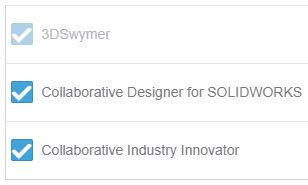
                    • Assigned roles (including Collaborative Designer for SOLIDWORKS)

                    System Requirements

                    • Stable internet connection

                    • Admin rights for installation

                    • Browser access to the platform

                    If you’re missing any of these, that’s your starting point.

                    Step 3: Activate the 3DEXPERIENCE Platform

                    AI functionality depends on your connection to the 3DEXPERIENCE platform.

                    How to Activate:

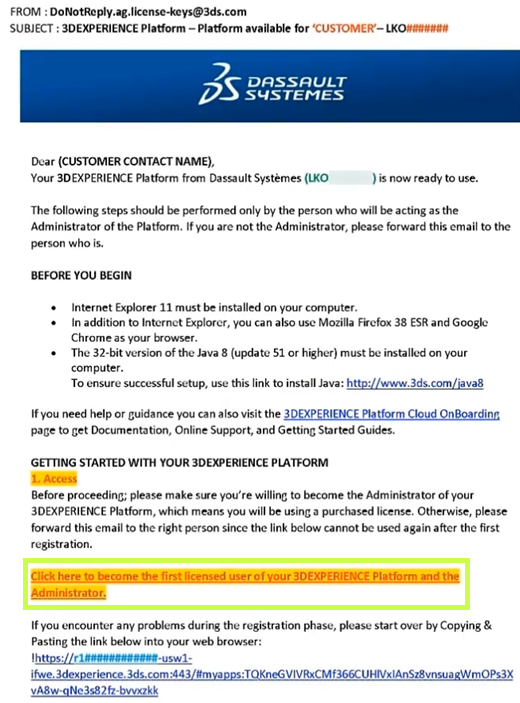
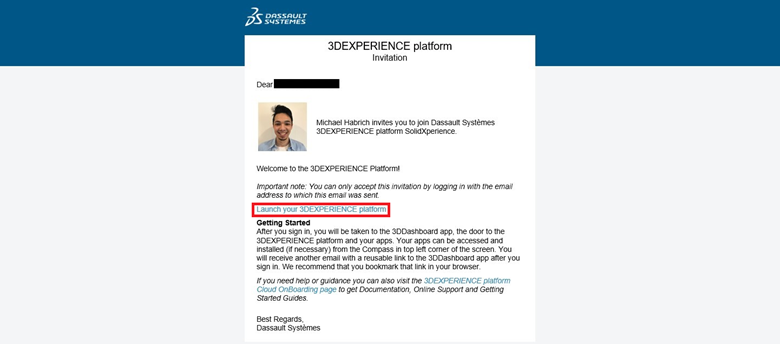
                    • Check your welcome email from Dassault Systèmes
                    • Click the activation link
                    • Set your password and log in
                    • Access your platform dashboard

                    Once inside, you should see your roles and available apps.

                    Still confused? Follow our Getting Started guide:
                    Getting Started with the 3DEXPERIENCE Platform

                    Step 4: Install the 3DEXPERIENCE Launcher

                    Before installing any apps, you’ll need the 3DEXPERIENCE Launcher.

                    Steps:

                    • Log into your 3DEXPERIENCE platform
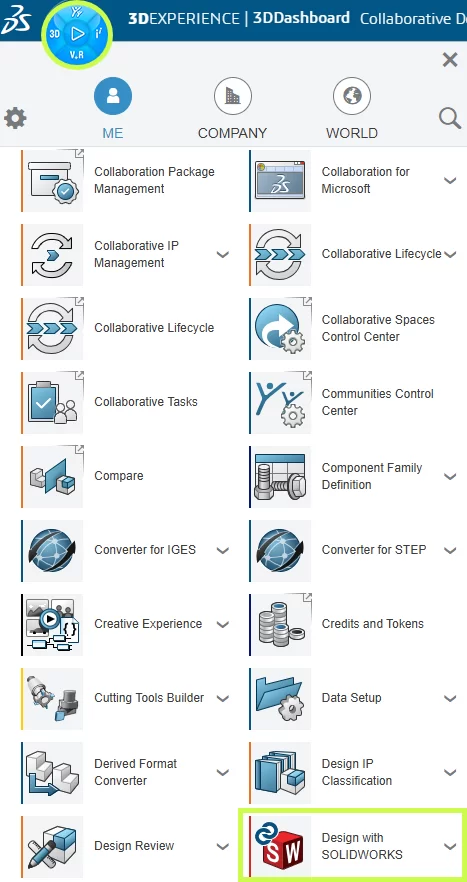
                    • Navigate to the Compass (top-left menu)
                    • Scroll down to My Apps and locate Design with SOLIDWORKS.
                    • Select the app to begin the installation.
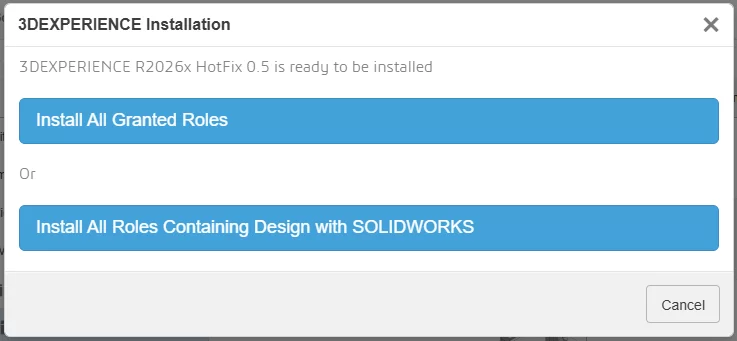
                    • Click Install Launcher when prompted
                    • Run the installer

                    This tool acts as the bridge between your browser and desktop applications.

                    Step 5: Install “Design with SOLIDWORKS”

                    This is the most important step.

                    The Design with SOLIDWORKS connector is what links your desktop SOLIDWORKS environment to the platform, and enables AI-driven features.

                    Installation Steps:

                    • In the platform, search for Design with SOLIDWORKS
                    • Click Install
                    • Accept default settings (recommended)
                    • Complete installation
                    • Restart your machine if prompted

                    Once installed, your environment is officially “connected.”

                    Having trouble? Check out our installation guide:
                    Connect SOLIDWORKS Desktop to the 3DEXPERIENCE Platform

                    Step 6: Launch SOLIDWORKS from the Platform

                    This step is often missed, however, it is absolutely critical.

                    First Launch:

                    • Go to the platform
                    • Click Open on Design with SOLIDWORKS
                    • Launch SOLIDWORKS from the browser

                    Why this matters:

                    This ensures:

                    • Your session is authenticated
                    • The connector is active
                    • Cloud services are initialized

                    If you launch SOLIDWORKS directly from your desktop first, you may not be connected properly.

                    Step 7: Verify the 3DEXPERIENCE Add-in

                    Once SOLIDWORKS opens, confirm everything is working.

                    Check:

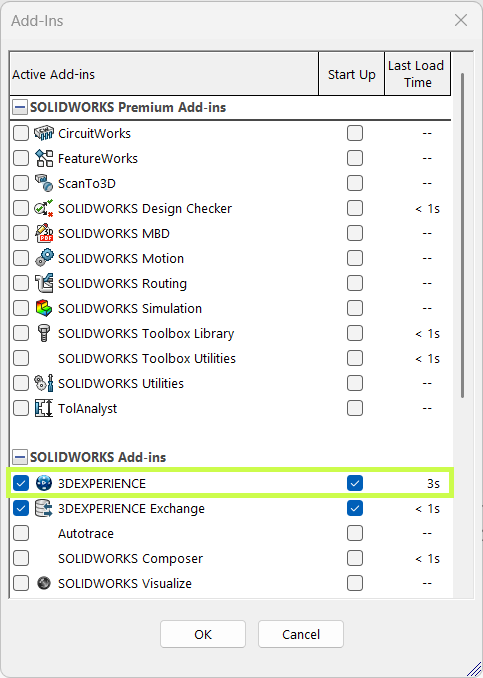
                    • A 3DEXPERIENCE tab appears in the task pane
                    • Add-in is enabled under:
                      Tools > Add-ins

                    If it’s not active:

                    • Enable it manually
                    • Restart SOLIDWORKS if needed

                    This confirms your system is fully connected.

                    Step 8: Access the Virtual Companions Tab

                    Now we get to the interesting part.

                    With everything configured, you should have access to Virtual Companions, where new AI-driven tools are introduced.

                    Where to Find It:

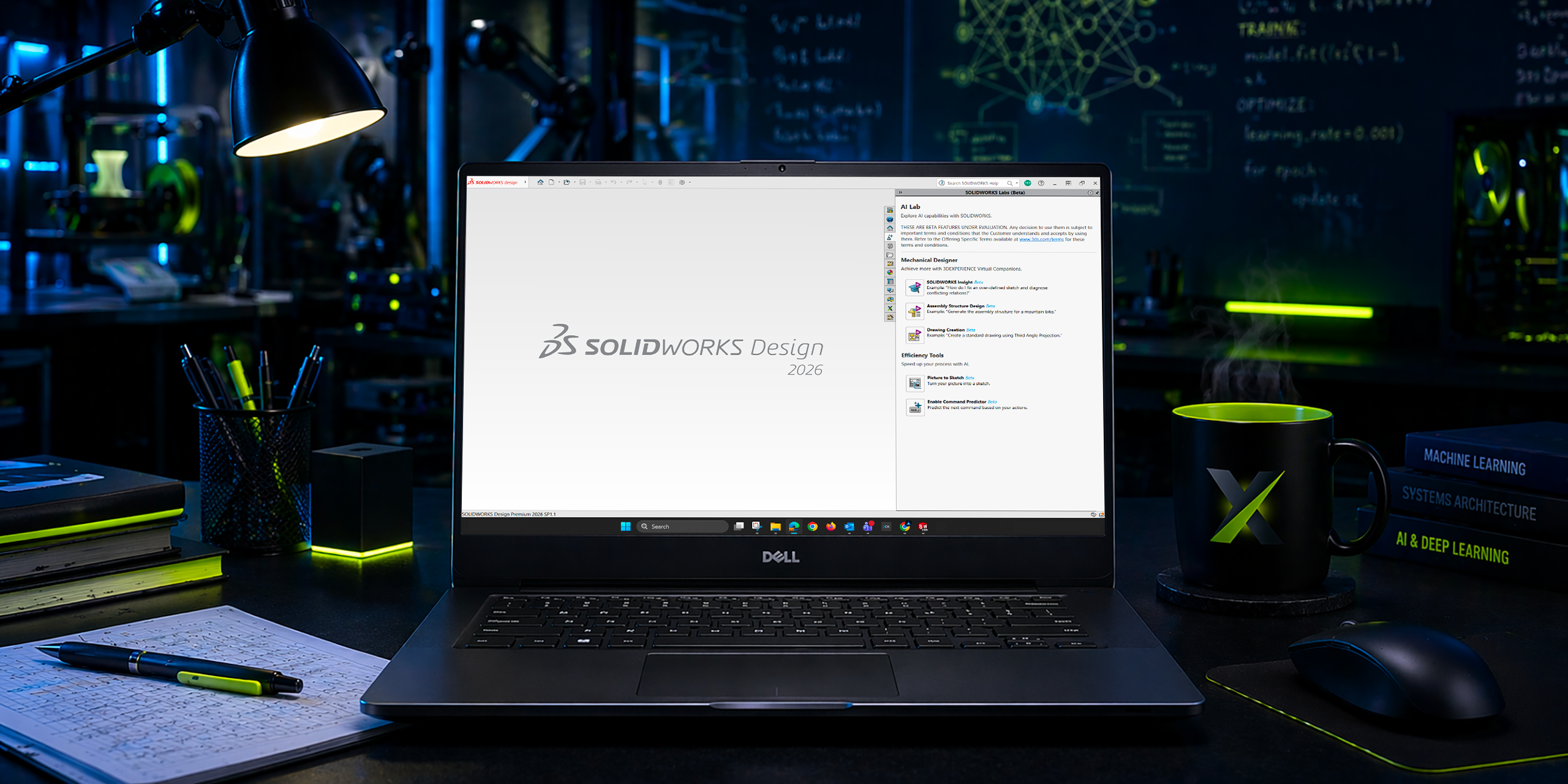
                    • Inside SOLIDWORKS (Task Pane)
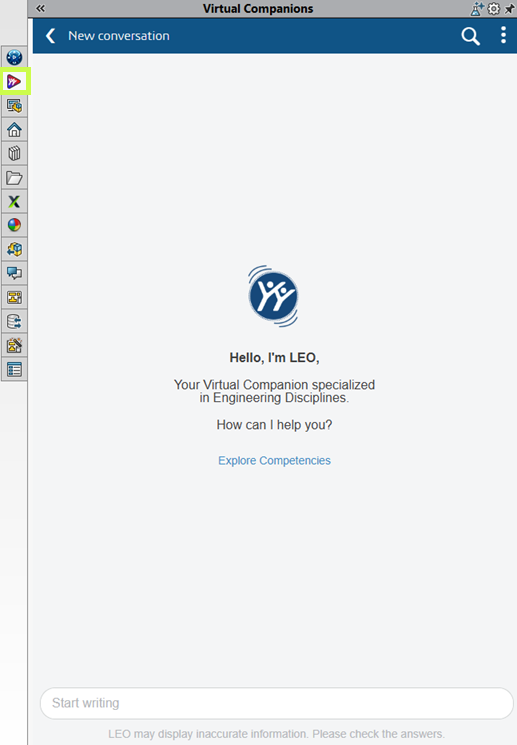
                    • Look for Virtual Companions tab

                    Virtual Companions Tab

                    What You’ll Find:

                    • Experimental AI features
                    • Early access tools
                    • Workflow enhancements powered by AI

                    These features evolve quickly, so expect changes over time.

                    Step 9: Start Using AI Features (Practical Examples)

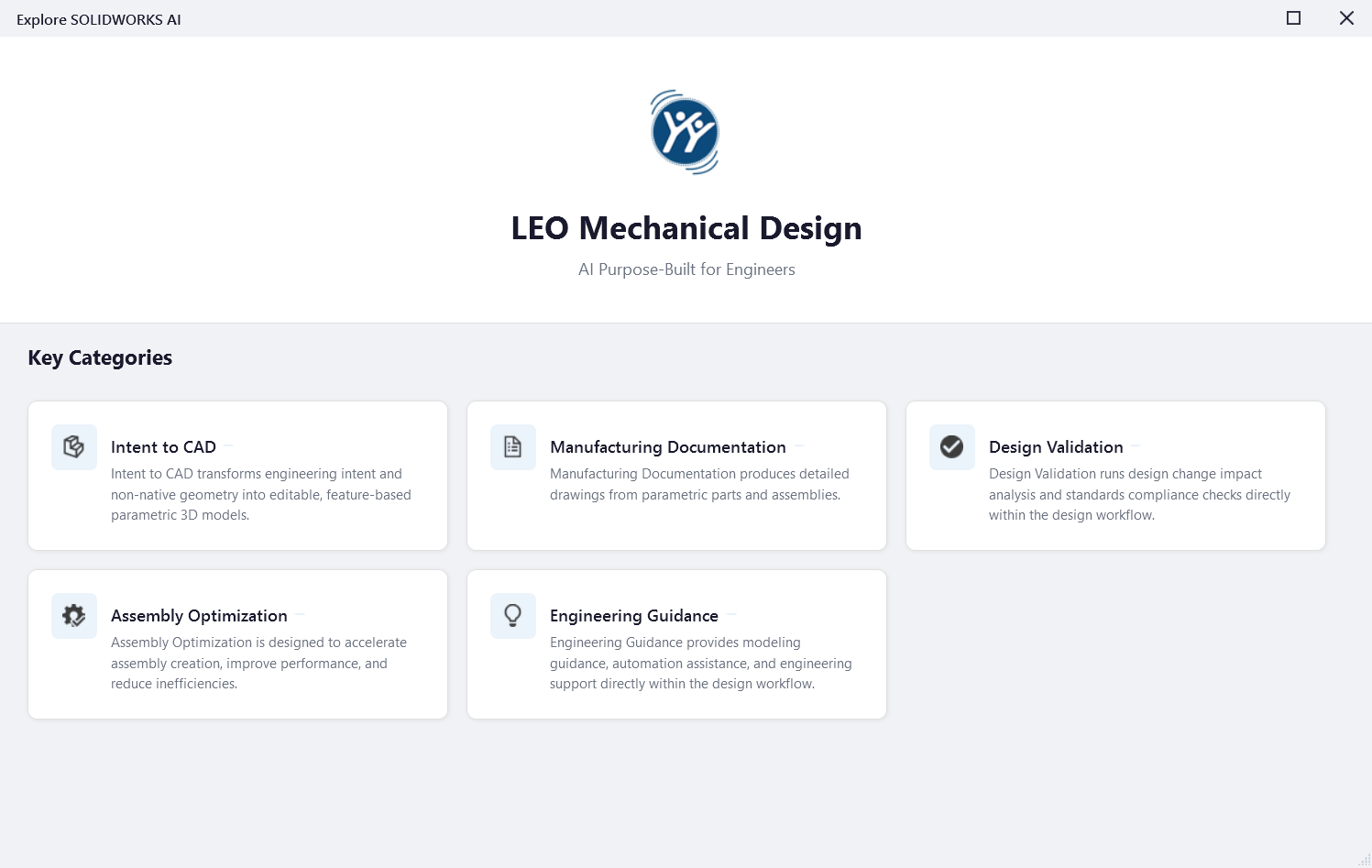
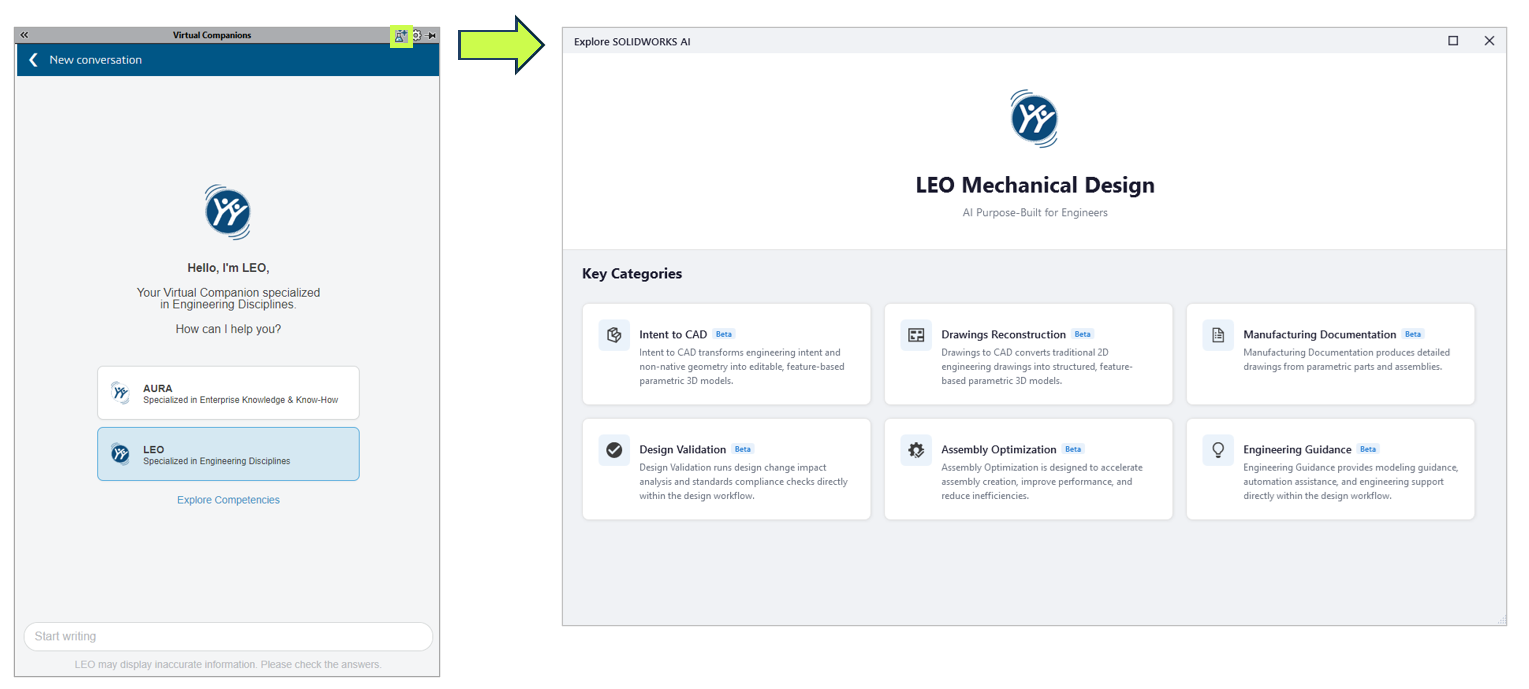
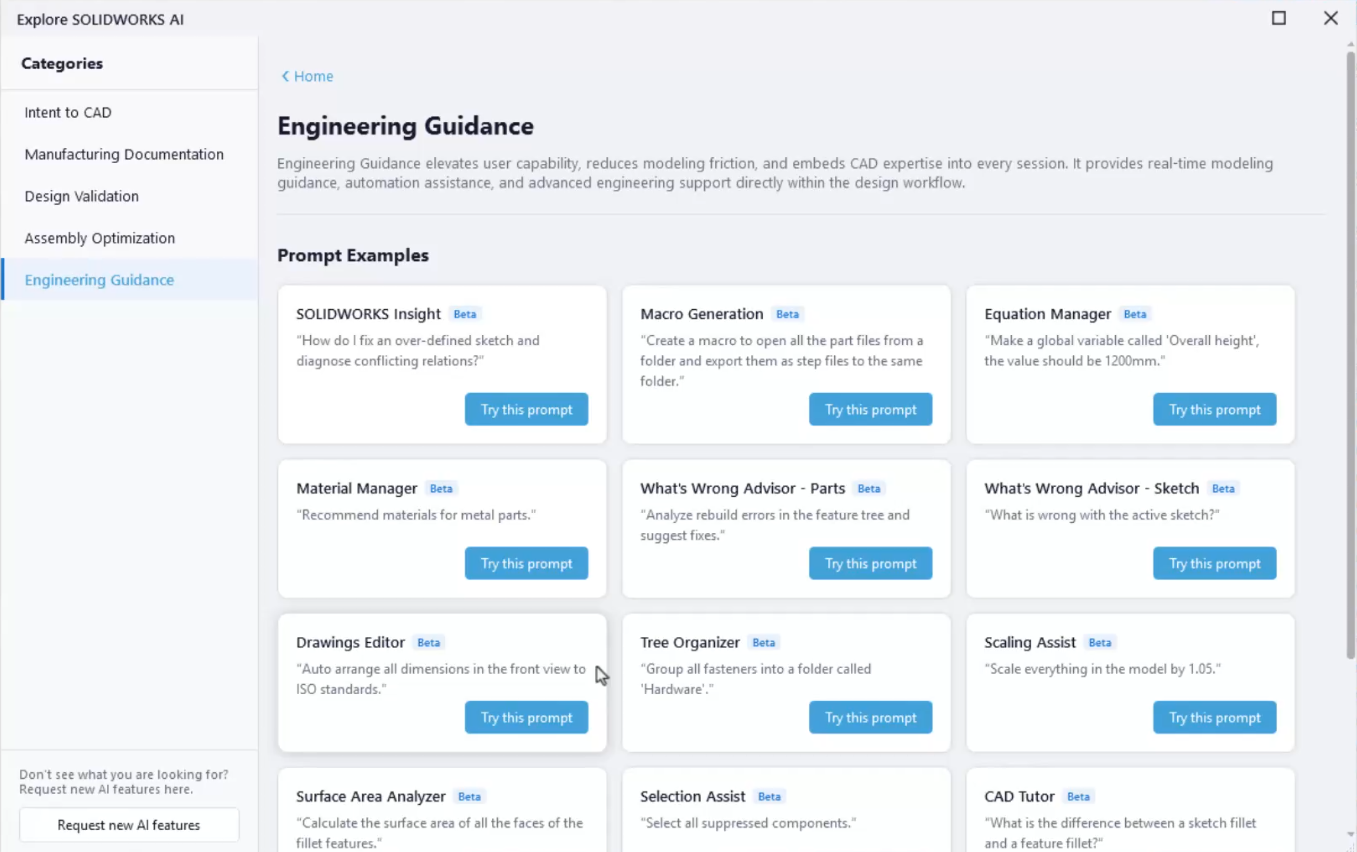
                    Once inside Virtual Companions, click the potion icon the top right to explore SOLIDWORKS AI competencies:

                    Virtual Companions

                    Good First Use Cases:

                    Click the different categories for examples of prompts you can use to get started.

                    AI Companion First Case

                    Step 10: Best Practices for Getting Started

                    This is where most teams succeed or struggle.

                    ✔ Start Small

                    Don’t try to overhaul your entire workflow.

                    ✔ Focus on Real Problems

                    Look for:

                    • Repetitive tasks
                    • Bottlenecks
                    • Manual processes

                    ✔ Validate Everything

                    AI suggestions still require engineering judgment.

                    ✔ Train Your Team Gradually

                    Adoption works best when it’s incremental.

                    Final Thoughts: Where AI in SOLIDWORKS Is Headed

                    AI in SOLIDWORKS is evolving, but the direction is clear:

                    • More automation of low-value tasks
                    • Better decision support
                    • Deeper integration with simulation and data

                    And importantly:

                    SOLIDWORKS isn’t being replaced, it’s being enhanced.

                    For most teams, the real opportunity isn’t jumping ahead, it’s simply getting started.

                    For more information on AI in SOLIDWORKS, reach out to us through our website:
                    SOLIDWORKS AI: Transform Your Design with Artificial Intelligence


                    Michael Habrich

                    3DEXPERIENCE Specialist

                    X_green_halo

                    Any questions? Need help? Ask one of our experts.

                    Whether you’re ready to get started or just have a few more questions, you can contact us toll-free:
                        Download

                          Download

                            Download