The Ultimate Guide to Working with the 3DEXPERIENCE Platform and 3DEXPERIENCE Apps

BLOG

The Ultimate Guide to Working with the 3DEXPERIENCE Platform and 3DEXPERIENCE Apps

[techtips_featured_image_shortcode]

In our world of product design, efficient collaboration, and seamless lifecycle management are crucial. Thankfully, the 3DEXPERIENCE platform emerges as a powerful solution, offering a comprehensive suite of tools and applications designed to streamline the product development process. In this ultimate guide, we’ll delve into the intricacies of working with the 3DEXPERIENCE platform and explore the key features and functionalities of its associated apps.


Understanding the 3DEXPERIENCE Platform


At its core, the 3DEXPERIENCE platform serves as a business experience platform, providing robust product lifecycle management capabilities. This platform encourages and supports collaboration among your team members, allowing them to design products together, and guides them through the entire lifecycle from conception to final release.


Roles and Apps


Roles play a pivotal role in determining the apps and services accessible to you as a platform user. For mechanical designers working in collaborative teams, the Collaborative Designer for SOLIDWORKS role opens the gateway to a host of design routine-boosting functionalities.


With this role, users can:


  • Search for, store, and manage files in collaborative spaces on the 3DEXPERIENCE platform in the cloud.
  • Share files with team members and leverage product lifecycle management features such as lock and unlock, tags, and revisions.
  • Access additional apps and services in the 3DEXPERIENCE Marketplace.


The Collaborative Designer for SOLIDWORKS role comes with a set of apps that run within SOLIDWORKS and SOLIDWORKS Visualize, including:


  • Design with SOLIDWORKS
  • Render with SOLIDWORKS Visualize
  • Derived Format Converter (Optional)


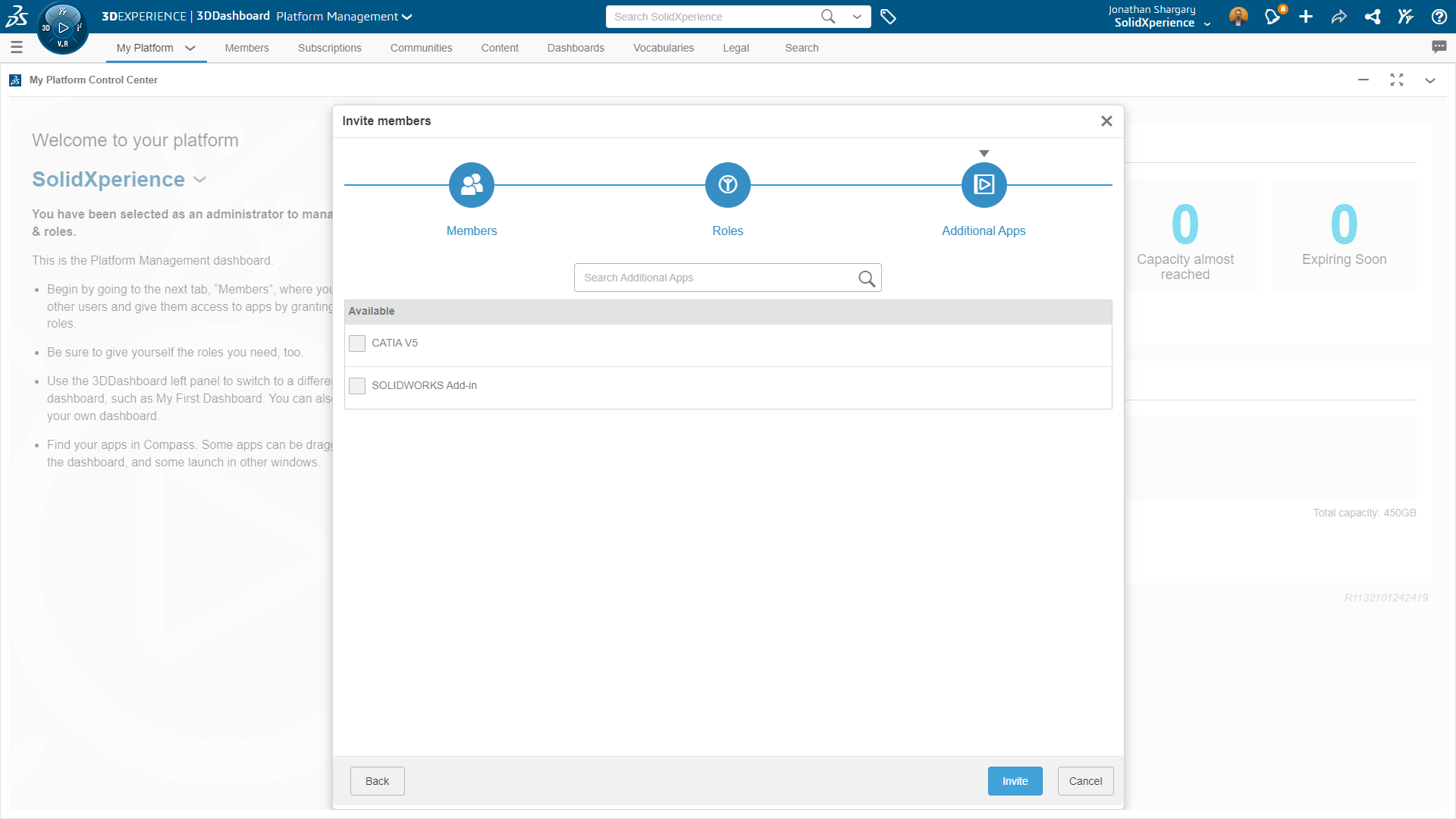
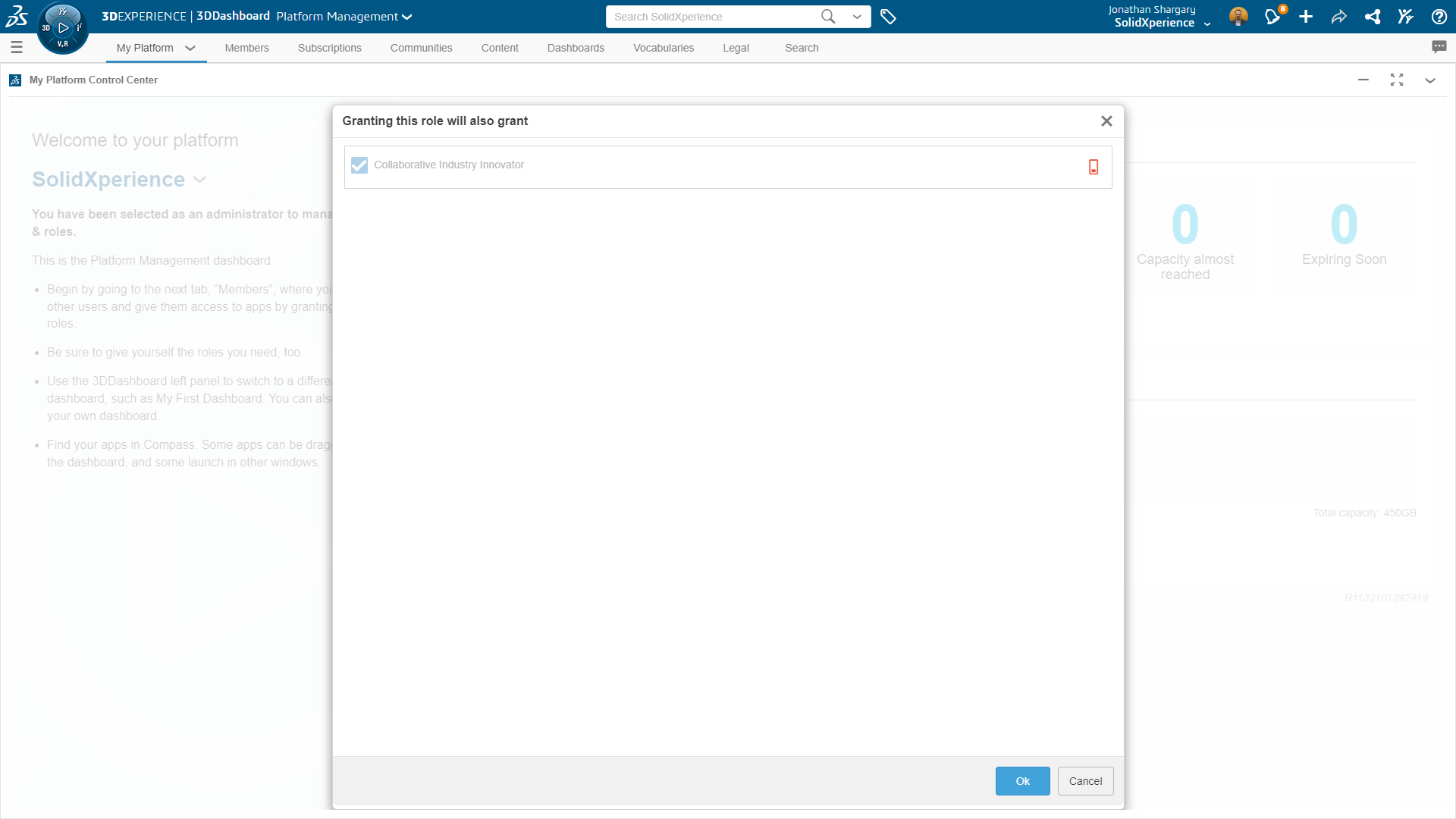
*You’ll need both the 3DSwymer and Collaborative Industry Innovator roles before you can get started with Collaborative Designer.


Key Terms for Navigating the Platform


To effectively navigate the 3DEXPERIENCE platform and the 3DEXPERIENCE Connector for SOLIDWORKS, understanding key terms is essential:

Compass – The Compass 3dexperience serves as the gateway to the 3DEXPERIENCE platform, providing access to roles and apps.


Role – Roles define the scope of apps and services available to users, tailored to specific job requirements. Administrators can create custom roles for users.


Collaborative Spaces – Collaborative spaces are secure areas on the platform for storing and managing files, supporting version control, and enabling collaboration among team members.


Physical Product – A physical product is a configuration of a part or assembly that can be manufactured, each with a unique part number for efficient searching.


CAD Family and CAD Family Objects – CAD families encompass one or more configurations of a part or assembly. CAD family objects represent the root configuration, all saved in the same collaborative space.


Installing and Connecting


Installing the 3DEXPERIENCE apps requires several prerequisites, including platform credentials, a web browser, Java 11 JRE, SOLIDWORKS 2019 SP0 or later, and SOLIDWORKS Visualize Standard or Professional 2020 SP3 or later. Once installed, users can seamlessly connect to the platform and access the designated apps and services.


To install the 3DEXPERIENCE apps:


  1. Close SOLIDWORKS and SOLIDWORKS Visualize.
  2. Log in to the 3DEXPERIENCE platform.
  3. If your company has an on-premises installation, contact your Administrator to get the sign-in link.
  4. On the top bar of the 3DDashboard, click the Compass.
  5. Under Me, click SOLIDWORKS.

        3dexperience

6. Follow the prompts to download and install Design with SOLIDWORKS.


Creating Collaborative Spaces


Collaborative spaces are pivotal to the collaborative aspect of the platform. Users can create collaborative spaces to store, share, and manage files, providing a structured environment for efficient collaboration. Collaborative space owners and administrators have the authority to add members, assign access roles, and manage the collaborative space’s lifecycle.


Getting Started with 3DEXPERIENCE Apps


The 3DEXPERIENCE platform boasts a plethora of apps designed to cater to diverse needs. From project management to 3D model visualization, users can leverage these apps to enhance their workflow. The 3DDashboard serves as a portal, offering a centralized view of project and task information.


Commonly Used Apps:


3dexperience


3DSpace: Create collaborative spaces for data storage, sharing, and controlled access.


3dexperience


3DSwym: Connect with communities for collaborative discussions, questions, and information sharing.


3dexperience


3DSearch: Find content from various sources with the ability to filter results using 6WTags.


3dexperience


3DPlay: A viewer for manipulating 3D models, providing advanced functionalities such as sectioning, measuring, and annotating designs.


Managing Files in MySession


The MySession widget plays a pivotal role in managing your SOLIDWORKS on the 3DEXPERIENCE platform. Open, save, and export files seamlessly, utilizing the context menu or action bar. The FAQ section provides valuable insights into common queries related to saving all your SOLIDWORKS files, collaborative spaces, physical products, and CAD families.


The 3DEXPERIENCE platform, coupled with the Collaborative Designer for SOLIDWORKS role and associated apps, presents a comprehensive solution for modern product design and development. Whether you are a mechanical designer or a collaborative team member, this guide equips you with the knowledge to navigate the platform effectively, create collaborative spaces, and leverage the diverse range of apps available. Embrace the power of 3DEXPERIENCE for a seamless and collaborative product development experience.

X_green_halo

Any questions? Need help? Ask one of our experts.

Whether you’re ready to get started or just have a few more questions, you can contact us toll-free:
    Reinvigorate your Engineering Passion at 3DEXPERIENCE World 2024: Take the 25th Annual Model Mania Challenge!

    BLOG

    Reinvigorate your Engineering Passion at 3DEXPERIENCE World 2024: Take the 25th Annual Model Mania Challenge!

    [techtips_featured_image_shortcode]

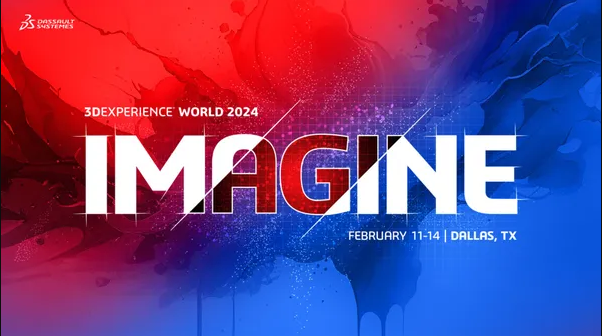
    It’s that time of year again, 3DEXPERIENCE World 2024 is quickly approaching, and our Xperts are beyond excited! Let’s embark on a journey of collaboration and creativity at 3DEXPERIENCE World 2024, where SOLIDWORKS users and Dassault Systèmes partners converge to explore the limitless possibilities of 3D design.


    This event serves as an excellent platform for both SOLIDWORKS fans like you, and Dassault Systèmes partners like us, to come together in a shared space for networking, collaboration, and fresh inspiration. It provides a unique opportunity for everyone in our industry who shares a common passion for all things 3D to connect, exchange ideas, and build valuable professional relationships. Join us for an enriching experience February 11-14th in Dallas, TX where the whole SOLIDWORKS community can interact and explore the exciting possibilities within the realm of 3D design.


    Model Mania – Where Design Magic Happens

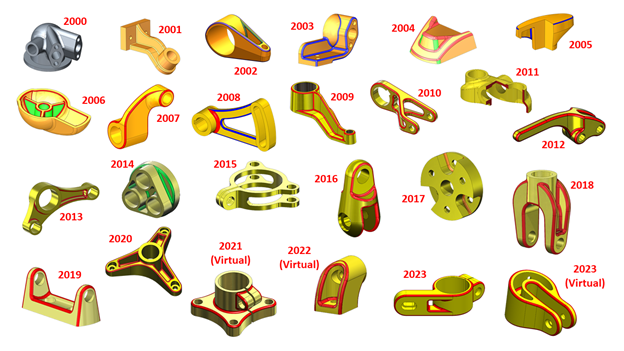
    Guess what’s turning 25 this year? It’s our favorite SOLIDWORKS modeling championship – Model Mania! This is the big 25th edition, and whether you’re a seasoned pro or a budding design enthusiast, you’re not going to want to miss this chance to be part of the action.


    3DExperience 2024


    In-Person Excitement Returns to 3DEXPERIENCE World

    After a few years of virtual high-fives due to the pandemic, 2023 brought back the joy of in-person interactions. And guess what? This year, 3DEXPERIENCE World is going all-in on in-person! That means you – yes, you – can dive into the excitement of Model Mania by being right there in Dallas.


    How to Participate in the Model Mania SOLIDWORKS Challenge

    At 3DEXPERIENCE World, head over to the Model Mania booth in the Playground during the conference hours on Sunday, Monday, and Tuesday. This will be your chance to showcase your SOLIDWORKS skills and compete for 1st place.


    But, what’s the challenge?

    Six cubicles, each equipped with a desk, chair, and a laptop with the necessary software, await participants. First, you’ll receive a drawing of a part, Phase 1, and you’ll need to demonstrate your SOLIDWORKS Connected skills. Following successful completion of Phase 1, you’ll get a Phase 2 drawing, reflecting edits for the part.


    The challenge, judged for accuracy and speed, promises an exciting experience for all. Winners will be announced at the Playground Theater on Wednesday, February 14th, at 12:30 PM CST, and the event will also be broadcast simultaneously on SOLIDWORKS Live!


    Explore the 3DEXPERIENCE Hands-on Trial Zone

    While at the Model Mania challenge, the Hands-on Trial Zone awaits your discovery. This interactive area is designed to give attendees an up-close and personal experience with the latest innovations in 3D design and collaboration.


    Dive into the cutting-edge features of 3DEXPERIENCE Works, including:


    • SOLIDWORKS + Cloud Services: Uncover the ease of sharing SOLIDWORKS designs through new Cloud Services included in every license. Experience the power of cloud collaboration from any location, on any device, all powered by the 3DEXPERIENCE platform.


    • Next Generation Design: Engage in a hands-on exploration of next-generation design tools on the cloud, featuring freeform subdivision (SubD) modeling and browser-based CAD. This is where design possibilities meet practical application!


    • Simulation Showcase: Immerse yourself in a glimpse of the future with cloud-enabled simulation solutions for SOLIDWORKS users. Get hands-on with the newest and most advanced tools, powered by ABAQUS, and witness the potential of simulation-driven design.


    While you’re at the 3DEXPERIENCE Hands-on Trial Zone, take advantage of the opportunity to test drive the latest technology, gain valuable insights, and engage in discussions with industry experts. It’s a collaborative space where you can explore, learn, and share your design experiences.


    Spot the Xpert

    As 3DEXPERIENCE World 2024 unfolds, keep your eyes peeled for the SolidXperience team – your go-to Xperts for all things 3D design! Whether you’re a seasoned SOLIDWORKS user, a Dassault Systèmes partner, or someone exploring the vast world of 3D innovation, we’re here to connect with you.


    Feel free to strike up a conversation with any member of the SolidXperience group. We’re not just here to showcase our expertise; we’re eager to hear about your unique 3D design journey. Whether you have burning questions, exciting success stories, or are just curious to explore the possibilities, we’re all ears!


    We can’t wait to see you in Dallas!

    X_green_halo

    Any questions? Need help? Ask one of our experts.

    Whether you’re ready to get started or just have a few more questions, you can contact us toll-free:
      How to Install DraftSight Enterprise

      BLOG

      How to Install DraftSight Enterprise

      [techtips_featured_image_shortcode]

      Welcome to the Solidxperts guide on installing DraftSight Enterprise, a powerful 2D CAD software designed for large organizations. Tailored to enhance efficiency, this software offers a range of features, including network licensing, comprehensive technical support, and an intuitive interface. Our Xpert tutorial will walk you through the installation process, ensuring you unlock the full potential of DraftSight Enterprise for your team.


      DraftSight Enterprise relies on the SolidNetWork license server to efficiently distribute licenses across users. To ensure smooth access for everyone within your network, this server software must be strategically installed on a centralized server or a machine that remains consistently connected.


      If you’re ready to embark on the installation journey, this expert tutorial will guide you through the process, step by step. Without further ado, here is how to install Draftsight Enterprise. On the machine that will be used as the server, follow the following steps:


      1 – First, download the SOLIDWORKS installation package and run setup.exe.


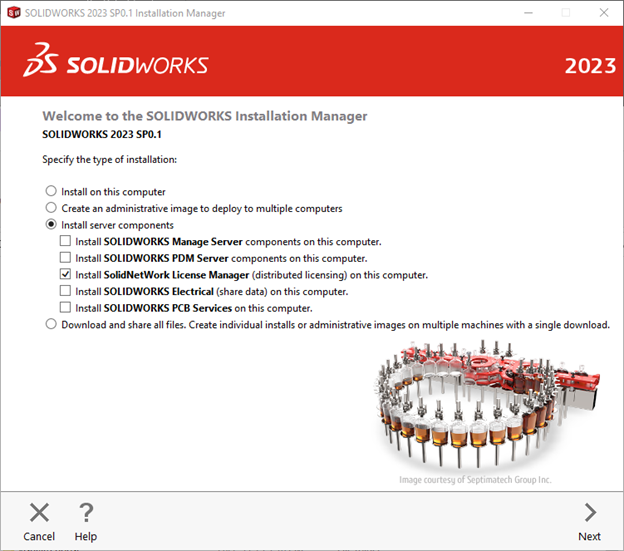
      2 – Select “Install Server components” and “Install SOLIDNETWORK License Manager”. Click “Next”.


      Install DraftSight


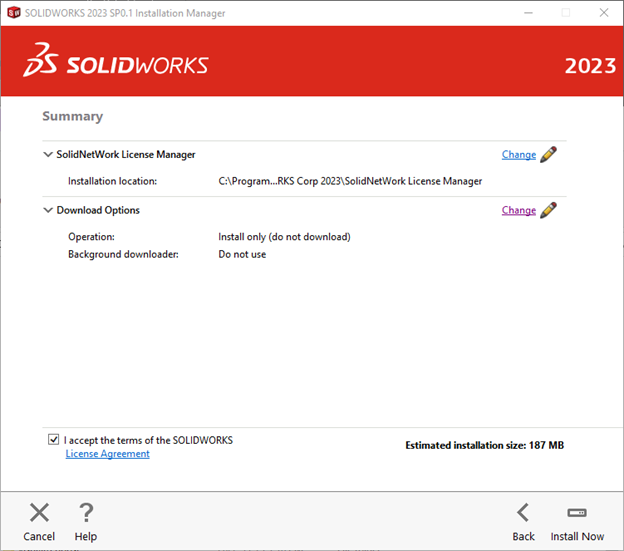
      3 – On the next screen, after reviewing the License Agreement, select “I accept the terms of the SOLIDWORKS License Agreement”, and click “Install Now”.


      Install DraftSight


      4 – Then once this is installed, from the start menu open:

      SOLIDWORKS Tools 20xx à SolidNetWork License Manager server 20xx

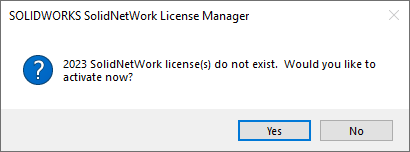
      In the following message box, click “Yes”.


      Install DraftSight


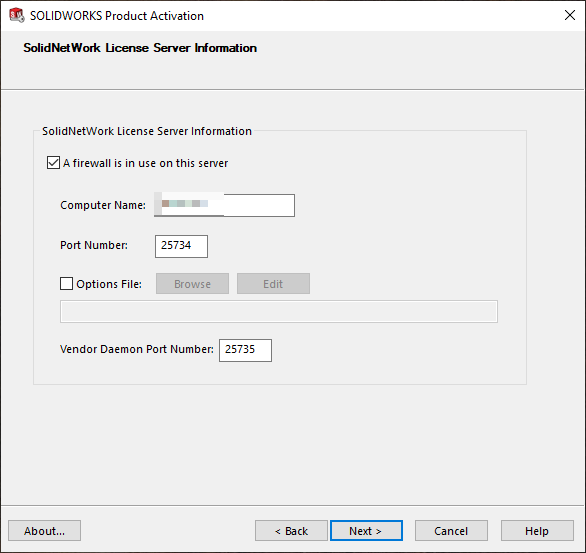
      5 –Verify the SolidNetWork License Server Information, and click “Next”.


      Install DraftSight


      NOTE: Make sure firewalls are not blocking ports 25734 and 25735 on both ends of the connection.


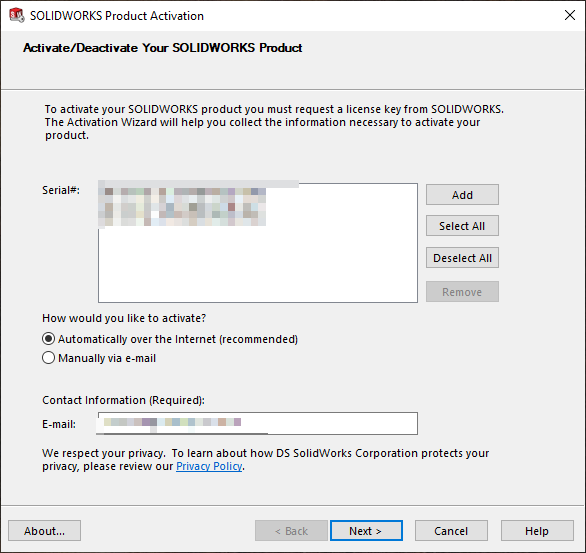
      6 – In the following Product Activation window, on the right side of the white box, click “Add” to add a serial number.


      Install DraftSight


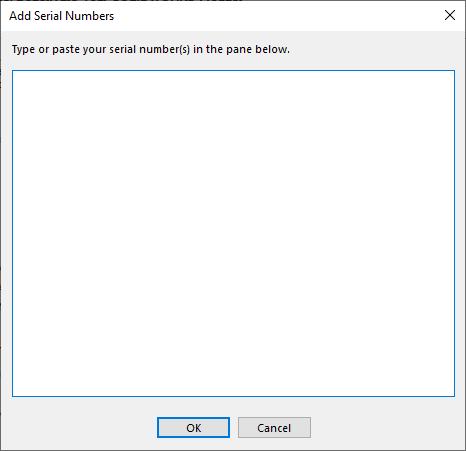
      7 – Copy & paste the serial number into the box. Click “Okay”.


      Install DraftSight


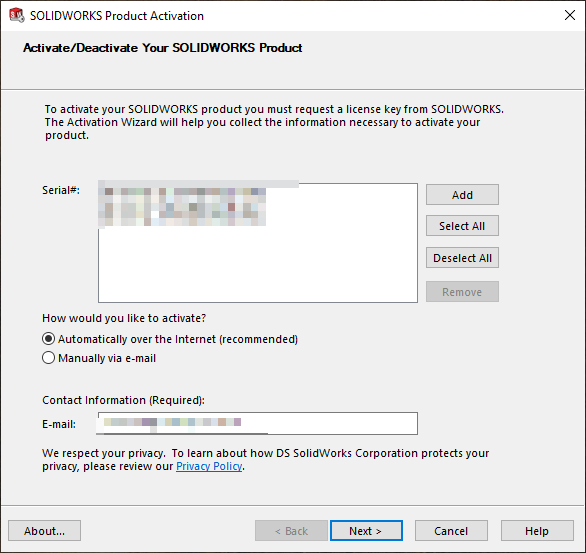
      8 – Then, put your email address in the box and make sure to check “Automatically over the Internet”. Click “Next”.


      Install DraftSight


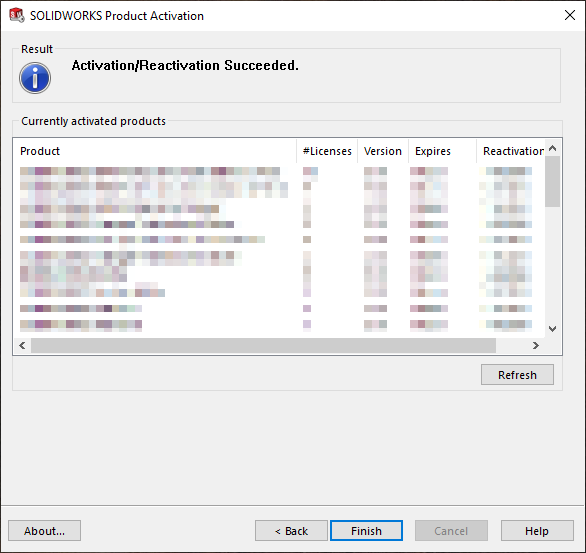
      9 – The next window confirms your licenses from SOLIDWORKS. If everything looks good, click “Finish”.


      Install DraftSight


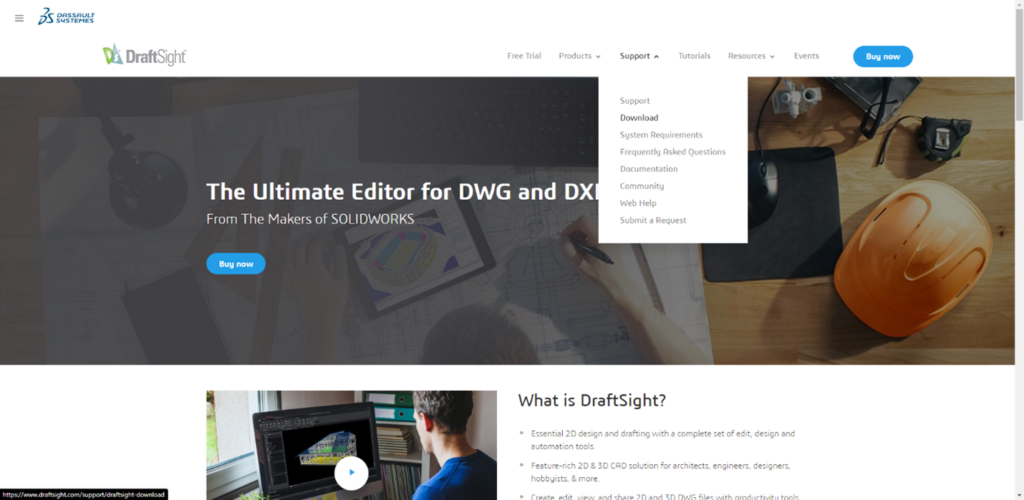
      10 – Now is the time to install Draftsight on your workstations. Go to:

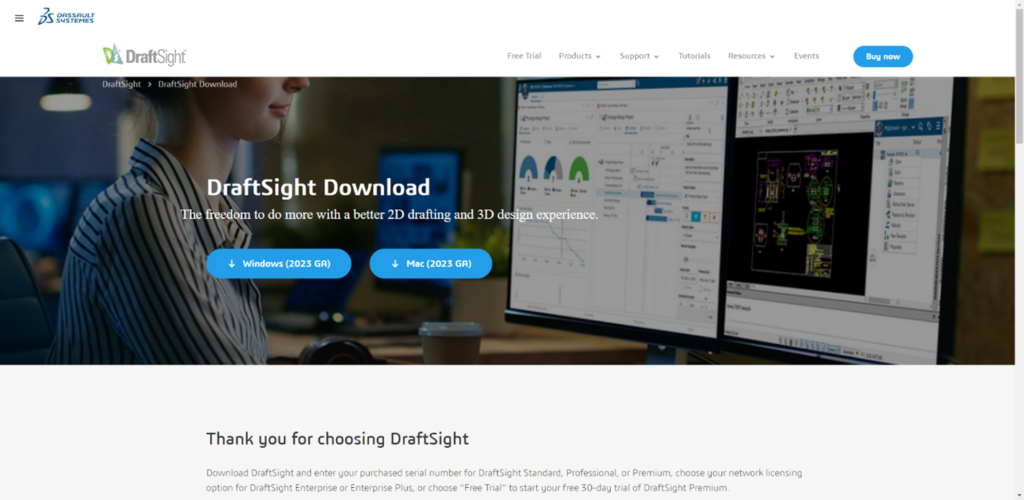
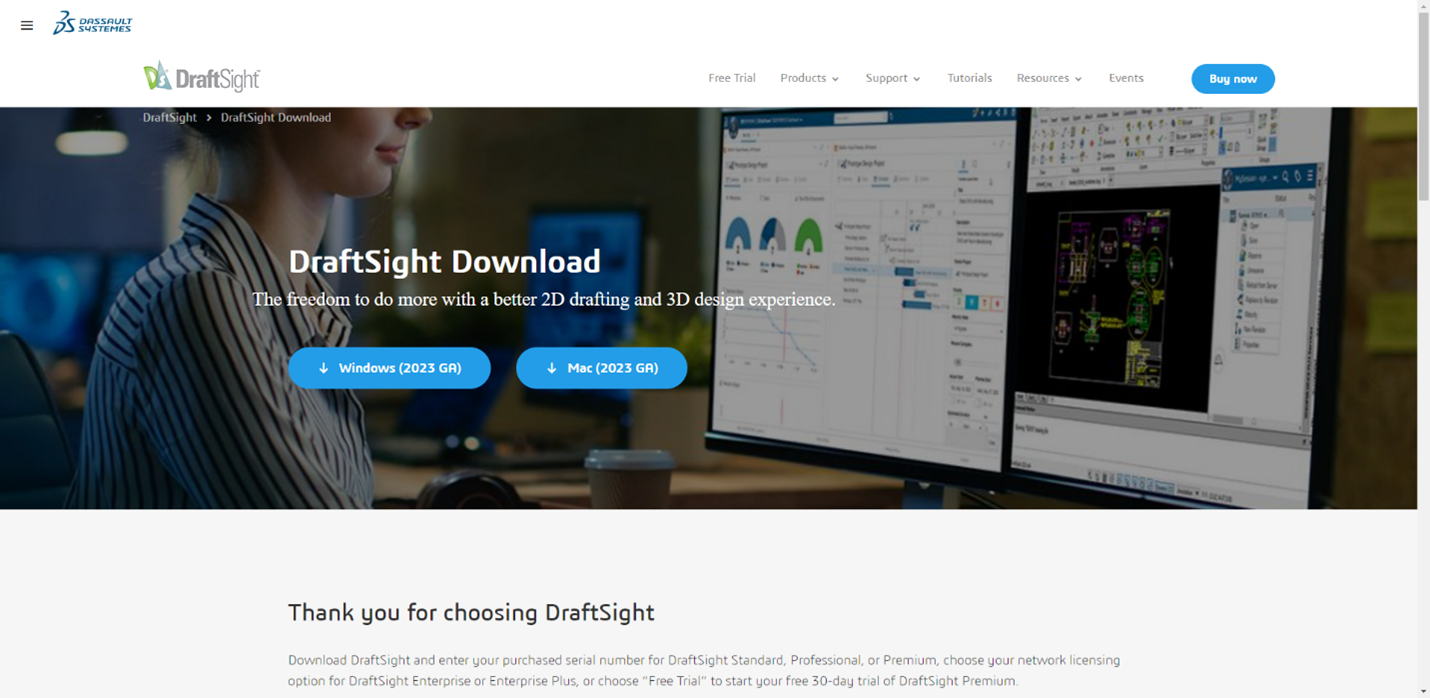
      www.draftsight.com  Support   Download


      Install DraftSight


      11 – Click on Windows.


      Install DraftSight


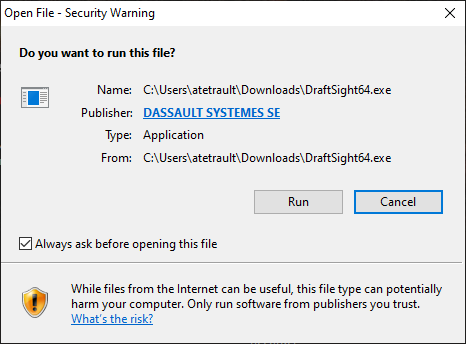
      12 – Download and execute Draftsight.exe. Click “Run”.


      Install DraftSight


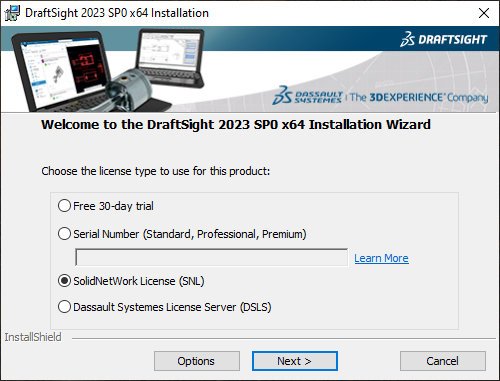
      13 – Choose SolidNetWorks License (SNL) and click “Next”.


      Install DraftSight


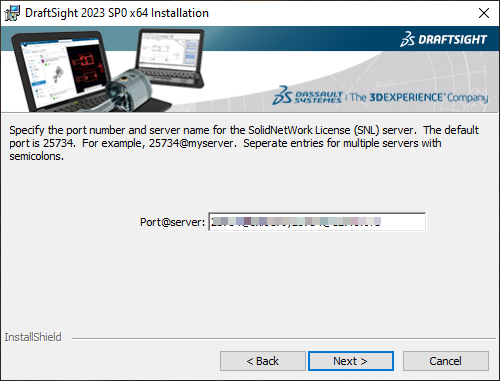
      14 – In the box, provide the Port@Name of the server, inserting your server name or its IP address on the local server. Click “Next”.


      Install DraftSight


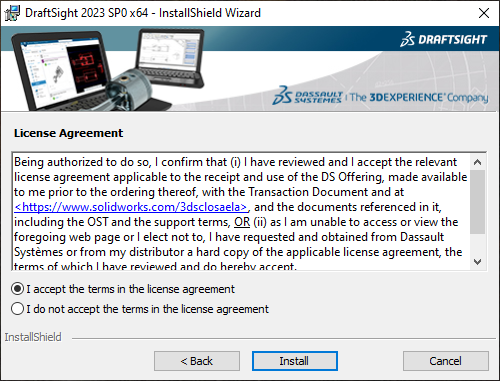
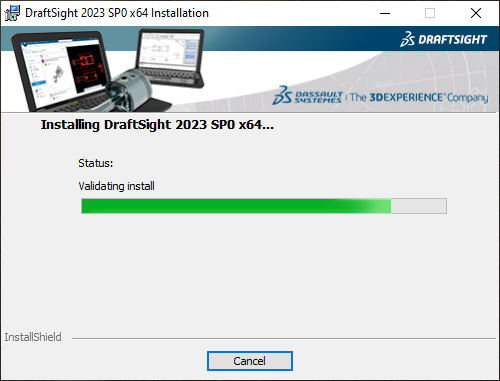
      15 – Thoroughly review the agreement and check, “I accept the terms in the license agreement”, then click “Install”.


      Install DraftSight

      Install DraftSight


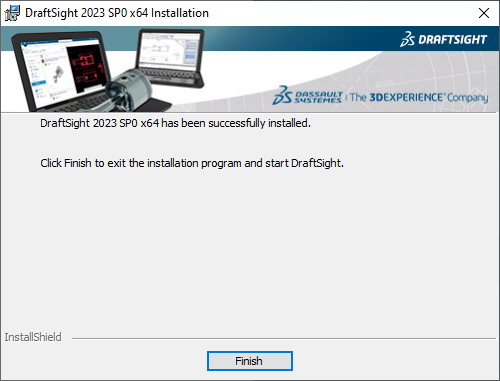
      16 – Congratulations, you can now run DraftSight!


      Install DraftSight


      With DraftSight Enterprise successfully installed, your organization is perfectly positioned to leverage enhanced 2D productivity and collaboration. Don’t forget, Solidxperts is here to support your 3D journey every step of the way.


      To maximize the benefits of your newly installed 2D CAD solution, for more information, you can always reach out to our dedicated Xperts for help.


      Happy designing!

      X_green_halo

      Any questions? Need help? Ask one of our experts.

      Whether you’re ready to get started or just have a few more questions, you can contact us toll-free:
        SolidXperience and Klietsch Join Forces to Enhance SOLIDWORKS Experience in North America

        BLOG

        SolidXperience and Klietsch Join Forces to Enhance SOLIDWORKS Experience in North America

        [techtips_featured_image_shortcode]

        Partner solutions SolidSteel


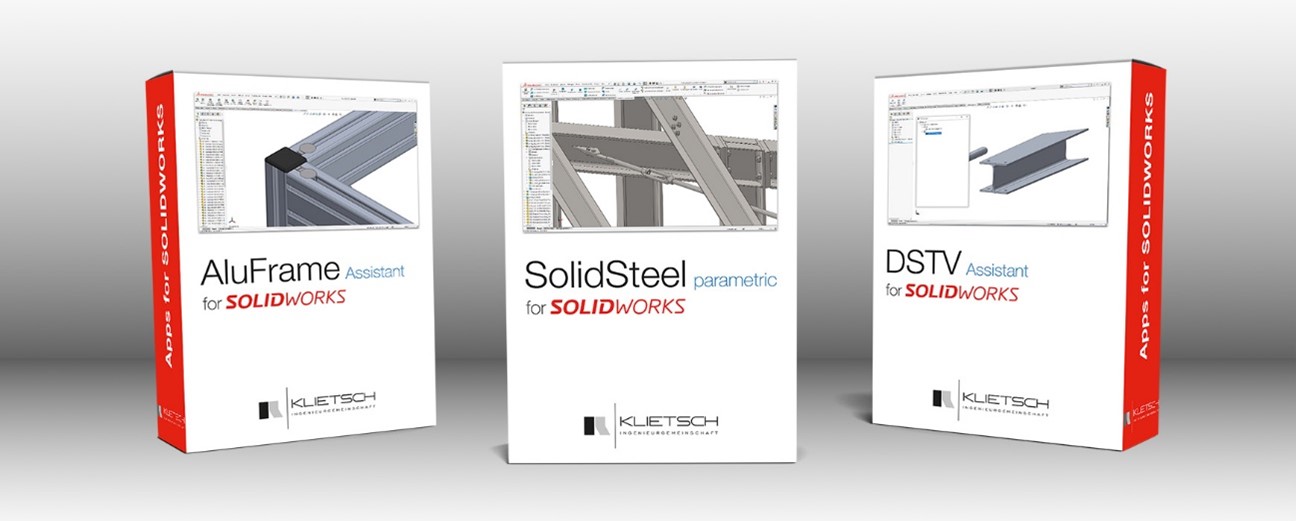
        Montreal, Quebec – The SolidXperience Group, a leading provider of 3D engineering solutions in Canada and the United States, proudly announces a strategic partner with Klietsch, a distinguished German engineering firm and the developer of SolidSteel parametric. This collaboration seeks to support SolidXperience’s commitment to equipping the North American 3D design market with robust tools and comprehensive solutions. Effective January 1st, 2024, SolidXperience is the strategic partner of SolidSteel parametric in North America.


        “As a Canadian with German ancestry, I’ve always had an affinity for German engineering and technology. Germany is known worldwide for having a strong engineering culture. So, forming a partnership with Klietsch, a German engineering company that developed a powerful SOLIDWORKS application, SolidSteel parametric, is a natural fit for my company. We look forward to building a strong partnership to advance this product in the North American marketplace,” says SolidXperience CEO and Founder, Alex Habrich.


        Klietsch has a rich history of evolving to meet the needs of the engineering community. SolidXperience clients will benefit from Klietsch‘s extensive experience and the robust features of SolidSteel parametric, enhancing their SOLIDWORKS experience and streamlining their engineering workflows.


        For more information or to learn how you can leverage SolidSteel parametric, or any of SolidXperience’s wide range of software and hardware, visit SolidXperts, or reach out directly to your SolidXperience Sales representative.


        About SolidXperience:

        SolidXperience is a leading provider of engineering solutions, dedicated to delivering advanced technology that empowers engineers and 3D designers. With a steadfast commitment to innovation and excellence, SolidXperience offers a range of products and services to enhance the full product development lifecycle, from ideation to manufacturing.


        About Klietsch:

        Klietsch is a Germany-based pioneer in engineering software, renowned for its flagship product, SolidSteel parametric. With a rich history and a commitment to technological excellence, Klietsch continues to shape the future of engineering solutions globally.

        X_green_halo

        Any questions? Need help? Ask one of our experts.

        Whether you’re ready to get started or just have a few more questions, you can contact us toll-free:
          Strategies for Efficient Assembly Modeling in SOLIDWORKS

          BLOG

          Strategies for Efficient Assembly Modeling in SOLIDWORKS

          [techtips_featured_image_shortcode]

          Happy 2024 SOLIDWORKS enthusiasts🥳! Brace yourselves for a year brimming with boundless creativity, relentless innovation, and just a sprinkle of unconventional inventions. To embark on this exciting journey, let’s dive into the realm of SOLIDWORKS assembly modeling. As design complexity increases, mastering efficient assembly techniques becomes paramount.


          To kick things off, we’ll share practical strategies to make your design process smoother and more efficient.


          Component Organization


          solidwork


          Start by establishing a structured approach to organizing your components. Utilize folders and sub-assemblies to categorize parts logically. This not only makes your assembly tree more manageable but also enhances collaboration when working in a team.


          Top-Down Design

          Explore the benefits of top-down design to create relationships between parts directly within the assembly. By defining key features and dimensions at the assembly level, you can ensure that changes propagate seamlessly throughout the entire design, saving time and reducing errors.


          Efficient Mate Usage


          solidworks


          Mates are powerful tools for establishing relationships between components. However, an overuse of mates can lead to performance issues. Opt for the smart use of standard mates and explore advanced mate options like width and symmetry to reduce the mate count and improve performance.


          Simplified Configurations

          Take advantage of configurations to manage different versions of your assembly. Create simplified configurations for specific purposes such as analysis, rendering, or lightweight viewing. This helps enhance performance during specific tasks without affecting the overall design.


          SpeedPak

          Integrate SpeedPak into your workflow to simplify assemblies even further. By creating a lightweight representation of your assembly, you can navigate and work with large designs more efficiently. This is particularly useful when dealing with intricate components and large assemblies.


          Sub-Assembly Design


          solidworks


          Break down your assembly into sub-assemblies based on functional or structural relationships. This modular approach makes it easier to focus on specific sections of your design, simplifies collaboration, and facilitates changes without affecting the entire assembly.


          Component Patterns


          solidworks


          Leverage component patterns to replicate parts efficiently. Whether using linear, circular, or sketch-driven patterns, this feature can save time and effort when dealing with multiple instances of the same component.


          Assembly Visualization for Enhanced Assembly Insight


          solidworks


          Take advantage of SOLIDWORKS Visualize to gain a deeper understanding of your assemblies. This powerful tool allows you to create stunning visual representations of your designs, providing invaluable insights. Use Visualize to analyze and optimize your assembly based on various parameters such as component size, mass, or custom properties. By harnessing the capabilities of SOLIDWORKS Visualize, you can identify and address potential performance bottlenecks while creating visually compelling representations of your designs. This tool not only enhances the efficiency of your assembly but also elevates your ability to communicate and showcase your work effectively.


          By implementing these strategies, you can enhance your proficiency in SOLIDWORKS assembly modeling, leading to more efficient designs and improved collaboration within your team. Happy modeling!

          X_green_halo

          Any questions? Need help? Ask one of our experts.

          Whether you’re ready to get started or just have a few more questions, you can contact us toll-free:
            Exploring the Power of SOLIDWORKS Simulation for Limitless Engineering Creativity

            BLOG

            Exploring the Power of SOLIDWORKS Simulation for Limitless Engineering Creativity

            [techtips_featured_image_shortcode]

            SOLIDWORKS Simulation is a powerful module that helps engineers and designers across industries analyze, validate, and improve their designs. This powerful tool enables users to analyze and validate their designs before physical prototypes are created, ultimately saving time and resources while ensuring optimal product performance. In this blog, we will delve into the capabilities and benefits of SOLIDWORKS Simulation, shedding light on how it empowers engineers to bring their innovative ideas to life.

            Understanding SOLIDWORKS Simulation

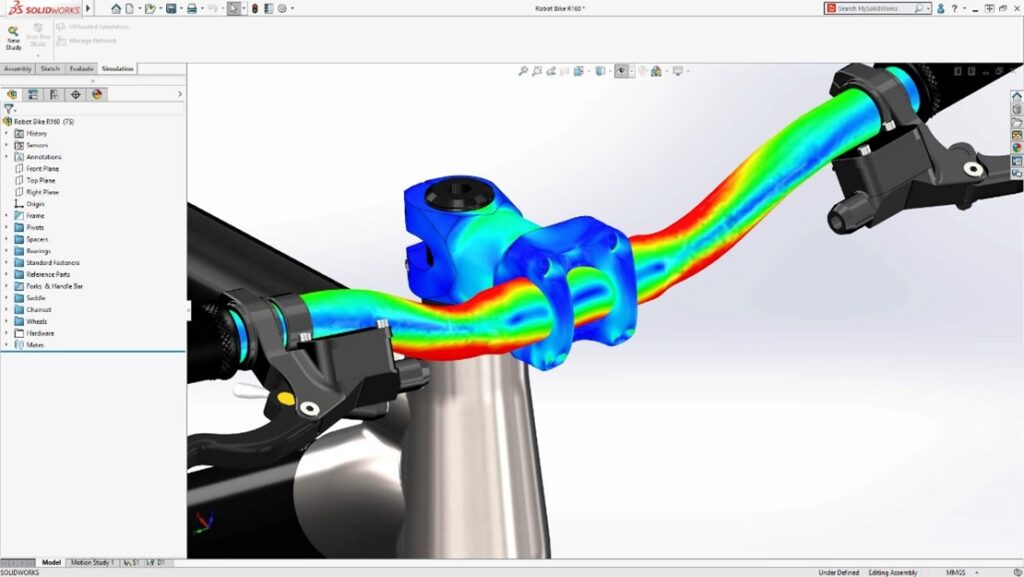
            SOLIDWORKS Simulation is a robust finite element analysis (FEA) tool integrated seamlessly into the SOLIDWORKS CAD environment. It allows engineers to subject their designs to virtual testing, simulating real-world conditions and scenarios. This simulation-driven design approach empowers users to make informed decisions early in the design process, leading to better product performance, reduced development costs, and faster time-to-market.


            solidworks simulation


            Key Features of SOLIDWORKS Simulation:

            Structural Analysis

            SOLIDWORKS Simulation provides a comprehensive suite of tools for structural analysis, allowing engineers to evaluate the effects of loads, forces, and vibrations on their designs. Whether it’s a simple static analysis or a complex dynamic simulation, this feature helps ensure that components can withstand real-world conditions.


            Thermal Analysis

            Thermal management is crucial in many engineering applications. SOLIDWORKS Simulation allows users to simulate heat transfer and thermal behavior within their designs. This capability is particularly beneficial for optimizing electronic components, ensuring they operate within acceptable temperature ranges.


            Fluid Flow Simulation

            For products that involve fluid dynamics, such as pumps, valves, or HVAC systems, SOLIDWORKS Simulation provides a fluid flow analysis tool. Engineers can visualize and analyze how liquids or gases move through their designs, enabling them to optimize performance and efficiency.


            Motion Analysis

            Understanding the motion of mechanical components is essential in designing machinery and mechanisms. SOLIDWORKS Simulation offers motion analysis tools that help engineers simulate and validate the movement of assemblies, ensuring proper functionality and performance.


            solidworks simulation


            Benefits of Using SOLIDWORKS Simulation:

            Reduced Prototyping Costs

            By virtually testing designs, engineers can identify and rectify potential issues before physical prototypes are created. This significantly reduces the need for costly iterations and prototyping, saving both time and resources.


            Improved Product Performance

            Simulation allows for a deep understanding of how a design will behave under various conditions. This insight enables engineers to optimize designs for maximum performance and reliability.


            Faster Time-to-Market

            The ability to perform thorough virtual testing expedites the design validation process. Engineers can make informed decisions early in the development cycle, accelerating the overall product development timeline.


            Enhanced Innovation

            SOLIDWORKS Simulation encourages a more iterative and innovative design process. Engineers can experiment with different concepts, knowing that they can quickly assess their viability through simulation before committing to a specific design direction.


            It is a game-changer for engineers, providing a virtual testing ground that empowers them to create better, more reliable products. By seamlessly integrating simulation into the design process, SOLIDWORKS enables engineers to push the boundaries of innovation while ensuring the practicality and performance of their designs. Whether it’s structural analysis, thermal simulation, fluid flow analysis, or motion analysis, SOLIDWORKS Simulation is a versatile tool that unlocks a world of possibilities for engineers seeking to bring their creative visions to life.


            To learn more about SOLIDWORKS Simulation and discover the right solution for your needs, visit our dedicated webpage or contact our team.

            X_green_halo

            Any questions? Need help? Ask one of our experts.

            Whether you’re ready to get started or just have a few more questions, you can contact us toll-free:
              What’s New in DraftSight and 3DEXPERIENCE DraftSight 2024

              BLOG

              What’s New in DraftSight and 3DEXPERIENCE DraftSight 2024

              [techtips_featured_image_shortcode]

              Welcome to the future of drafting and CAD design with the latest releases of DraftSight 2024 and 3DEXPERIENCE DraftSight R2024x GA. As we embark on this journey of innovation, we’re excited to unveil the enhancements that not only elevate the capabilities of our industry-leading 2D drafting and 3D CAD solution but also redefine the user experience.


              In this article, we’ll delve into the key features that make DraftSight 2024 and 3DEXPERIENCE DraftSight R2024x GA stand out. From collaborative tools to advanced customization options, we aim to empower you with the tools you need to boost productivity and seamlessly bring your design ideas to life. So, buckle up as we explore the cutting-edge advancements that await you in these releases.

              Top New Features in 3DEXPERIENCE DraftSight 2024

              1.Support for CATIA Drawings – collaborate with clarity and precision.

              Ensuring you and your partners have the best experience when collaborating is at the top of the list. In DraftSight 2024 you can import CATIA model drawings from a local disk or the 3DEXPERIENCE platform. When you import a CATIA drawing you can expect it to behave as any other DWG file so you can easily edit the drawing.


              DraftSight and 3DEXPERIENCE DraftSight 2024


              Import CATIA model space drawings from a local disk or the 3DEXPERIENCE platform.


              2. Tool Palette Customization – accelerate drawing creation and ensure consistency.

              The tool palettes in DraftSight 2024 are designed to heighten your productivity. For starters, you can find all your frequently used commands and features in one place. Customization extends to predefined settings including layer, color, and line type, and ensures all newly created entities conform to the pre-defined standards across drawings.


              DraftSight and 3DEXPERIENCE DraftSight 2024


              Quickly insert an existing palette with the Import Palette functionality. You can also efficiently create new palettes simply by dragging and dropping or importing and exporting pre-existing palettes created in other 2D CAD solutions.


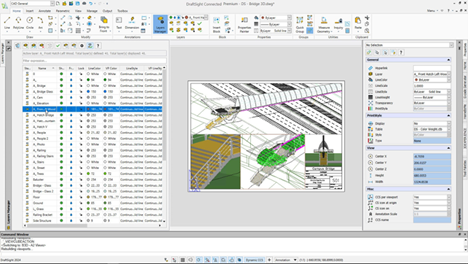
              3. Layer Palette – enhance the legibility of drawings with greater control of how inactive layer groups display.

              The new Layer Manager Palette provides quick access to all your layer commands in one place, including layers, layer states, layer previews, or isolating layers. There’s also a new Merge Layer command so you can merge multiple layers into a single layer for better control and management. Last, with the new Visibility Enhancement command you can specify how objects in inactive layer groups appear in drawing areas.


              DraftSight and 3DEXPERIENCE DraftSight 2024


              Accessibility to the tool palette has been simplified in the new CAD General workspace.


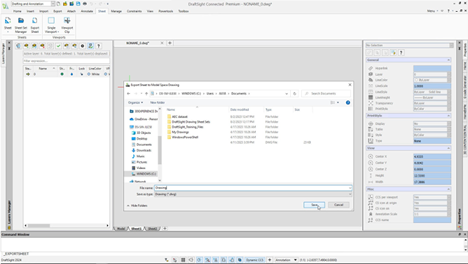
              4. Export Sheet Command – rapidly create new drawings from existing files without loss of detail.

              Your wish is our command. With all the new commands in DraftSight 2024, you can stay more productive than ever, including when it comes to dealing with sheets. With the new Export Sheet command, you can export all visible entities from an active sheet viewport and entities from the sheets to the new drawing. In addition, you can enhance the readability of a specific section, area, or view of the drawing with exported entities that are scaled views of model space, title block, and other annotative entities, such as dimensions and notes.


              DraftSight and 3DEXPERIENCE DraftSight 2024


              Export all visible entities of the active sheet viewports in model space to a new drawing with the new Export Sheet command.


              5. Enhanced User Interface – easily navigate 3D models and reduce eyestrain.

              To reduce eyestrain and enhance feature function visibility there’s a new default Dark mode. There’s also a new View Navigator so you can easily switch between standard and isometric views or parallel and perspective views of a model. Its interface acts as a 3D orientation indicator that lets you see the current view direction.


              DraftSight and 3DEXPERIENCE DraftSight 2024


              The user interface features a new default dark mode to reduce eyestrain and enhance feature function visibility.

              Upgrade Your Drafting Workflow with 3DEXPERIENCE DraftSight 2024

              With DraftSight 2024 and 3DEXPERIENCE DraftSight R2024x GA, you’re not just keeping pace, you’re surging ahead. Whether you’re collaborating with precision through CATIA drawings, streamlining your workflow with customizable tool palettes, or enjoying the enhanced legibility offered by the Layer Palette, these releases are designed to make your design journey smoother and more efficient. The Export Sheet Command and the Enhanced User Interface are the cherries on top, ensuring that you not only create with precision but do so with reduced eyestrain and enhanced visual clarity.


              As you explore the latest capabilities, we invite you to elevate your drafting experience, embrace innovation, and make the most of the tools that DraftSight 2024 and 3DEXPERIENCE DraftSight R2024x GA bring to your fingertips. If you have any questions, comments, concerns, or just want some Xpert guidance, reach out to our dedicated DraftSight teams today to learn more about how we can help bring your designs to life!

              X_green_halo

              Any questions? Need help? Ask one of our experts.

              Whether you’re ready to get started or just have a few more questions, you can contact us toll-free:
                Getting Started with Share and Markup on the 3DEXPERIENCE Platform

                BLOG

                Getting Started with Share and Markup on the 3DEXPERIENCE Platform

                [techtips_featured_image_shortcode]

                Welcome to our tutorial on how to get started with Share and Markup, the powerful collaboration tool on the 3DEXPERIENCE platform. Share and Markup allows you to seamlessly collaborate with various stakeholders, even if they don’t have the 3DEXPERIENCE platform or SOLIDWORKS. Whether you need to share your designs within or outside your organization, this tutorial will walk you through the process step by step, ensuring a smooth and efficient collaboration experience.

                Introduction to Share and Markup

                Share and Markup is a collaboration feature that simplifies the process of working with stakeholders who may not have direct access to the 3DEXPERIENCE platform or SOLIDWORKS. It allows you to share your designs and collaborate efficiently, all from within your SOLIDWORKS environment.

                Enabling Share and Markup

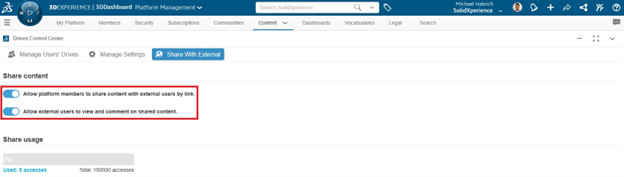
                Before you can start using Share and Markup, your platform administrator must enable the “Allow platform members to share content with external users by link” and “Allow external users to view and comment on shared content” options in the Platform Management dialog. This step ensures that you have access to these collaboration features.


                the 3DEXPERIENCE Platform


                Sharing Your Design

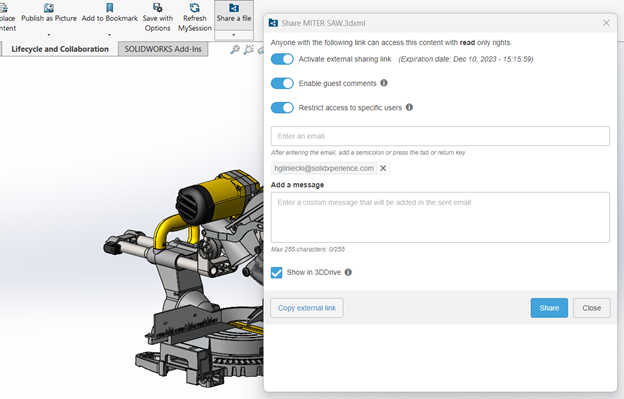
                • Click on the “Share a File” command in SOLIDWORKS.
                • Choose the format in which you want to share your design (e.g., 3DXML, PDF, or STEP).
                • Configure options like “Enable guest comments” and “Restrict access to specific users”.
                • Enter the email addresses of the recipients.


                the 3DEXPERIENCE Platform

                Accessing Shared Models

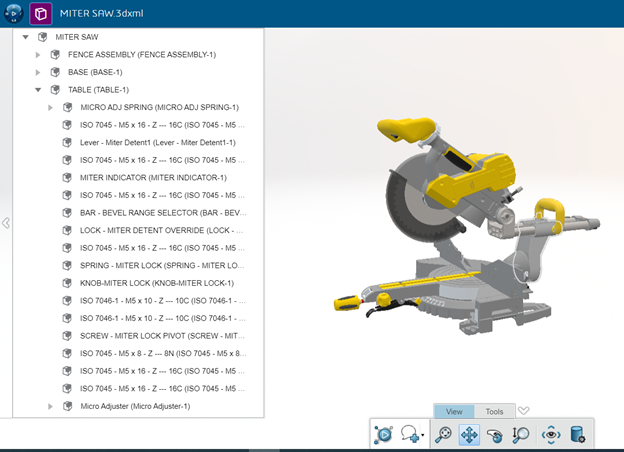
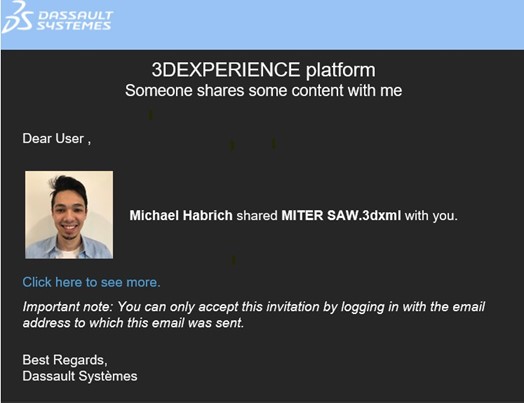
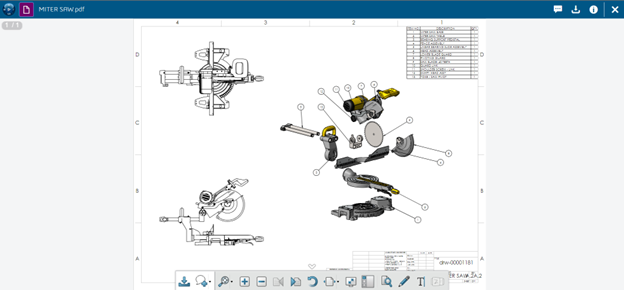
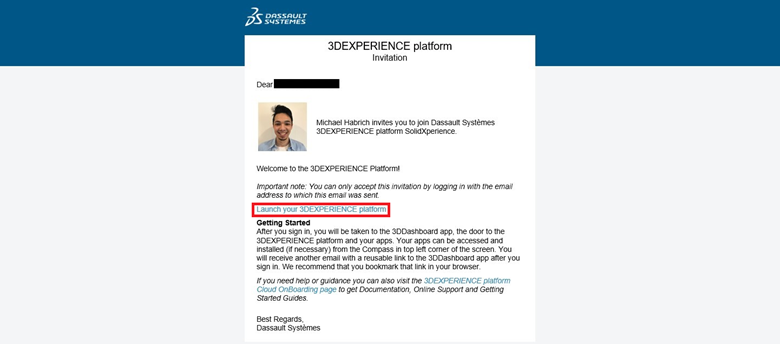
                Recipients will receive an email with a link to access the shared model. They may need to set up a free 3DEXPERIENCE ID account if they don’t already have one. Once they click the link, they can access and view the model in the 3DPlay viewer.

                the 3DEXPERIENCE Platform

                the 3DEXPERIENCE Platform

                Marking Up and Commenting

                Recipients can mark up and comment on the model using intuitive tools in 3DPlay. They can save their markups/comments as snapshots, making it easy to provide feedback.

                Sending Back Markups

                To send the markups/comments back to the designer, recipients can use the “Send” button from the Comments window. They can add additional messages if needed.

                Managing Access

                You have the ability to manage access to shared models and revoke it at any time. This feature is useful when a stakeholder no longer requires access or if project roles change.

                Use Cases

                • Sharing 2D Drawings: Share 2D drawings with suppliers or partners for quotes or reviews.


                the 3DEXPERIENCE Platform


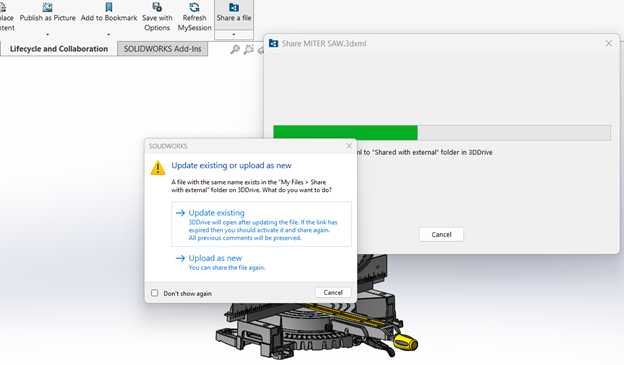
                – Sharing for Machining: Share 3D files for machining or 3D printing, and easily update the model as needed.


                the 3DEXPERIENCE Platform


                • Sharing Lightweight Designs: Share lightweight 3DXML models for easy viewing on various devices, perfect for marketing presentations.

                Simplify Design Collaboration with Share and Markup

                Share and Markup makes it easier to share SOLIDWORKS designs, collect feedback, and collaborate with internal or external stakeholders through the 3DEXPERIENCE platform. Recipients can view models, add comments, and return markups without needing a SOLIDWORKS license, while designers retain control over access and shared content.


                Whether you are requesting a supplier quote, reviewing a design with a customer, or sharing a model for machining or 3D printing, Share and Markup helps reduce communication delays and keep feedback connected to the design.


                Contact the Solidxperts team for support with Share and Markup or other 3DEXPERIENCE collaboration tools.

                X_green_halo

                Any questions? Need help? Ask one of our experts.

                Whether you’re ready to get started or just have a few more questions, you can contact us toll-free:
                  Enhancing Engineering Excellence: Top 10 SOLIDWORKS 2024 CAD Features

                  BLOG

                  Enhancing Engineering Excellence: Top 10 SOLIDWORKS 2024 CAD Features

                  [techtips_featured_image_shortcode]

                  SOLIDWORKS CAD 2024 is a landmark release that redefines the 3D CAD landscape. Driven by user feedback, it introduces groundbreaking features that promise to revolutionize design, engineering, and collaboration. This year’s release is guided by 3 major principles that seek to define the future of Computer-Aided Design:


                  1. Efficiency is a constant focus. Streamlined workflows in assemblies, parts, features, and drawings simplify complex tasks. Features like the Defeature Silhouette option make large assembly management a breeze while previewing and editing dimensions upon entity selection saves valuable time.


                  1. Clear communication is critical. Enhanced chain dimensioning and the ability to exclude hidden sketches ensure that design intent is communicated accurately.


                  1. Intelligent and flexible workflows are paramount. Whether you’re working on sheet metal designs, complex structures, electrical routing, or comprehensive documentation, SOLIDWORKS equips you with tools to work more intelligently.


                  With the release of SOLIDWORKS CAD 2024, users can expect a host of innovative enhancements designed to improve productivity, communication, and collaboration. In this article, we’ll dive into the top ten enhancements that SOLIDWORKS has in store for its users in the 2024 release.


                  • #1 Previous Release Compatibility: Collaborate Seamlessly


                  SOLIDWORKS 2024 CAD Features


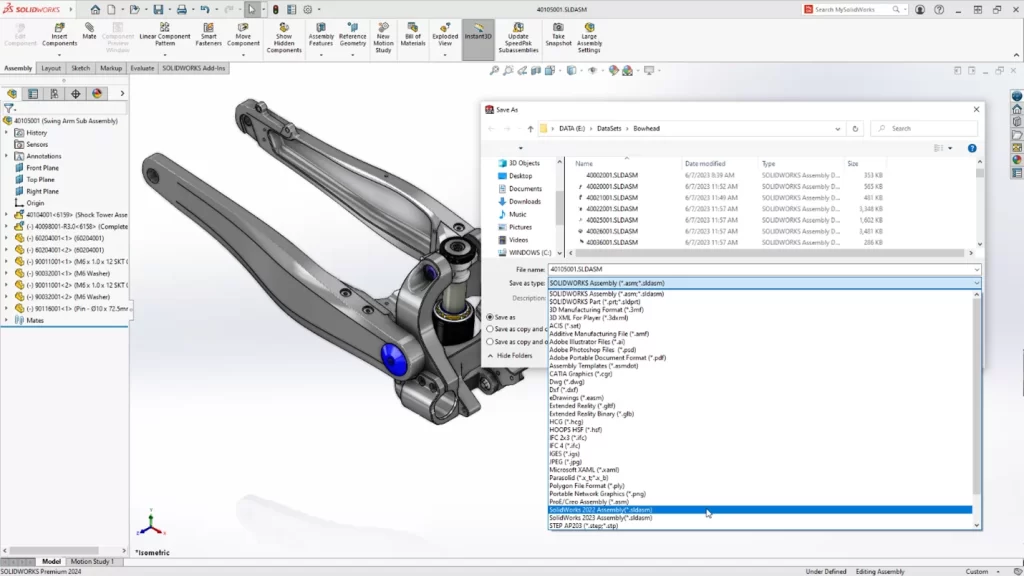
                  SOLIDWORKS CAD 2024 introduces a game-changing feature – Previous Release Compatibility. This allows users to save their files in formats that are compatible with SOLIDWORKS versions up to two years prior to the latest release. This means you can collaborate effortlessly with colleagues or clients who might be using older versions of the software, eliminating compatibility issues, and streamlining your workflow.


                  • #2 Assemblies: Streamlined Design and Collaboration


                  SOLIDWORKS 2024 CAD Features


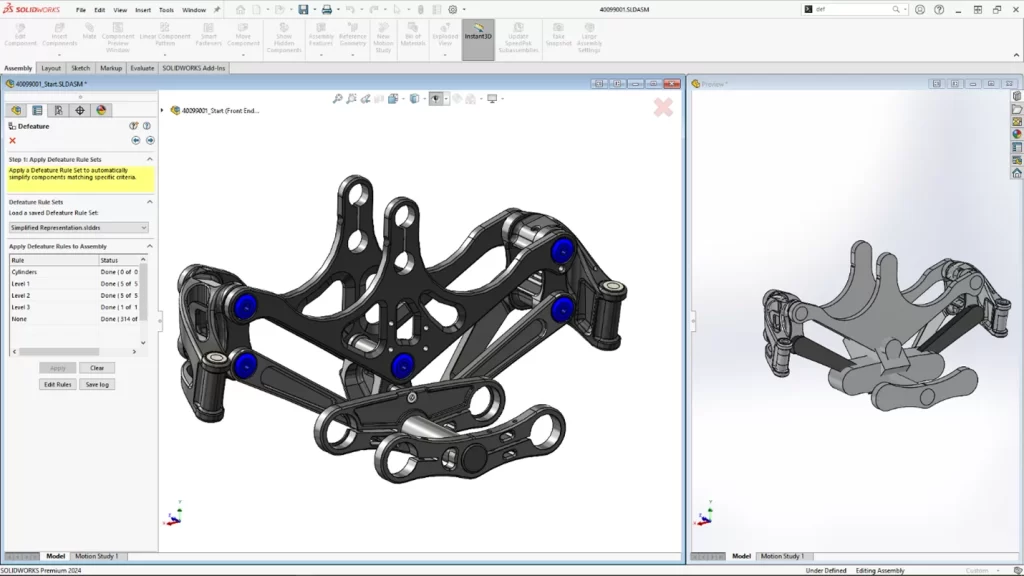
                  In large assembly projects, efficiency is crucial. SOLIDWORKS CAD 2024 simplifies large assembly design, documentation, and collaboration with several new features. The Defeature Silhouette option allows you to create simplified versions of your models based on criteria such as custom property, mass property, and file name. You can also represent post-assembly machining operations using the “Insert Assembly into Part” feature.


                  • #3 Parts and Features: Sketching and Dimensioning Made Easy


                  SOLIDWORKS 2024 CAD Features


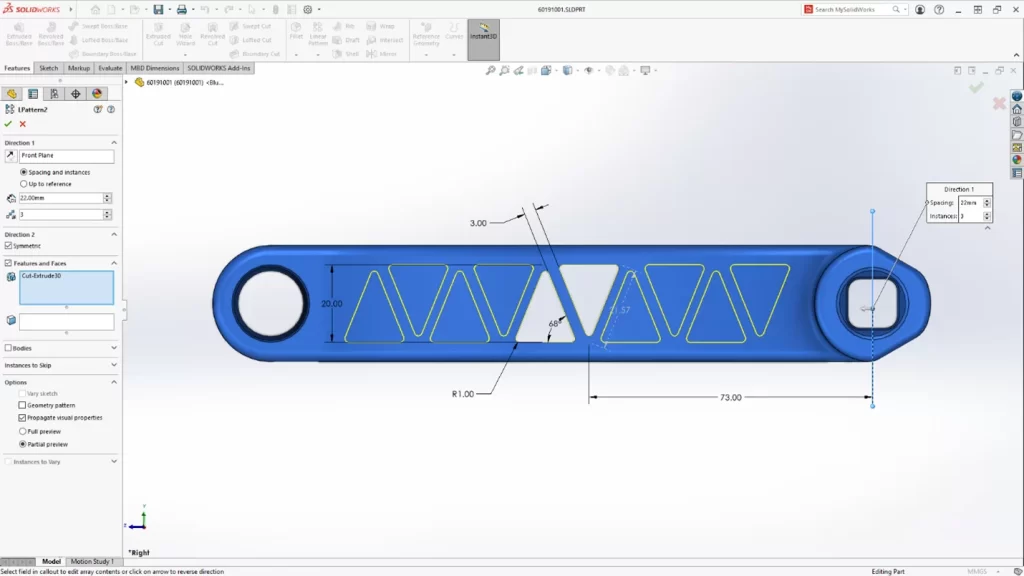
                  This release focuses on making sketching and dimensioning more efficient. You can now preview and edit dimensions as soon as you select one or more entities. The new Symmetric option for Linear Patterns simplifies bidirectional, symmetric patterns. Additionally, displaying the unit of measurement as a custom property in notes and tables ensures clarity in your design intent.


                  • #4 Drawings and Detailing: Clear Communication


                  SOLIDWORKS 2024 CAD Features


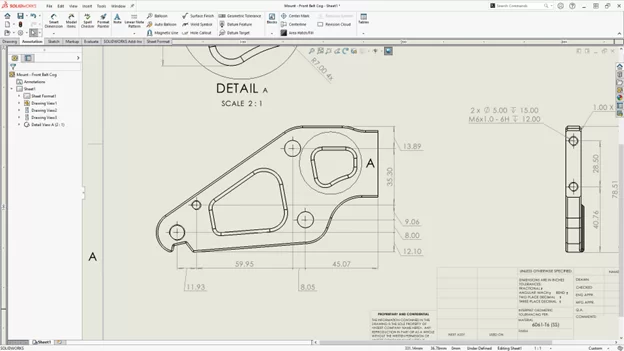
                  Clear and efficient communication is vital in engineering. SOLIDWORKS CAD 2024 enhances your drawing and detailing capabilities. Improved chain dimensioning alignment and adherence to drawing standards ensure that your design intent is communicated clearly. Dangling dimensions can be cleaned up more efficiently by reattaching them to the proper reference points. You can also exclude hidden sketches from DXF™ Flat-Pattern, reducing post-processing work.


                  • #5 Sheet Metal: Meeting Manufacturing Standards


                  SOLIDWORKS 2024 CAD Features


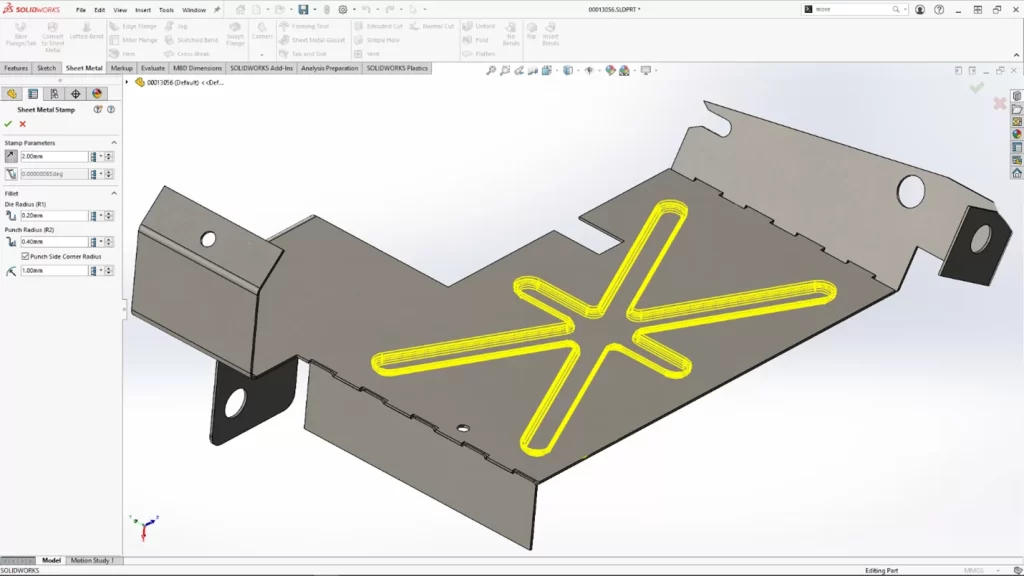
                  Sheet metal design is made easier in the 2024 release. The new Rip tool lets you create rips in hollow or thin-walled cylindrical and conical bodies, simplifying the flattening process. Other enhancements include the Normal Cut option for slots when tabs are created at an angle and the automatic propagation of slots to all instances of a tab that intersects a specific part. You can even create a stamp/form feature on the fly using just a Sketch, eliminating the need for form tool creation.


                  • #6 Structure Systems: Faster and Easier Weldments


                  SOLIDWORKS 2024 CAD Features


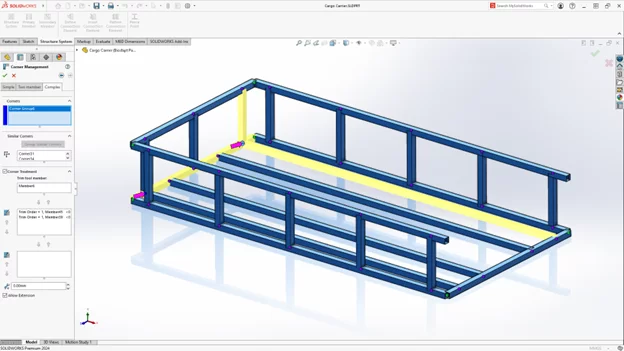
                  Creating weldments becomes faster and requires fewer modifications in SOLIDWORKS 2024. With improved corner treatment functionality, you can speed up the editing and management of corner treatments. The software now automatically creates an open corner for the addition of a connection block with a new corner treatment option, saving valuable time in your design process.


                  • #7 Routing: Complex Electrical Routing Made Easy

                  Handling complex electrical routing scenarios is more straightforward with new options for flattening, reorienting, and displaying wires and connectors. You can update only the current 3D electrical route and add electrical routes as either single segments or as groups of discrete wires in electrical bundles. These enhancements enhance routing design clarity and efficiency.


                  • #8 SOLIDWORKS Electrical: Speedier Documentation


                  SOLIDWORKS 2024 CAD Features


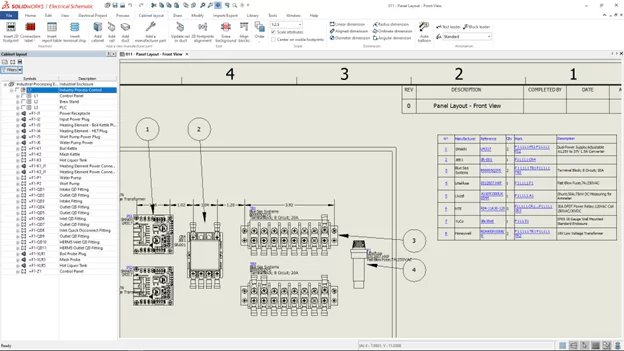
                  Better performance is a constant priority, and SOLIDWORKS Electrical delivers just that. Key enhancements include the ability to insert auto balloons in SOLIDWORKS Electrical 2D cabinet layout drawings and the ability to shorten lists using ranges. Excel automation now automatically resets undefined macro variables, making documentation more informative and faster.


                  • #9 SOLIDWORKS MBD: Clear Communication Downstream


                  SOLIDWORKS 2024 CAD Features


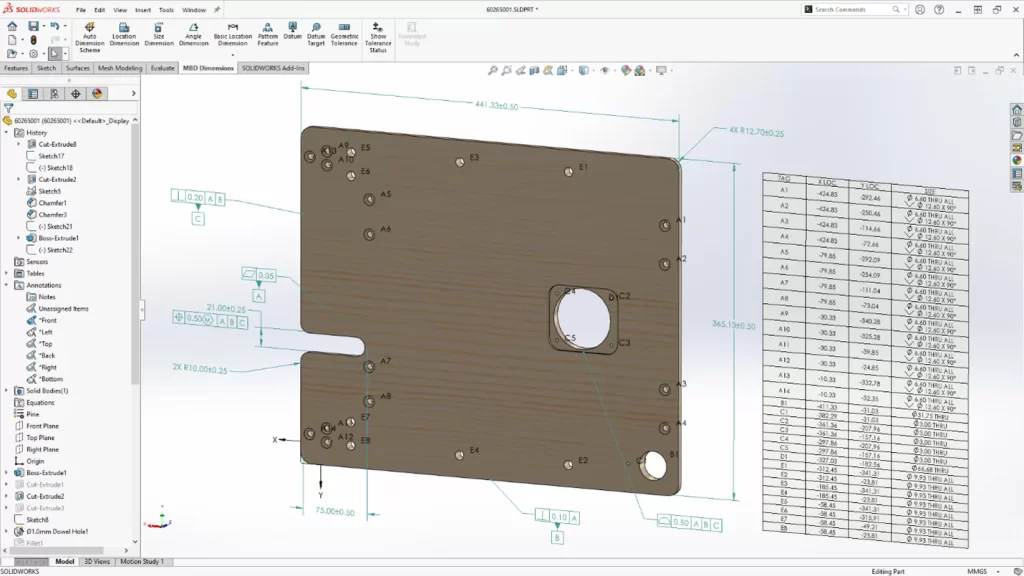
                  In SOLIDWORKS MBD, several updates improve communication downstream to manufacturing. These include the ability to export a hole table when publishing a part to 3D PDF, edit dangling dimensions and reattach them to a feature in the model, and export custom properties from a part or assembly to the STEP 242 format. These updates ensure your design intent is communicated clearly in 3D.


                  • #10 SOLIDWORKS Visualize: Realistic Renderings


                  SOLIDWORKS 2024 CAD Features


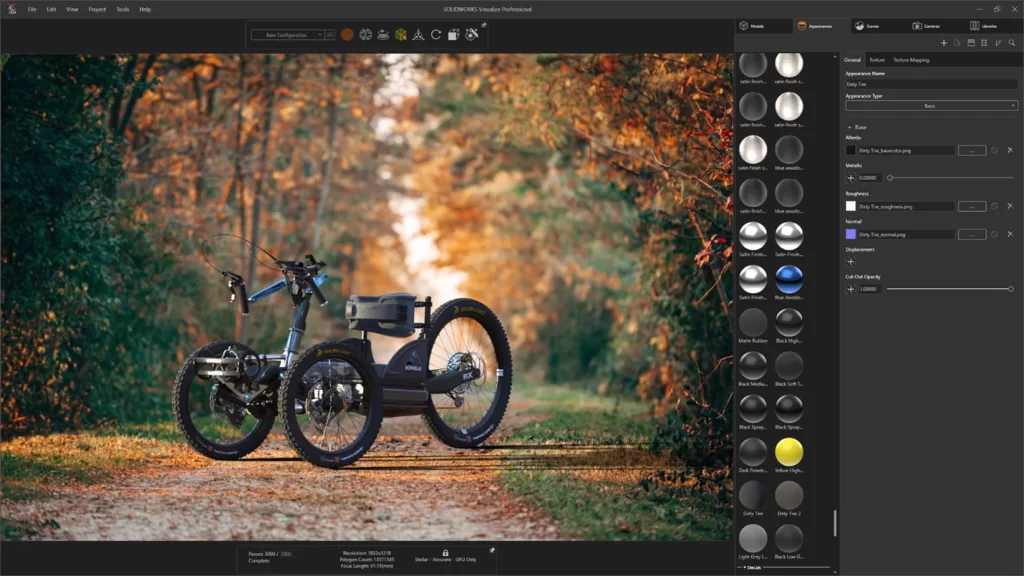
                  SOLIDWORKS Visualize allows users to create compelling appearances with advanced real-life rendering capabilities. You can now select appearance types and optimize their parameters more easily with a simplified interface. Adjusting textures and texture maps provides greater control and fidelity. Combining normal and displacement maps and applying vector displacement allows you to replicate the realistic appearance of various surfaces, from metal to glass to plastic.


                  SOLIDWORKS CAD 2024 is a powerful and user-centric release that underscores its position as a leader in 3D CAD software. With an unwavering commitment to user-driven innovation, a focus on interoperability and collaboration, streamlined workflows, improved clarity and communication, and increased efficiency and productivity, SOLIDWORKS empowers engineers and designers to tackle their most challenging projects with confidence. As technology continues to evolve, SOLIDWORKS remains a reliable partner for professionals seeking to bring their design visions to life with greater ease and effectiveness.


                  Download the top 10 here!

                  X_green_halo

                  Any questions? Need help? Ask one of our experts.

                  Whether you’re ready to get started or just have a few more questions, you can contact us toll-free:
                    3DEXPERIENCE SOLIDWORKS Offline Mode

                    BLOG

                    3DEXPERIENCE SOLIDWORKS Offline Mode

                    [techtips_featured_image_shortcode]

                    Working offline in 3DEXPERIENCE SOLIDWORKS allows you to continue working on your CAD models even when you don’t have an internet connection. Here are the steps to work offline in 3DEXPERIENCE SOLIDWORKS: 


                    Step #1: Save Your Files Locally 


                    1 – Open the 3DEXPERIENCE SOLIDWORKS application on your computer.


                    2 – Log into the 3DEXPERIENCE platform.


                    3 – Open the model or file you plan to work on while offline. You can do this by either dragging and dropping it into SOLIDWORKS or choosing “Open from 3DEXPERIENCE.”


                    4 – Make sure to lock the file and its components on the platform to prevent others from making changes while you work offline.


                    5 – The file is now cached locally on your computer.


                    Step #2: Switch to Offline Mode 


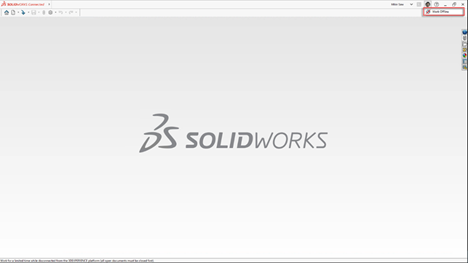
                    1 – In the upper right corner of the SOLIDWORKS interface, click on your user icon.


                    2 – Click the globe icon next to ‘Work Offline.’


                    solidworks 3dexperience


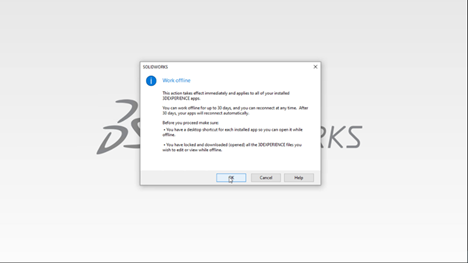
                    3 – A dialog box will appear, providing information about working offline and allowing you to set the offline time (up to 30 days).


                    4 – Click ‘OK’ to switch to offline mode.


                    solidworks 3dexperience


                    Step #3: Work Offline 


                    1 – While working offline, you can make changes to your locally cached files.


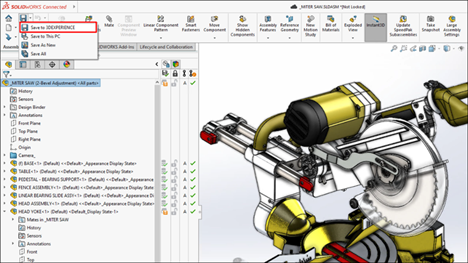
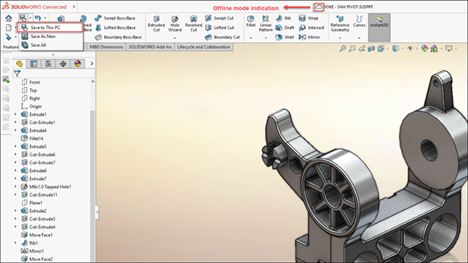
                    2 – Save your changes using local save options like ‘Save to This PC’ or ‘Save As New.’


                    solidworks 3dexperience


                    3 – You can continue working on your files without an internet connection.


                    Step #4: Save Your Files Back Online 


                    1 – To switch back to online mode, click your user icon again and then click the globe icon next to ‘Work Offline.’


                    2 – Open the files you saved locally while offline.


                    3 – Use the SOLIDWORKS save options, including ‘Save to 3DEXPERIENCE,’ to save your files back to the 3DEXPERIENCE platform.


                    4 – Your files are now synchronized with the online platform, and you can continue working online.


                    solidworks 3dexperience 

                    Remember that you can work offline for a maximum of 30 consecutive days. Ensure you plan your offline work in advance and save the necessary files locally before going offline. Additionally, create desktop shortcuts for locally installed apps to access them while offline. 


                    Working offline in 3DEXPERIENCE SOLIDWORKS allows you to be productive even when you don’t have an internet connection. This feature can be particularly useful for remote work or situations where a stable internet connection is not available. 

                    X_green_halo

                    Any questions? Need help? Ask one of our experts.

                    Whether you’re ready to get started or just have a few more questions, you can contact us toll-free:
                        Download

                          Download

                            Download